

Chapter 1 · Get started
Teams, users and roles
You create a team, add a requester and an approver, and learn what the three system roles allow.
Before you start
- FluxGate is running and the first admin exists. See Install and first boot.
- Sign in as
adminSystem admin. Only an admin, or a user with team management access, sees the Settings group in the sidebar.
Why you need more than one person
Approvals only mean something when the person who asks and the person who approves are different people. FluxGate enforces this: a requester cannot approve their own request. Before you model any release, create a team and two users: one who requests changes and one who approves them.
Teams, users and roles
A team is the group that owns features and pipelines. The Select team selector in the header scopes what you see to one team.
A user signs in with a username and password. A user can belong to several teams and can hold several roles. Roles apply across every team and environment.
FluxGate has three system roles, shown on the Roles page. They are protected: you cannot delete them.
| Role | What it allows |
|---|---|
| Requester Requester | Request deployment and stage changes. Cannot approve them. |
| Approver Approver | Approve deployment requests and stage changes. |
| Team Admin Team Admin | Manage team settings and members. |
A fourth kind of access sits outside the role list: an admin, shown as System admin, has full control of the instance. The first user you create is an admin. When you create a user, the Admin checkbox grants the same access. Leave it cleared for priya and sam.
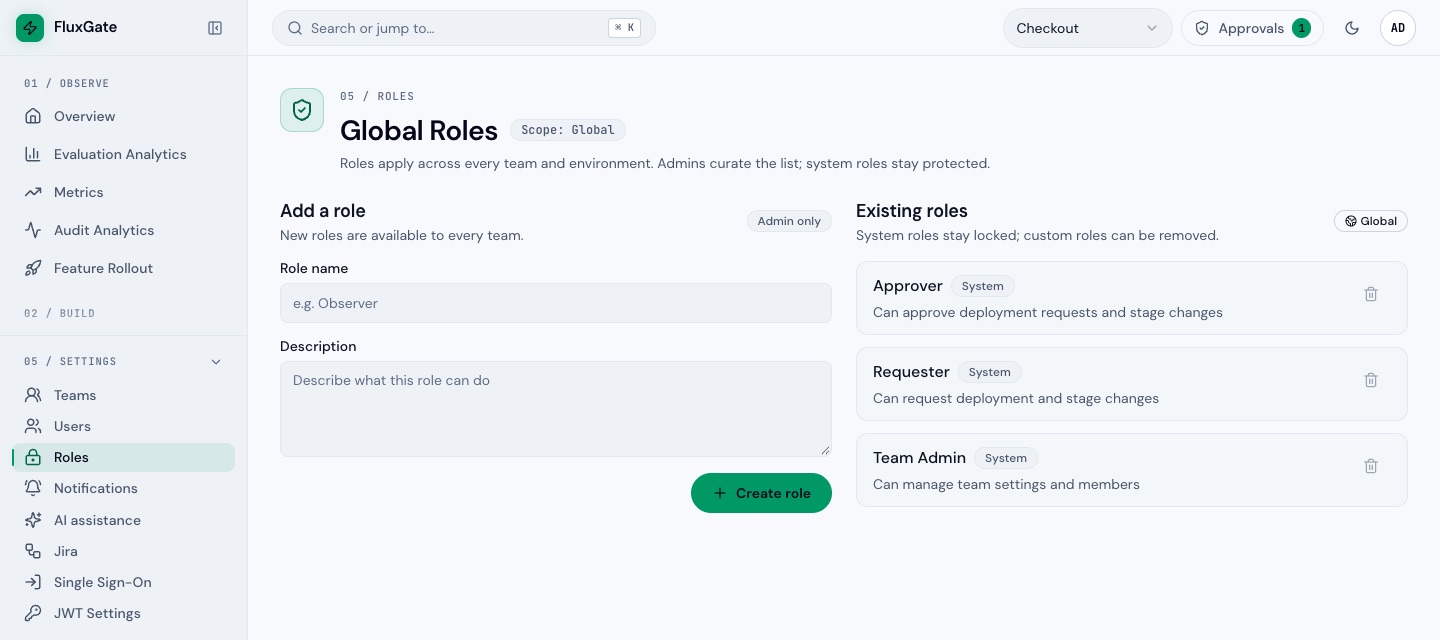 (opens full size in a new tab)
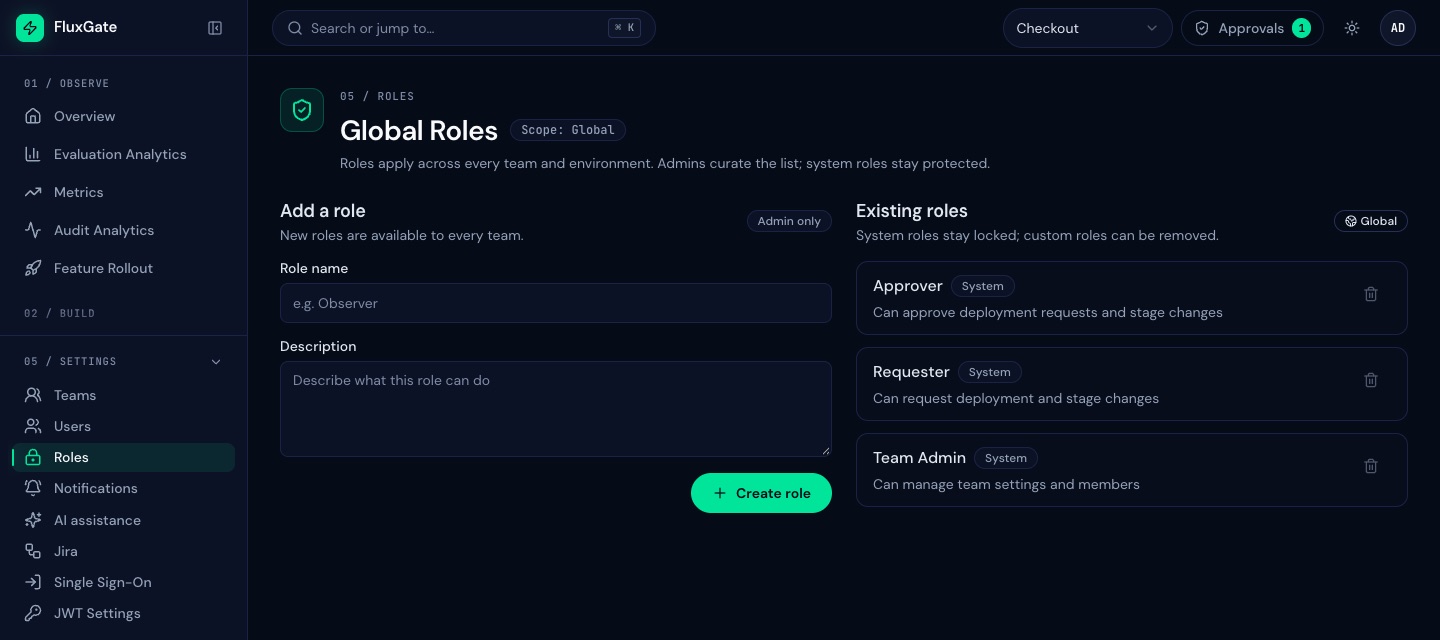 (opens full size in a new tab)
Temporary passwords
You never need to know a user's final password. You set a temporary password on the Credentials tab. FluxGate forces the user to replace it at first sign-in, on a page titled Update Your Password. After the update, the user signs in again with the new password.
Create the team and users
- Click Settings in the sidebar, then Teams. The page opens at
/settings/teams. - Click Create New Team. The dialog Create Team opens.
- Fill Team Name with
Checkoutand Description withJuniper Market checkout squad. Click Create Team. The toast "Team created successfully" appears and the team shows in the list. - Reload the page. The Select team selector in the header now shows
Checkout. - Click Users under Settings, then Create New User. The page Create User opens at
/users/create. - Fill Username with
priya, a Password, First Name, Last Name and Email. Click Create User. Only Username and Password are required. The toast "User created successfully" appears and the edit page opens. - On the Assign Teams tab, tick
Checkoutunder Team Assignment and click Assign Selected Teams. - On the Assign Roles tab, tick
Requesterunder Role Assignment and click Assign Selected Roles. - On the Credentials tab, fill Temporary Password and Confirm Temporary Password, then click Set Temporary Password. The password needs at least 8 characters. The toast "Temporary password set successfully" appears.
- Go back to
/users/createand repeat steps 6 to 9 forsam. Assign teamCheckoutand the roleApprover.
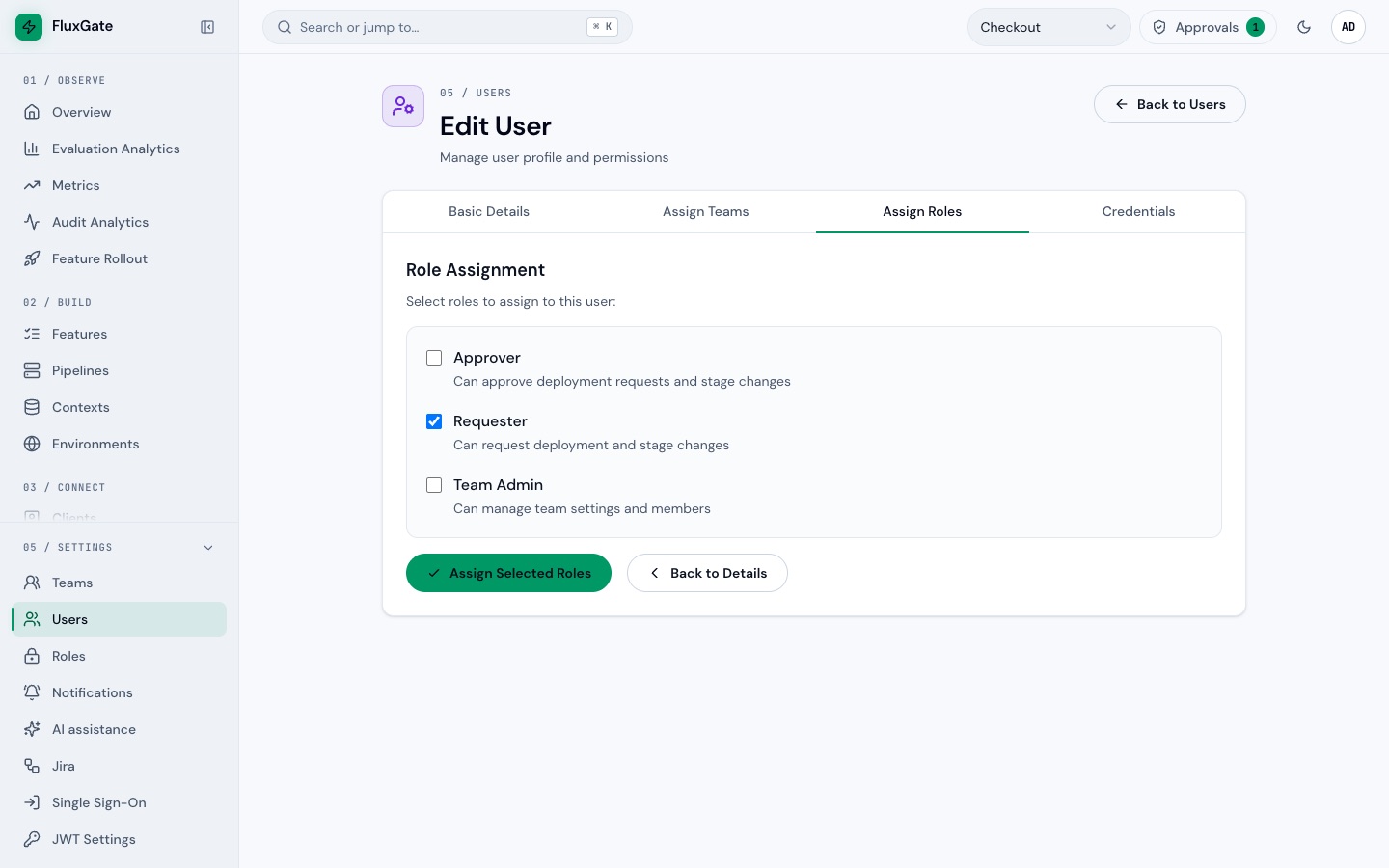 (opens full size in a new tab)
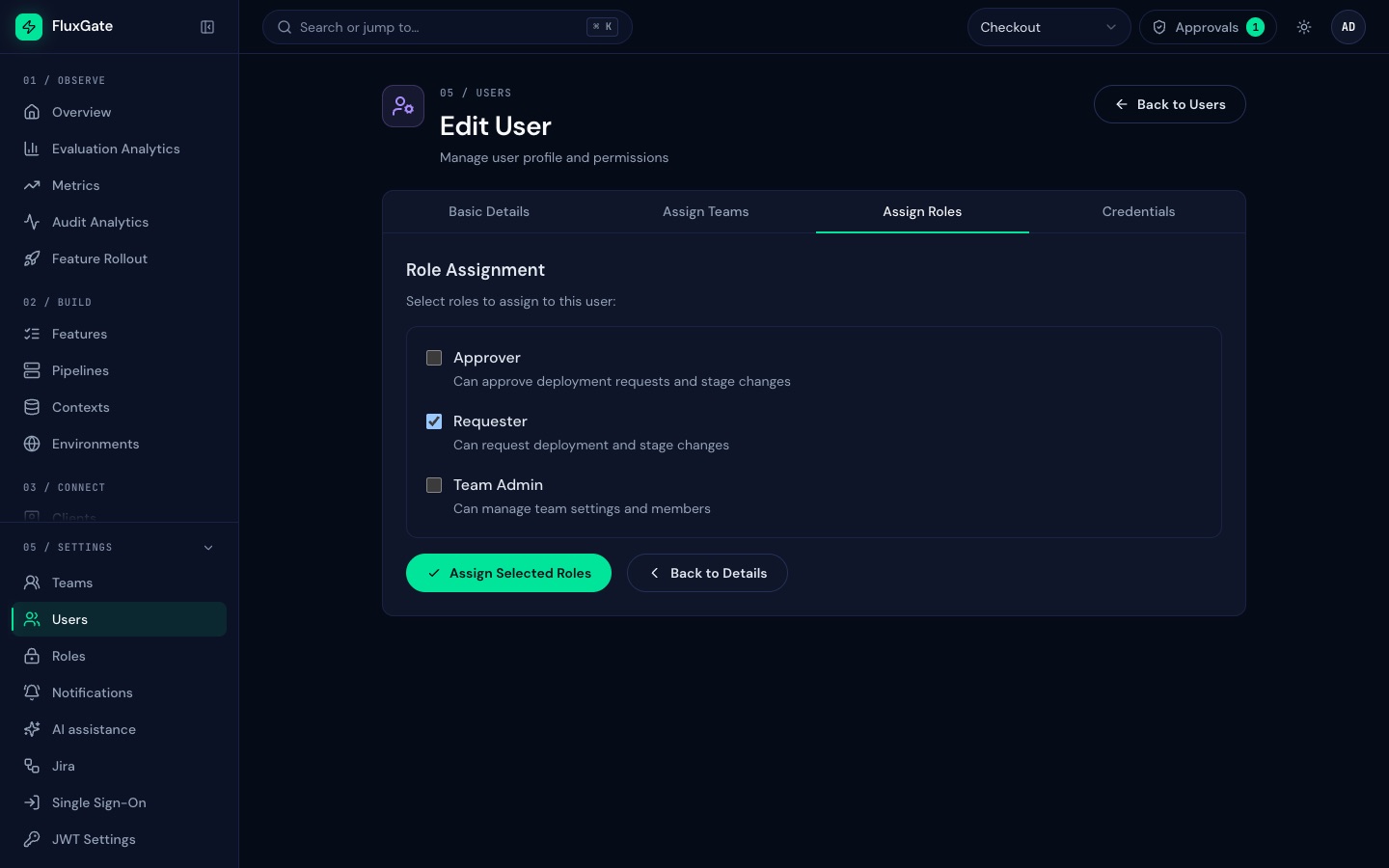 (opens full size in a new tab)
The create form asks for a Password even though you set a temporary one afterwards. Type any placeholder and replace it on the Credentials tab.
Check the first sign-in
- Open the account menu in the header and click Log out.
- At
/login, sign in aspriyawith the temporary password. - FluxGate redirects to
/temporary-password-reset, titled Update Your Password. Fill Current Password with the temporary password, then New Password and Confirm New Password. Click Update Password. - FluxGate returns to
/loginwith the notice "Password changed. Sign in again." Sign in aspriyawith the new password.
Examples
After this page, the instance holds this data:
| Username | Role | Team | Password state |
|---|---|---|---|
admin | admin | none | permanent |
priya | Requester | Checkout | permanent, set by priya |
sam | Approver | Checkout | temporary: the first sign-in lands on Update Your Password |
Good to know
- A requester cannot approve their own request. If it happens anyway, FluxGate rejects the approval with the error
Requesters cannot approve their own request. - The Select team selector loads once per page load. A team you create in the current session appears only after you reload the page or sign in again.
- A temporary password must be at least 8 characters long. The Set Temporary Password button stays disabled until both fields are filled.
- A Requester sees no Settings group in the sidebar. Sign in as
adminfor the steps that need it. - Anyone can change their own password later: open the account menu and click Reset password (
/reset-password). - The Settings group has more pages for later: Single Sign-On (
/settings/sso) lets people sign in through an OpenID Connect provider and maps provider groups to roles and teams. Notifications (/settings/notifications) configures email and SMS gateways. Both are admin-only.
Next
Create the Development, Staging and Production environments and the pipeline checkout-release in Environments and pipelines.