

Enterprise · Single sign-on and SCIM
Sign in with SAML 2.0
FluxGate is a SAML service provider that trusts only the signing certificates you store, so metadata import, attribute names and a staged certificate rollover are all it needs.
Video coming soon
Sign in with SAML 2.0
Before you start
- You read Single sign-on and SCIM and know which role sync mode you want.
public_base_urlis set inconfig.tomlto the public address of the backend, for examplehttps://fluxgate.example.com. SAML does not work without it.- The backend runs the Docker image
forgeopslabs/flux-gate-backend:v2.0.1or a Linux build. The macOS builds have no SAML: SAML admin changes fail withsaml_unavailable, and SAML sign-ins fail withsso_provider_error. - You can create a SAML application at your identity provider (IdP), such as Okta, Keycloak or Microsoft Entra ID.
- The roles and teams you want to map exist.
- Sign in as
adminSystem admin.
SAML providers store no secret, so FLUXGATE_ENCRYPTION_KEY is not needed for them.
How a SAML sign-in works
FluxGate is a SAML 2.0 service provider (SP). It supports SP-initiated sign-in only: FluxGate sends the AuthnRequest over HTTP-Redirect, and the IdP posts the Response over HTTP-POST.
- The person clicks Sign in with Microsoft Entra ID on
/login. The backend creates a login state (valid 10 minutes, single use), sets the cookiefluxgate_sso_state, and redirects the browser to the IdP SSO URL. The login state travels asRelayState. TheAuthnRequestis not signed. - The IdP signs the person in and posts
SAMLResponseandRelayStateto the FluxGate Assertion Consumer Service (ACS). - The ACS consumes the login state, validates the response, and keeps the result as a pending login for 60 seconds. It redirects the browser to a continue address of the backend.
- The browser follows the redirect with the state cookie. The backend checks that the cookie belongs to the pending login and consumes it. Then it finds or creates the user, links, syncs roles, and issues a one-time code.
- The UI exchanges the one-time code for a normal FluxGate session, as for OpenID Connect.
The cookie check comes before any user record changes. A response that someone posts into another person's browser cannot complete a sign-in. A response that FluxGate did not ask for (IdP-initiated) has no known RelayState and fails with sso_state_invalid.
FluxGate trusts only the signing certificates stored for the provider. Certificates inside the SAML message are ignored.
Service provider details
Every SAML IdP needs three values from FluxGate. Let <base> be public_base_url without a trailing slash:
| Value | Also called | Address |
|---|---|---|
| ACS URL | Reply URL, Single sign-on URL, Recipient, Destination | <base>/api/v1/auth/sso/<slug>/saml/acs, binding HTTP-POST |
| SP entity ID | Audience, Identifier | By default <base>/api/v1/auth/sso/<slug>/saml/metadata |
| SP metadata URL | <base>/api/v1/auth/sso/<slug>/saml/metadata |
For Juniper Market's provider entra, the ACS URL is https://fluxgate.example.com/api/v1/auth/sso/entra/saml/acs.
Set these at the IdP:
- NameID format:
emailAddress. FluxGate also acceptspersistentandunspecified. It refusestransientunless Subject source names an attribute. - Signing: sign the assertion, the response, or both, with SHA-256 or stronger. FluxGate asks for signed assertions (
WantAssertionsSigned="true"). - Encryption: off. FluxGate does not decrypt assertions.
- Request signatures: not required. FluxGate does not sign requests.
The metadata endpoint is public and works before you enable the provider. It is not signed, and its content type is application/samlmetadata+xml.
The SP entity ID
When you leave SP entity ID empty at create, FluxGate stores the default (the metadata URL) and never changes it on its own, even if public_base_url changes later. You can set your own value instead.
Changing the SP entity ID later does not clear linked identities. Some IdPs scope persistent NameIDs to the SP, though, so people can get new identities at their next sign-in.
Add a SAML provider
- Open Settings, Single Sign-On (
/settings/sso) and click Add provider. Set Protocol to SAML 2.0. The protocol cannot change after creation. - Fill in Display name (
Microsoft Entra ID) and Slug (entra). - Under Import identity provider metadata, paste the IdP's Metadata URL or its Metadata XML, and click Import metadata. The toast "Metadata imported" appears. IdP entity ID, IdP SSO URL and Signing certificates are filled in.
- Leave SP entity ID empty to use the default shown below the field.
- Set Subject source, Email attribute, First name attribute, Last name attribute and Groups attribute if the IdP uses names other than the defaults. See Attributes.
- Set Role sync mode, Allowed email domains, Create accounts on first sign-in and Link to existing accounts by email. Leave Enabled off. Click Create provider. The toast "SSO provider created" appears.
- Click Edit provider on the row. Under Service provider details, click Copy next to SP entity ID, ACS URL and metadata URL, and register them at the IdP.
- Click Test connection. The result lists the number of certificates, the earliest expiry, whether the metadata URL is reachable, and whether the metadata entity ID matches.
- Close the dialog, click the Group mappings icon, add the mappings, and click Save mappings.
- Open Edit provider again, switch Enabled on and click Save changes.
/loginshows Sign in with Microsoft Entra ID. Sign in with a test account.
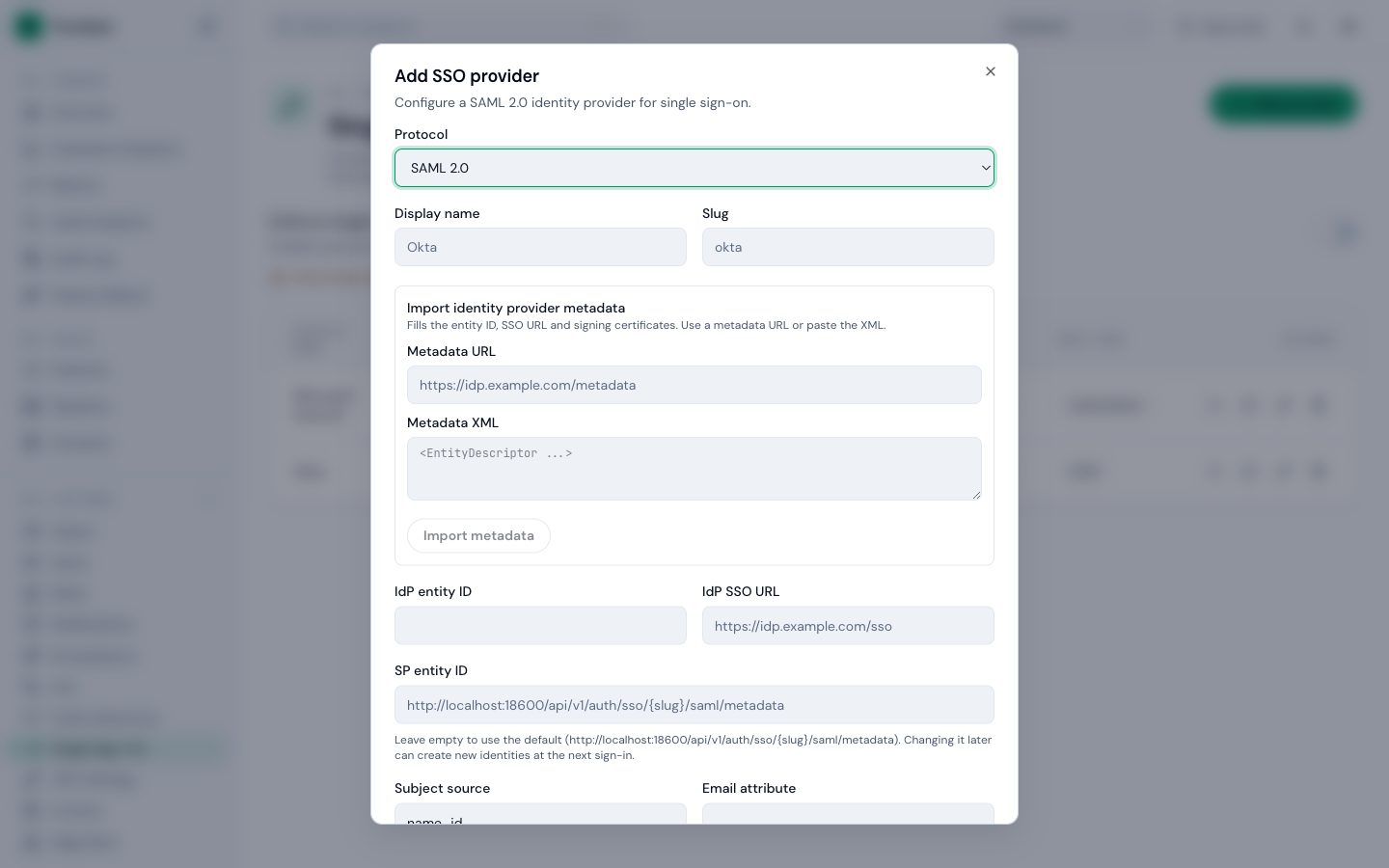 (opens full size in a new tab)
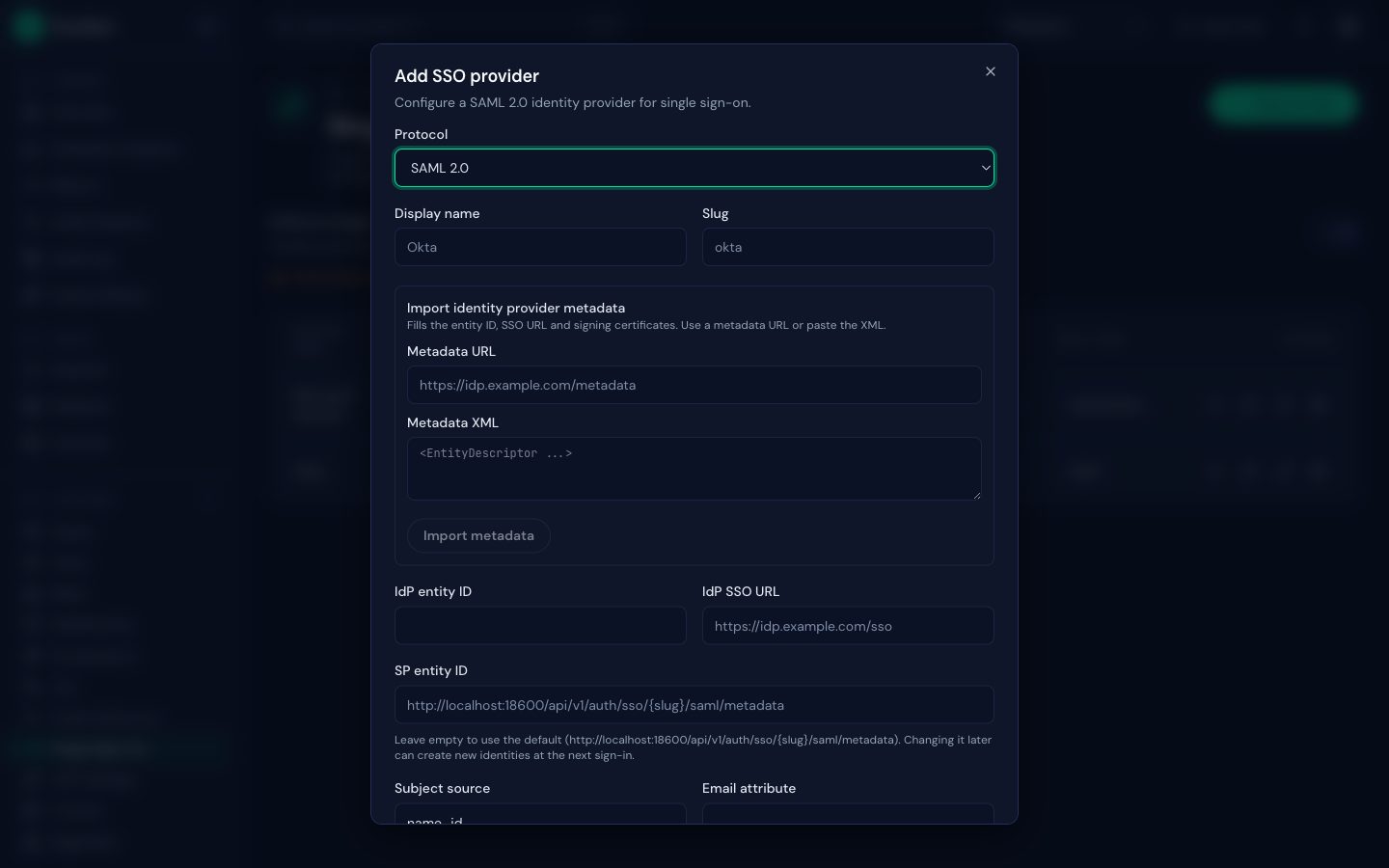 (opens full size in a new tab)
Without metadata, fill IdP entity ID and IdP SSO URL by hand, paste the IdP signing certificate into Certificate PEM, and click Add certificate. A provider needs at least one certificate.
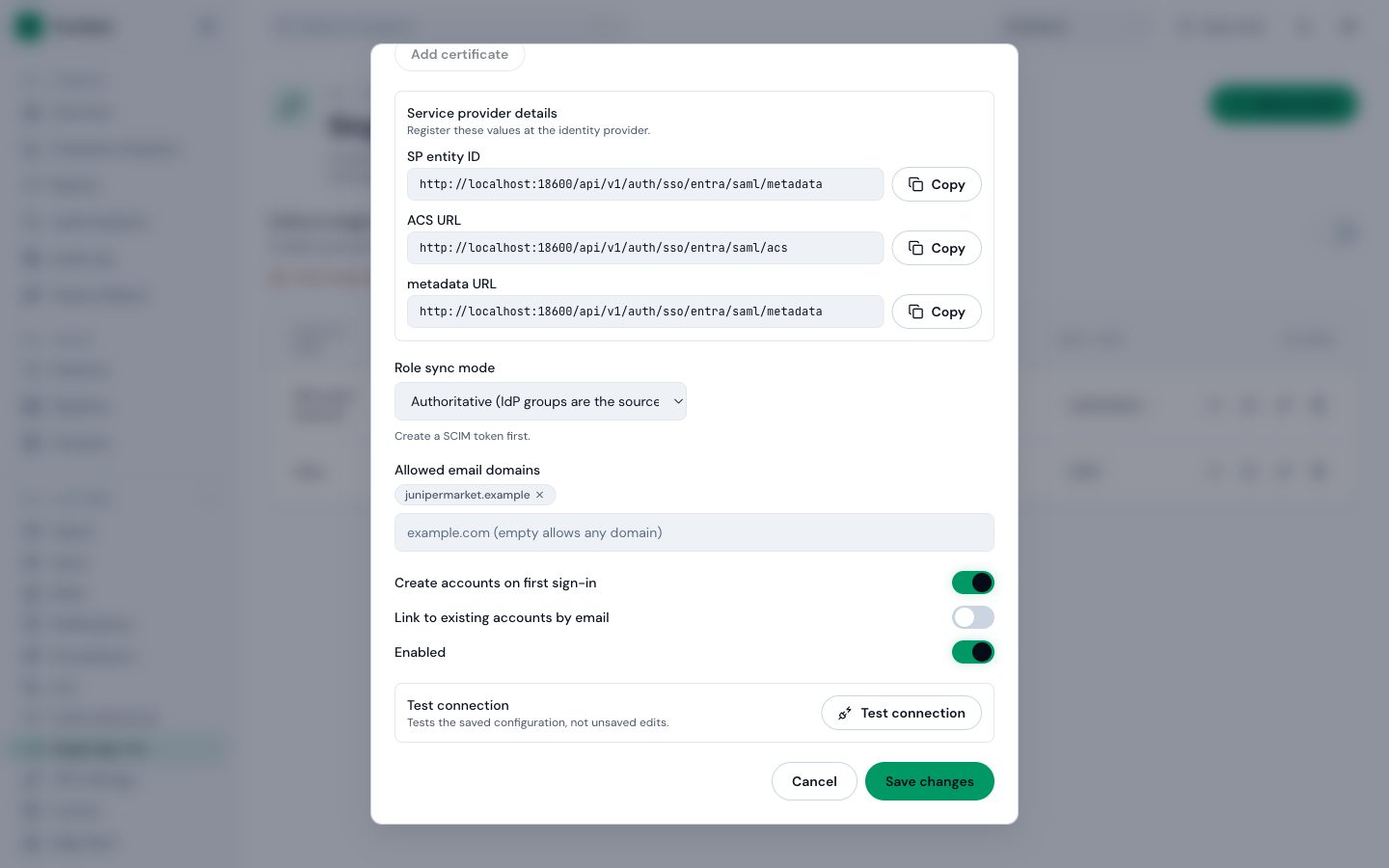 (opens full size in a new tab)
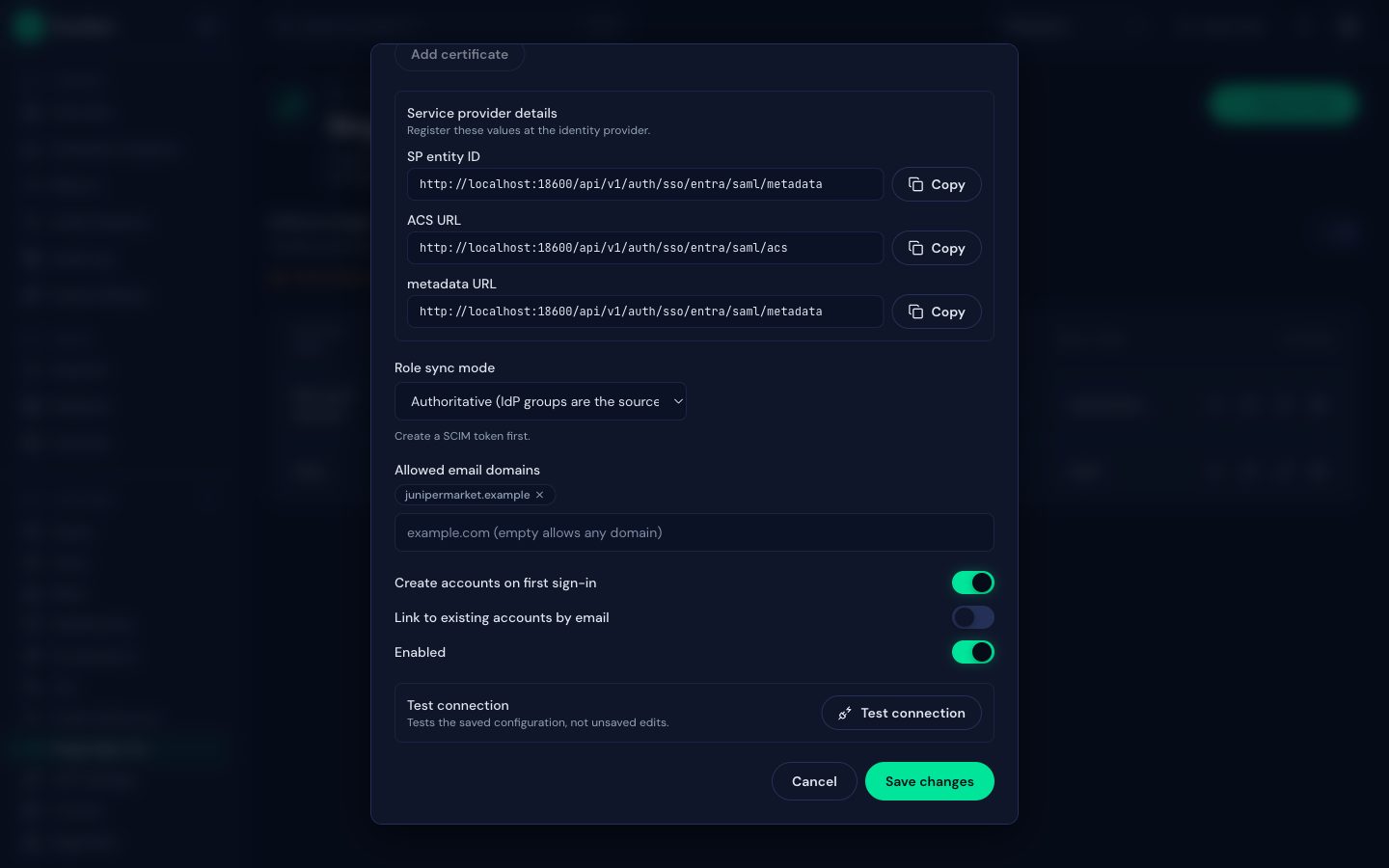 (opens full size in a new tab)
The Service provider details box shows the warning "SAML needs public_base_url to be set in the backend configuration before it can be enabled." on a saved provider when public_base_url is missing.
Metadata import rules
- FluxGate fetches a metadata URL from the backend host, with a 1 MiB limit, a 10-second timeout and no redirects. The URL must be
https, orhttpfor a loopback address. - FluxGate imports only signing keys:
use="signing"or nouse. - Metadata with several
EntityDescriptorelements fails withsaml_metadata_invalid, which lists the entity IDs found. - The IdP SSO URL must be
https, orhttpforlocalhostand loopback addresses. - On a saved provider, a new import sets the entity ID and SSO URL, replaces the certificates that came from metadata, and keeps the ones you added by hand.
Changing the IdP entity ID clears the linked identities of the provider. Users keep their accounts and are linked again or created at their next sign-in.
Attributes
FluxGate reads these values from the assertion:
| Value | Field | Default when the field is empty |
|---|---|---|
| Subject | Subject source | name_id: the NameID value. Or the first value of the attribute you name. |
| Email attribute | The first attribute named email, mail or http://schemas.xmlsoap.org/ws/2005/05/identity/claims/emailaddress. Then the NameID when its format is emailAddress. | |
| First name | First name attribute | givenName, firstName or http://schemas.xmlsoap.org/ws/2005/05/identity/claims/givenname |
| Last name | Last name attribute | sn, surname, lastName or http://schemas.xmlsoap.org/ws/2005/05/identity/claims/surname |
| Groups | Groups attribute | None. Set it to read groups at sign-in. |
- FluxGate matches people by the provider and the subject. A subject that never changes, such as an immutable user ID, survives email changes.
- URI-style attribute names work everywhere.
- In Groups attribute, one attribute value is one group, and several values are several groups. Mappings and role sync work as for OpenID Connect. The role sync mode SCIM ignores sign-in groups.
- The display name comes from
displayName.
Email verification
SAML has no email_verified claim. Assume IdP emails are verified (on by default) decides. With it off, Link to existing accounts by email and Allowed email domains never succeed, because both need a verified email. Leave it on when your IdP owns the email addresses, and restrict who may sign in through assignment at the IdP.
Clock skew
Clock skew (seconds) is the leeway for NotBefore and NotOnOrAfter. The default is 60, the range 0 to 300. Fix time sync (NTP) on both sides before you raise it.
What FluxGate checks in a response
Every failed check gives the sign-in error sso_token_invalid, with the message "The identity provider's response could not be verified." The backend log names the step, for example SAML response for provider 'entra' refused at step audience. The log never holds the response, an assertion, a NameID or an attribute value.
| Step | Check |
|---|---|
too_large, base64, xml, doctype | At most 1 MiB decoded, valid base64 and XML. A DOCTYPE is refused, and external entities are never read. |
destination | Response/@Destination equals the ACS URL. |
status | The status code is Success. |
assertion_count, encrypted_assertion | Exactly one assertion, and it is not encrypted. |
signature, algorithm, unknown_key, duplicate_id | The assertion is signed, or the response is signed and holds that one assertion. Every signature must verify and cover the element it sits in. RSA or ECDSA with SHA-256, SHA-384 or SHA-512. SHA-1 is refused. The key is one of the provider's certificates. Duplicate ID values are refused. |
issuer | The issuer equals the IdP entity ID. |
not_yet_valid, expired | NotBefore and NotOnOrAfter hold within the clock skew. |
audience | The audience contains the SP entity ID. |
subject_confirmation, recipient, in_response_to | One bearer confirmation, with Recipient equal to the ACS URL, a NotOnOrAfter, and InResponseTo equal to the request FluxGate sent. |
replay | FluxGate accepts an assertion ID once. |
name_id | The NameID has no comment or child element. A transient NameID needs Subject source set to an attribute. |
Certificates and rollover
A provider holds up to 10 signing certificates, and any of them verifies a response. This lets you roll the IdP certificate over without downtime.
- A certificate needs an RSA key of 2048 bits or more, or an EC key on P-256 or P-384. Add one certificate per entry. A bad certificate fails with
saml_certificate_invalidand the reason. - FluxGate accepts an expired certificate and marks it Expired. It does not check certificate dates when it verifies a response: the stored certificate is the trust.
- The provider list shows Certificate expires soon (30 days or less) or Certificate expired. No badge shows while at least one valid certificate expires in more than 30 days.
- You cannot remove the last certificate (
saml_last_certificate). - FluxGate does not refresh metadata on its own. Import again after the IdP changes its certificate.
Roll over a certificate
- At the IdP, create the new signing certificate, but keep signing with the old one.
- In FluxGate, open Edit provider. Under Signing certificates, paste the new certificate into Certificate PEM and click Add certificate. Both certificates now verify responses.
- At the IdP, switch signing to the new certificate.
- Sign in through the provider. The sign-in works.
- In FluxGate, remove the old certificate.
Use the manual add for a staged rollover. A metadata import replaces the certificates that came from metadata, so the old one disappears at once. If the IdP publishes both certificates in its metadata while it still signs with the old one, as Keycloak does, a re-import in step 2 also works.
Certificate changes work on the Free edition too, so a rollover works after a license downgrade. In ReadOnly they are blocked, like other admin changes. Imports and certificate changes are recorded as sso_provider_updated audit entries, with the SHA-256 fingerprint of the certificate.
Identity provider recipes
For every recipe, set public_base_url, then copy the ACS URL, the SP entity ID and the metadata URL from Service provider details. Create the provider in FluxGate with Import metadata from the IdP metadata URL. Click Test connection, then switch Enabled on.
The Okta and Keycloak recipes are verified: sign-in, account creation, admin access through a group mapping, and for Keycloak also certificate rollover. The Entra ID recipe is a draft that was not run against a live tenant.
Okta
- In the Admin Console, open Applications, Create App Integration, and choose SAML 2.0. Name the app.
- Set Single sign-on URL to the ACS URL, and keep Use this for Recipient URL and Destination URL checked. Set Audience URI (SP Entity ID) to the SP entity ID.
- Set Name ID format to EmailAddress and Application username to Email.
- Keep the advanced defaults: Response Signed, Assertion Signature Signed, RSA-SHA256, SHA256, Assertion Encryption Unencrypted. Do not enter attribute statements in the wizard. Finish the wizard.
- On the Sign On tab, under Attribute statements, choose Show legacy configuration. Add
email=user.email,givenName=user.firstNameandsurname=user.lastName. Add a group attribute statement namedgroupswith the filter Matches regexFluxGate-.*. With the regex.*, Okta sends every group, includingEveryone. - On Assignments, assign people or groups.
- In FluxGate, import the app's Metadata URL (on Sign On, Metadata details). The Okta IdP entity ID looks like
http://www.okta.com/<id>. Set Groups attribute togroups. - To roll over, generate a new SAML signing certificate in Okta without making it active, add it in FluxGate, make it active in Okta, then remove the old certificate.
Keycloak
- In the realm, open Clients, Create client, with client type SAML. Set Client ID to the SP entity ID.
- Set Valid redirect URIs and the assertion consumer service POST URL to the ACS URL. Set Name ID format to email. Turn Force POST binding on.
- Turn Sign documents and Sign assertions on, with the algorithm
RSA_SHA256and exclusive canonicalization (the default). Turn Client signature required off and Encrypt assertions off. - Under Client scopes, the dedicated scope, add User Property mappers for
email,givenNameandsurname. For groups, add a Group list mapper with the attribute namegroups, Single Group Attribute on and Full group path off. - In FluxGate, import the metadata from
https://<keycloak>/realms/<realm>/protocol/saml/descriptor. Set Groups attribute togroups.
The Keycloak descriptor shows WantAuthnRequestsSigned="true". With Client signature required off, Keycloak does not enforce it, and the unsigned requests from FluxGate work.
To roll over in Keycloak, import before Keycloak signs with the new key:
- Under Realm settings, Keys, Providers, add an
rsa-generatedkey provider with a lower priority than the current key. Keycloak keeps signing with the old key. - In FluxGate, import the metadata again. This adds the new certificate.
- In Keycloak, raise the new provider's priority above the old one. Test a sign-in.
- Disable the old key provider in Keycloak, then remove the old certificate in FluxGate.
If you raise the new key's priority first, Keycloak signs with it at once, and every sign-in fails at the signature step until FluxGate has the new certificate.
Microsoft Entra ID (draft)
This recipe follows the vendor documentation and is not verified yet.
- Under Enterprise applications, choose New application, Create your own application (non-gallery). Under Single sign-on, choose SAML.
- In Basic SAML configuration, set Identifier (Entity ID) to the SP entity ID and Reply URL (Assertion Consumer Service URL) to the ACS URL.
- In Attributes and claims, set the unique user identifier to
user.mailwith the Name ID format Email address. The default claims for email, given name and surname use the URI names FluxGate reads by default. - For groups, the recommended option is app roles: define app roles, assign users or groups to them, and set Groups attribute to
http://schemas.microsoft.com/ws/2008/06/identity/claims/role. The role values are the group values in your mappings. - The alternative is a group claim for Groups assigned to the application with the source attribute Group ID. Set Groups attribute to
http://schemas.microsoft.com/ws/2008/06/identity/claims/groups, and map group object IDs. Entra sends at most 150 groups in a SAML token. A user in more groups gets an overage claim instead, which FluxGate does not follow, so that user has no groups. In Authoritative mode this removes their SSO-managed roles. - Under SAML certificates, set the signing option to Sign SAML response and assertion with SHA-256. Copy the App Federation Metadata Url into Import metadata.
- Entra sends no email verification flag. With Assume IdP emails are verified on (the default), domain lists and linking by email work. Restrict who may sign in through user assignment on the enterprise application.
Not supported yet
- IdP-initiated sign-in. Start every sign-in from the FluxGate login page.
- Encrypted assertions. Turn encryption off at the IdP.
- Signed
AuthnRequestmessages. Do not require request signatures at the IdP. - SAML Single Logout. Signing out of FluxGate does not sign the person out of the IdP.
- Automatic metadata refresh, and audit entries for certificate expiry.
Good to know
- A SAML provider never derives addresses from request headers, because the IdP checks the ACS URL and the SP entity ID. If someone removes
public_base_urlafter a SAML provider is enabled, its sign-ins fail withsso_provider_error, and the log saysSAML login needs public_base_url. - The ACS accepts a form of up to 1.5 MiB. A larger or malformed form fails with
sso_token_invalid. - A browser that posts the same response twice (back button, retry) fails at the
replaystep. Start a new sign-in. - SCIM works with SAML providers. The link claims are the assertion attributes by their exact names, plus
emailandname_id. See SCIM provisioning.
Troubleshooting
Find the step in the backend log line refused at step <name>, then look it up here or in What FluxGate checks in a response.
Step not_yet_valid or expired
The clocks of FluxGate and the IdP differ by more than Clock skew (seconds). Fix time sync on both hosts. Raise the skew, at most 300, only as a stopgap.
Step audience
The IdP sends another audience than the SP entity ID. Set the IdP audience to the exact SP entity ID in Service provider details.
Step destination or recipient
The ACS URL at the IdP differs from <public_base_url>/api/v1/auth/sso/<slug>/saml/acs. Register the exact ACS URL, and check public_base_url and the slug.
Step signature or unknown_key
The IdP signs neither the assertion nor the response, a signature does not cover its element, or the IdP signs with a certificate FluxGate does not have, for example after a rollover. Turn signing on at the IdP. Import the metadata again or add the certificate.
Step algorithm
The IdP signs with SHA-1 or another refused algorithm. Use RSA-SHA256 or stronger.
Step in_response_to or sso_state_invalid right after the IdP
The IdP started the sign-in, or reused an old request, or a proxy stripped the fluxgate_sso_state cookie, or the person used a second tab. Start from the FluxGate login page in one tab, turn IdP-initiated sign-in off, and forward cookies on /api/v1/auth/sso/.
Step name_id, or sso_email_missing
The NameID is transient, or the IdP sends no email. Use the NameID format emailAddress or set Subject source to an attribute. Send an email attribute, or set Email attribute.
sso_provider_error at the start
public_base_url is not set, or the backend is a build without SAML. Set public_base_url, and run the Docker image or a Linux build.
Saving fails with saml_requires_public_base_url
You created a provider without an SP entity ID, or enabled one, while public_base_url is unset. Set public_base_url and restart the backend.
Next
Let the IdP create, update and deactivate accounts: SCIM provisioning.