

Enterprise · Single sign-on and SCIM
Single sign-on and SCIM
Your identity provider decides who signs in to FluxGate and what each person may do, and a local break-glass admin keeps a way in when the provider is down.
Video coming soon
Single sign-on and SCIM
Before you start
- Your license includes Single sign-on. For SCIM it also includes SCIM provisioning. Check both under Settings, License. See Editions below.
- You can register an application at your identity provider (IdP), or you work with the person who can.
- The roles and teams you want to grant exist under Settings, Roles and Teams. Juniper Market uses the built-in roles Requester and Approver and the team
Checkout. - Sign in as
adminSystem admin. Only a system admin can open Settings, Single Sign-On. Other users see "Access Denied".
What single sign-on and SCIM give you
Without single sign-on, every FluxGate user has a local password, and an admin creates, changes and removes each account by hand. In a company with an IdP such as Okta, Microsoft Entra ID or Keycloak, that is a second list of people to keep in step with the first.
Single sign-on (SSO) moves the sign-in to your IdP:
- People click Sign in with Okta (or the name of your provider) on the FluxGate login page and sign in at the IdP. They have no FluxGate password.
- FluxGate can create the account at the first sign-in (just-in-time provisioning) or link the sign-in to an account that already exists.
- IdP groups map to FluxGate roles, teams and the system admin flag. Group membership in the IdP decides what a person may do in FluxGate.
- Enforce single sign-on turns password sign-in off for everyone except break-glass admins.
SCIM provisioning goes one step further. With SCIM 2.0, the IdP pushes changes to FluxGate as they happen:
- The IdP creates the account before the person signs in for the first time.
- A profile change at the IdP (name, email) updates FluxGate.
- When IT deactivates a person, FluxGate disables the account and revokes every access and refresh token in one transaction. The person's next request fails. Without SCIM, a session stays valid until it expires or an admin disables the account.
- With the role sync mode SCIM, the groups the IdP pushes drive roles, teams and the admin flag, even for people who have not signed in yet.
OpenID Connect or SAML 2.0
FluxGate supports both protocols. You can register several providers of both kinds, and each enabled provider gets its own button on the login page. Both protocols use the same rules for linking, just-in-time provisioning, group mappings, role sync, enforcement and SCIM.
| OpenID Connect (OIDC) | SAML 2.0 | |
|---|---|---|
| Flow | Authorization Code flow with PKCE (S256) | SP-initiated Web Browser SSO. FluxGate is the service provider (SP). |
| What you register at the IdP | One redirect URI | An ACS URL and an SP entity ID, or the SP metadata URL |
| What FluxGate needs from the IdP | Issuer URL, client ID, client secret | IdP metadata: entity ID, SSO URL, signing certificates |
| Groups arrive in | A claim of the ID token, or the userinfo endpoint | An attribute of the assertion |
Needs public_base_url | Recommended in production | Required |
| Builds | Docker image, Linux and macOS builds | Docker image and Linux builds. The macOS builds are OIDC only. |
Pick the protocol your IdP and your IT team prefer. If both are possible, OIDC needs fewer values on each side. You choose the protocol when you create a provider, and you cannot change it later. To move a provider to the other protocol, create a second provider.
Not supported: Single Logout and RP-initiated logout. Signing out of FluxGate does not sign the person out of the IdP. For SAML, IdP-initiated sign-in, encrypted assertions and signed AuthnRequest messages are not supported yet.
Identity providers
Any standards-compliant OIDC or SAML 2.0 IdP works. These guides exist:
| Identity provider | OIDC | SAML 2.0 |
|---|---|---|
| Okta | Recipe, tested with SCIM role sync. Full walk-through: FluxGate with Okta. | Recipe, verified |
| Keycloak | Recipe, tested | Recipe, verified, including certificate rollover |
| Microsoft Entra ID | Recipe, follows the vendor documentation | Recipe, draft, not yet verified |
For SCIM, the Okta setup was run against a live tenant. The Entra ID setup follows the vendor documentation. See SCIM provisioning.
The Single sign-on page
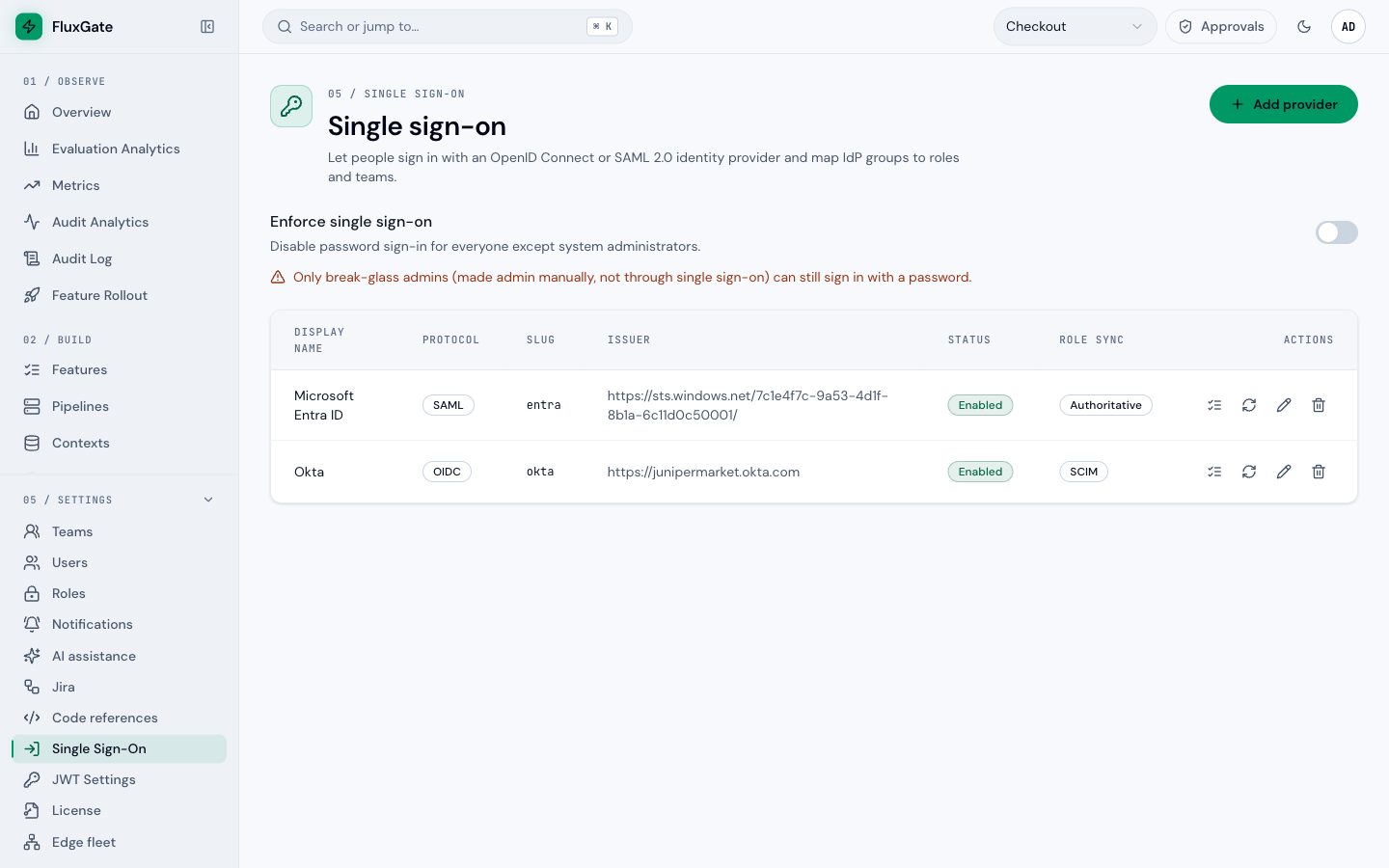
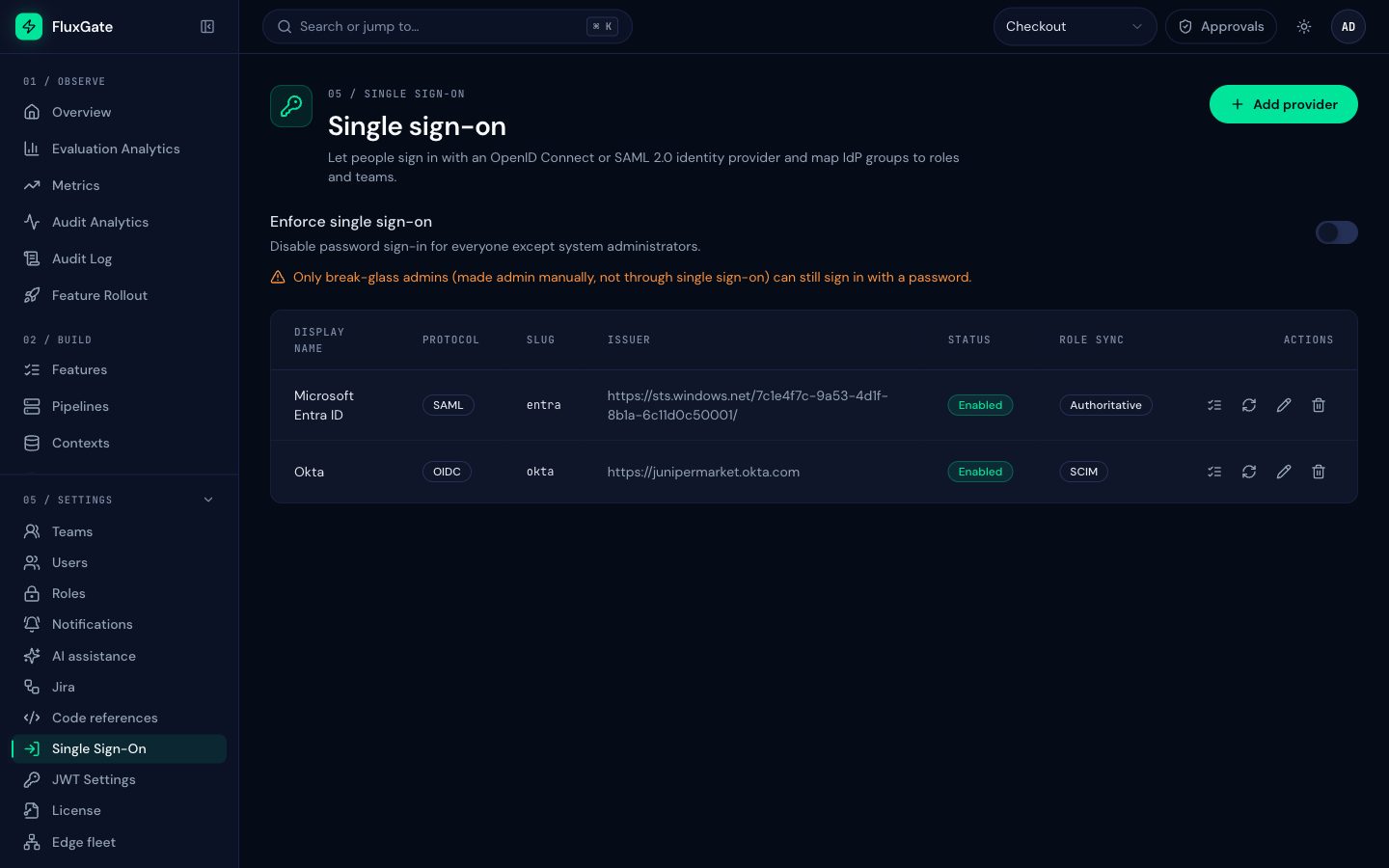
Open Settings, Single Sign-On (/settings/sso). The page lists every provider with its protocol, slug, issuer (for SAML: the IdP entity ID), status and role sync mode. The icons on each row open Group mappings, Provisioning (SCIM) and Edit provider, or delete the provider.
 (opens full size in a new tab)
 (opens full size in a new tab)
Deleting a provider deletes its linked identities, group mappings, SCIM tokens and SCIM records. The users stay.
How a sign-in works
The sign-in starts on the FluxGate login page in both protocols. FluxGate never signs a person in from a response it did not ask for.
OpenID Connect
- The person clicks Sign in with Okta. The backend creates a login state (valid 10 minutes, single use), sets the cookie
fluxgate_sso_state, and redirects the browser to the IdP. - The person signs in at the IdP. The IdP redirects the browser to the FluxGate callback with a code.
- The backend checks the state cookie, exchanges the code for tokens on the back channel, and validates the ID token. It finds or creates the user and syncs roles.
- The backend redirects the browser to the UI with a one-time code. The UI exchanges it for a normal FluxGate session. The IdP tokens never reach the browser.
SAML 2.0
- The person clicks Sign in with Microsoft Entra ID. The backend creates a login state, sets the same cookie, and redirects the browser to the IdP SSO URL with a
SAMLRequest. The login state travels asRelayState. - The person signs in at the IdP. The IdP posts a signed
SAMLResponseto the FluxGate ACS URL. - The backend validates the response and keeps the result as a pending login for 60 seconds. It redirects the browser to a continue address of the backend.
- The browser follows the redirect and sends the state cookie. The backend checks that the cookie belongs to the pending login. Only then does it find or create the user, sync roles and issue the one-time code. The UI exchanges the code as for OIDC.
The cookie check in step 4 comes before any user record changes. Someone who posts their own SAML response into another person's browser cannot complete a sign-in, because that browser has no matching cookie.
On failure, the person returns to /login with an error message above the form, for example "Sign-in session expired. Try again." The error codes are listed under Who may sign in and on the protocol pages.
Who may sign in
After the ID token or the SAML assertion is valid, FluxGate runs these checks in order:
- Email. The IdP must send an email. Otherwise the sign-in fails with
sso_email_missing. - Allowed email domains. If the provider lists domains, the email domain must be in the list and the email must be verified. Otherwise the sign-in fails with
sso_email_domain_not_allowedand the message "Your email domain is not allowed for this sign-in method." With an empty list, any domain is accepted, verified or not. - Known identity. A person who signed in through this provider before is matched by the provider and the subject (
subfor OIDC, the NameID or a chosen attribute for SAML), not by email. - SCIM link. If the provider has SCIM users, FluxGate looks for the matching SCIM user. See Link the first sign-in.
- Link by email. For an unknown identity whose email matches an existing user, FluxGate links it only when Link to existing accounts by email is on and the email is verified. It never links to a system admin account. It also refuses to link a user who already has an identity at another provider when either provider syncs roles. Otherwise the sign-in fails with
sso_linking_not_allowed. - Create accounts on first sign-in. Otherwise, if this switch is on, FluxGate creates a user without a password and without admin rights. If it is off, the sign-in fails with
sso_user_not_provisioned. - A disabled user fails with
sso_account_disabled.
"Verified" means email_verified: true in the OIDC claims. SAML has no such claim: the provider setting Assume IdP emails are verified (on by default) decides.
SSO users have no local password. A password sign-in returns the normal error, they cannot set a password on the reset page, and an admin cannot issue a temporary password for them.
Group mappings
A group mapping turns an IdP group value into a FluxGate assignment. Each mapping has a group value and one of three targets:
| Target type | Target | Effect |
|---|---|---|
| Role | A role, for example Approver | The person holds the role. |
| Team | A team, for example Checkout | The person is a member of the team. |
| Admin | System administrator | The person becomes a system admin. |
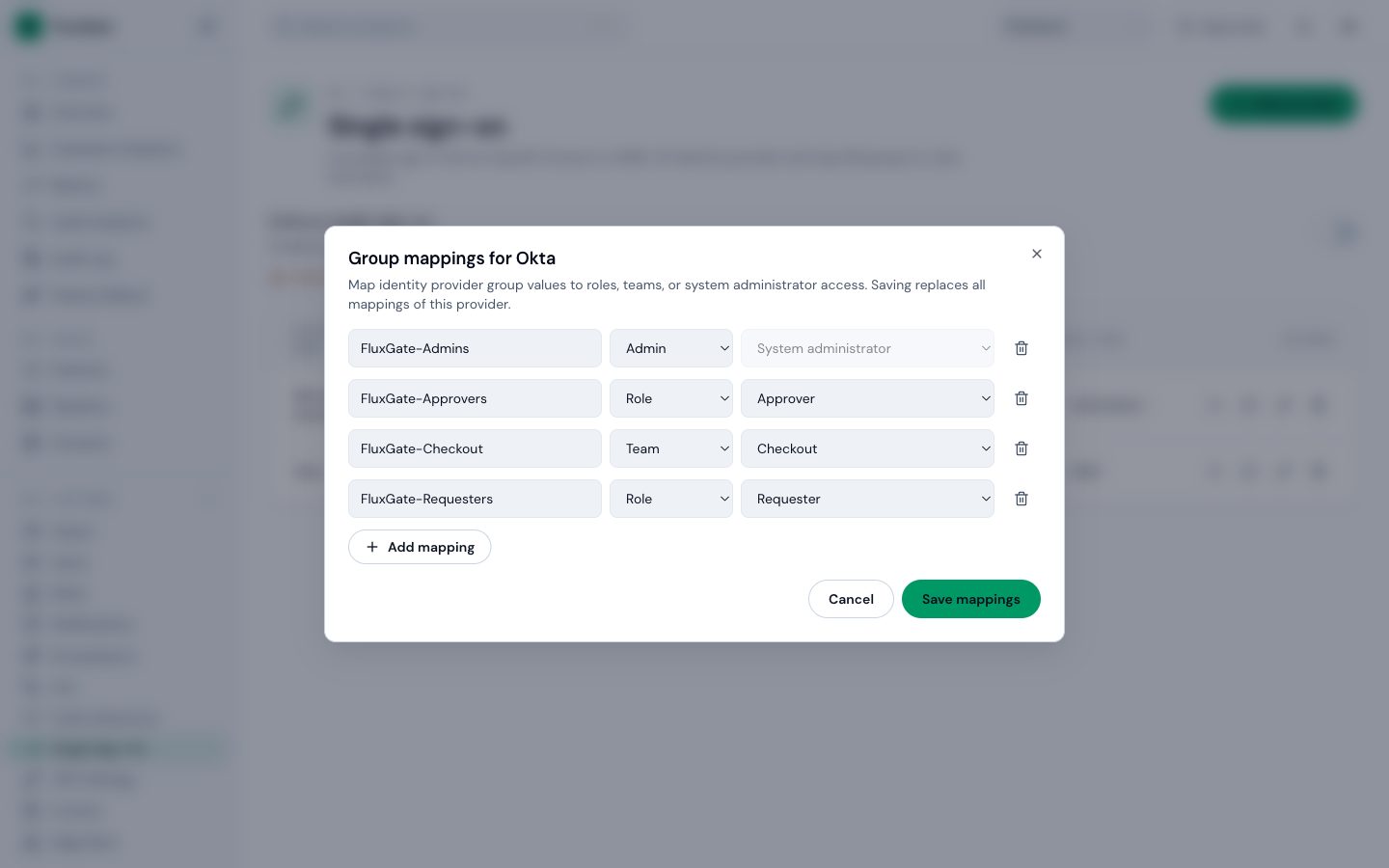
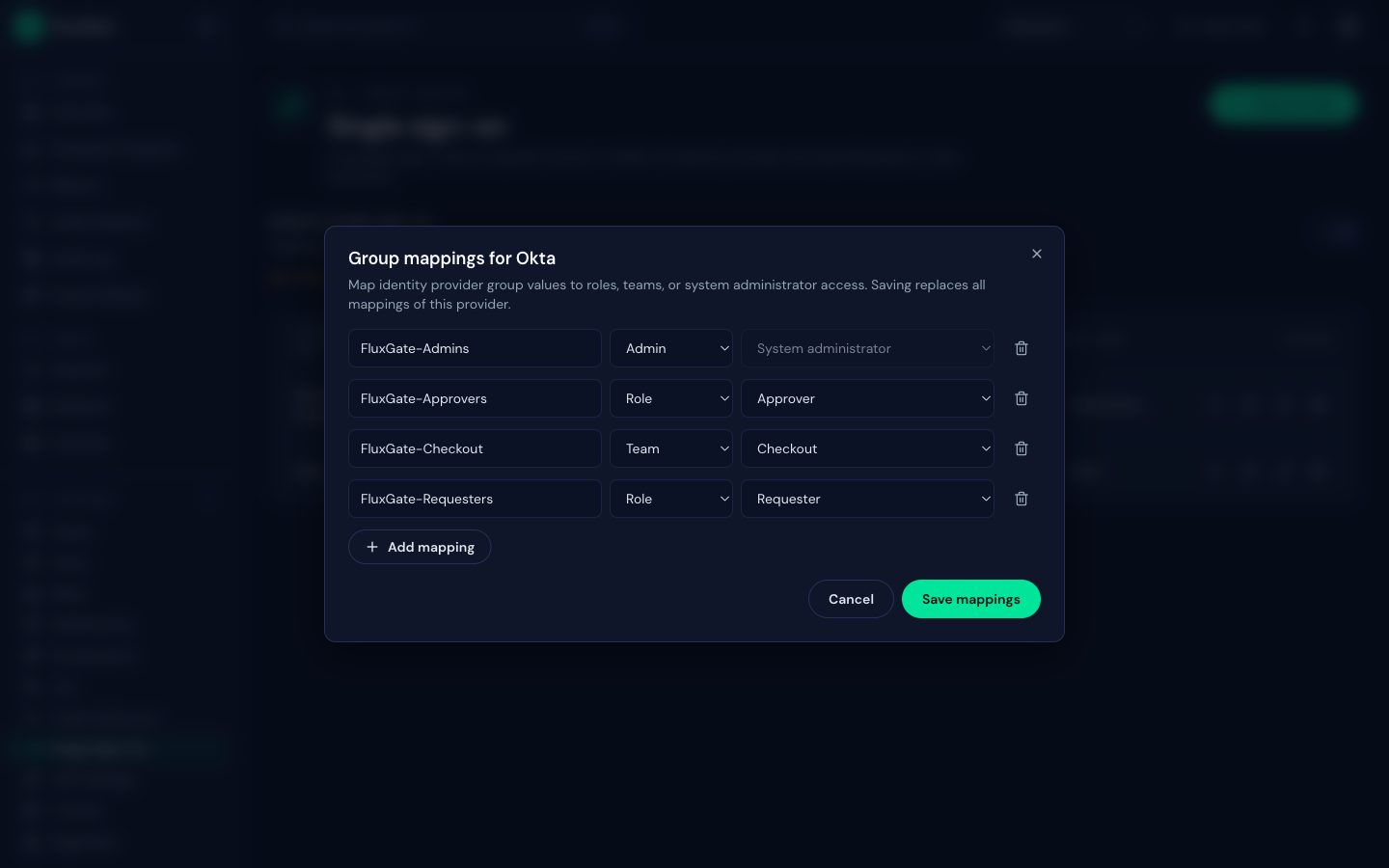
Juniper Market maps four Okta groups:
| Group value | Target type | Target |
|---|---|---|
FluxGate-Admins | Admin | System administrator |
FluxGate-Approvers | Role | Approver |
FluxGate-Checkout | Team | Checkout |
FluxGate-Requesters | Role | Requester |
 (opens full size in a new tab)
 (opens full size in a new tab)
- On the provider row, click the Group mappings icon. The dialog Group mappings for Okta opens.
- Click Add mapping. Type the group value, choose a Target type, and choose the target.
- Repeat for every row. One group can map to several targets: add one row per target.
- Click Save mappings. The toast "Group mappings saved" appears.
Rules for group values:
- The value must match the IdP value exactly, including case.
fluxgate-checkoutdoes not matchFluxGate-Checkout. - What the value is depends on the IdP and the protocol: a group name, an app role value, or a group object ID (Entra ID). With the role sync mode SCIM, a value matches the display name or the external ID of a pushed group.
- The editor reports
Group value is required.,Select a role.,Select a team.,Selected role no longer exists. Choose another.andDuplicate mapping. - Deleting a role or team deletes its mappings.
Role sync modes
The Role sync mode of a provider decides when mappings apply and whether they can take access away.
| Mode | When it runs | Behavior |
|---|---|---|
| Authoritative (IdP groups are the source of truth) | Every SSO sign-in | Adds what the groups grant. Removes SSO-managed roles and teams the person no longer qualifies for, and revokes an SSO-granted admin flag. This is the default. |
| Additive (only add roles and teams) | Every SSO sign-in | Adds roles, teams and admin. Never removes anything. Use it when admins also manage access in FluxGate. |
| SCIM (groups pushed by the IdP) | Every SCIM group change | Sign-in sync is skipped. The groups pushed over SCIM apply authoritatively. Needs the SCIM entitlement and an active SCIM token. See SCIM provisioning. |
| Off (do not sync roles) | Never | SSO only authenticates. Mappings are ignored. |
Exactly one source drives the group-based access of a provider, so sign-in sync and SCIM never undo each other.
Rules that apply in every mode:
- Manual wins. Sync removes only assignments that it created. If an admin assigns a role by hand that the person also holds through SSO, the assignment becomes manual, and sync no longer removes it.
- Admin. Sync grants admin only to people who were not admins, and revokes only an admin flag that it granted. Admins made by hand, and admins that existed before SSO, are never revoked.
- Last admin. Sync never removes the last enabled admin. It keeps the flag and writes an
sso_role_sync_warningentry, at most once per 24 hours per user. - Fail closed. In Authoritative mode, if FluxGate cannot read the groups (for example the userinfo call fails), the person signs in with the SSO-managed roles removed.
- When it applies. A change applies from the person's next request. They do not sign in again, because FluxGate reads rights from the database on every request. Menus in the UI follow at the next token refresh (at most 30 minutes) or sign-in.
- One syncing provider per person. Two providers that sync the same person revoke each other's roles at every sign-in. Link each person to at most one provider with role sync on. FluxGate enforces this for linking by email.
- Leftover SSO rows. Sign-in sync runs only through a provider with sync on. After you delete a provider or set its sync to Off, the roles and teams it granted stay and cannot be removed directly. Assign the role or team by hand (this makes it manual), then remove it.
See the result on a user
- Open Settings, Users. People who sign in with SSO carry an
SSObadge. People created by SCIM also carry aSCIMbadge. - Open a person with Edit User. The Basic Details tab lists Linked identities: provider, email and last sign-in.
- On Assign Roles and Assign Teams, assignments made by sync are checked, disabled and marked with an
SSOchip. The hint reads "Managed by single sign-on". The Admin checkbox of an SSO-granted admin is locked the same way.
A change to a locked assignment fails with 409 sso_managed, and the UI shows "This assignment is managed by single sign-on." Change the group at the IdP or change the mapping instead. To take over an SSO-granted admin flag, remove the person from the admin group at the IdP, let the next sync revoke the flag, then grant admin by hand.
Enforce single sign-on and break-glass admins
Enforce single sign-on at the top of the Single sign-on page turns password sign-in off. The switch saves as soon as you toggle it. The page warns: "Only break-glass admins (made admin manually, not through single sign-on) can still sign in with a password." Everyone else sees "Password sign-in is disabled. Use single sign-on."
A break-glass admin is a system admin whose admin flag was not granted by SSO group sync: an admin made by hand, or one that existed before SSO. At Juniper Market, admin is the break-glass admin. When the IdP is down or misconfigured, this account is the way in.
- An admin granted through an Admin mapping must sign in through SSO, even if the account has a local password. Otherwise the password would bypass the IdP and an authoritative revoke.
- The switch fails with
enforce_sso_requires_local_adminwhen no enabled break-glass admin with a password exists. Keep at least one, with a strong password. - Creating a SCIM token has the same requirement, so a lost IdP cannot lock everyone out.
- Enforcing SSO does not end existing sessions.
Backend settings
| Setting | Where | Purpose |
|---|---|---|
allowed_origin | config.toml | The origin of the UI. FluxGate redirects to it after a sign-in. |
public_base_url | config.toml | The public address of the backend as the browser and the IdP reach it, for example https://fluxgate.example.com. |
FLUXGATE_ENCRYPTION_KEY | Environment | The key that encrypts stored OIDC client secrets. |
FLUXGATE_SSO_<SLUG>_CLIENT_SECRET | Environment, optional | The client secret of one OIDC provider. It wins over the stored secret and needs no encryption key. |
public_base_url
FluxGate builds every address the IdP checks from public_base_url: the OIDC redirect URI, the SAML ACS URL, the default SAML SP entity ID and the SCIM base URL. A trailing slash is removed.
public_base_url = "https://fluxgate.example.com"- SAML needs it. Without it, you cannot enable a SAML provider, the SP metadata endpoint answers
409 saml_requires_public_base_url, and you cannot create a SAML provider without an explicit SP entity ID. - OIDC should have it in production. Without it, FluxGate derives the address from each request and trusts the
ForwardedandX-Forwarded-*headers. The proxy in front of the backend must then set them and strip any values sent by clients. - SCIM shows it. Without it, the Provisioning dialog shows no base URL, and SCIM
Locationheaders use theHostheader of the request.
FLUXGATE_ENCRYPTION_KEY
FluxGate encrypts OIDC client secrets with AES-256-GCM before it stores them. The key must be the standard base64 encoding of exactly 32 bytes (not base64url, no other length):
openssl rand -base64 32Keep the key stable. If you change it, stored secrets stop decrypting, and you must save each secret again. If the key is missing or invalid, saving a secret fails with Server has no FLUXGATE_ENCRYPTION_KEY; set it or provide the secret via FLUXGATE_SSO_<SLUG>_CLIENT_SECRET. SAML providers store no secret: they hold public certificates only.
Editions
| Capability | Free | Business | Enterprise |
|---|---|---|---|
| Single sign-on (OIDC and SAML), group mappings, enforce SSO | No | Add-on (sso) | Included |
| SCIM provisioning | No | Add-on (scim), together with sso | Included |
SCIM needs sso too: every SCIM service belongs to an SSO provider, and creating a provider needs sso. The license server refuses scim without sso.
Removing access keeps working when the license changes:
- Without the SCIM entitlement, and in ReadOnly, the IdP can still deactivate and delete users, remove group members and delete groups, and you can still revoke SCIM tokens. Creates, reactivations and profile changes are refused until the license is back.
- SAML certificate edits work on the Free edition, so a certificate rollover works after a downgrade. In ReadOnly they are blocked, like other admin writes.
For the full edition comparison, see Enterprise features.
Good to know
- Client secrets, codes, tokens, ID tokens, SAML assertions, NameIDs and attribute values stay out of logs, audit entries and API responses. Logs name the provider slug and the failing step.
- The one-time code that ends a sign-in is valid for 60 seconds and works once. Login states and SAML assertion IDs also work once.
- A reverse proxy must forward cookies on
/api/v1/auth/sso/. A proxy that strips them makes every sign-in fail withsso_state_invalid. - If a person starts SSO in two tabs, the later tab replaces the state cookie, and the earlier tab fails with
sso_state_invalid. - Run behind HTTPS in production, and set
public_base_urlto thehttpsaddress. - The backend calls the IdP for OIDC discovery, keys, tokens and userinfo, and for SAML metadata URLs. The backend host must reach the IdP.
- The public SSO sign-in routes have no per-address rate limit. To limit them, rate limit
/api/v1/auth/sso/at your reverse proxy. - The audit log records
sso_login,sso_user_provisioned,sso_identity_linked,sso_role_sync,sso_role_sync_warning,sso_provider_created,sso_provider_updated,sso_provider_deleted,sso_mappings_updatedandsso_settings_updated. See Audit log.
Next
Set up your first provider: OpenID Connect or SAML 2.0. Then let the IdP manage accounts with SCIM provisioning.