

Enterprise · Jira and Jev AI
Jev AI assistance
Jev can warn about a vague reason, rate the risk of an approval request, classify flags and answer a plain-English search, and a person still makes every decision.
Before you start
- You have a TypeSafe API key. The backend reads it from the
TYPESAFE_API_KEYvariable. - The policy
Release approvalsexists, andsamis its only approver. holiday-bannerhas Development deployed, Staging and Production not deployed, and no kind.- Start as
adminSystem admin and select the team Checkout. UsepriyaRequester andsamApprover as each step says. Only a system admin can open the AI settings. A Team Admin cannot.
What Jev does
Jev is an AI model from TypeSafe. In FluxGate it gives advice. It never decides. A person approves or rejects every request. Jev has four features:
| Feature | What Jev does |
|---|---|
| Reason quality check | Warns when the reason of a change is vague, for example as requested. It never blocks. |
| Approval risk triage | Rates the risk of an approval request as low, medium or high and lists the reasons when a threshold is crossed. |
| Flag kind classification | Suggests a kind for a flag: release, experiment, ops, permission or config. A kind that a person chose always wins. |
| Natural-language search | Turns a plain sentence into the filters the flag list already has, such as kind, tag and owner. |
Jev reads the diff of the change, the key, description, purpose, tags and kind of the flag, the environment, the reason and the external reference. Answers are model output, so they can vary. Treat them as advice.
Fail open
If Jev is unavailable, FluxGate works as usual. The risk panel shows a message such as "Risk assessment unavailable. Approval works as usual." Search shows a message such as "AI search unavailable". The reason check shows nothing. Approval is never blocked by Jev.
Turn on Jev
Add the key to the .env file next to the compose file, then recreate only the backend. A plain docker restart does not read a new .env value.
echo TYPESAFE_API_KEY=<your TypeSafe API key> >> .env
docker compose -f docker-compose.demo.yml up -d backend
Use >>. A single > overwrites .env and deletes FLUXGATE_ENCRYPTION_KEY. Compose sees the changed environment and recreates the backend container only. The database and the encryption key stay as they are.
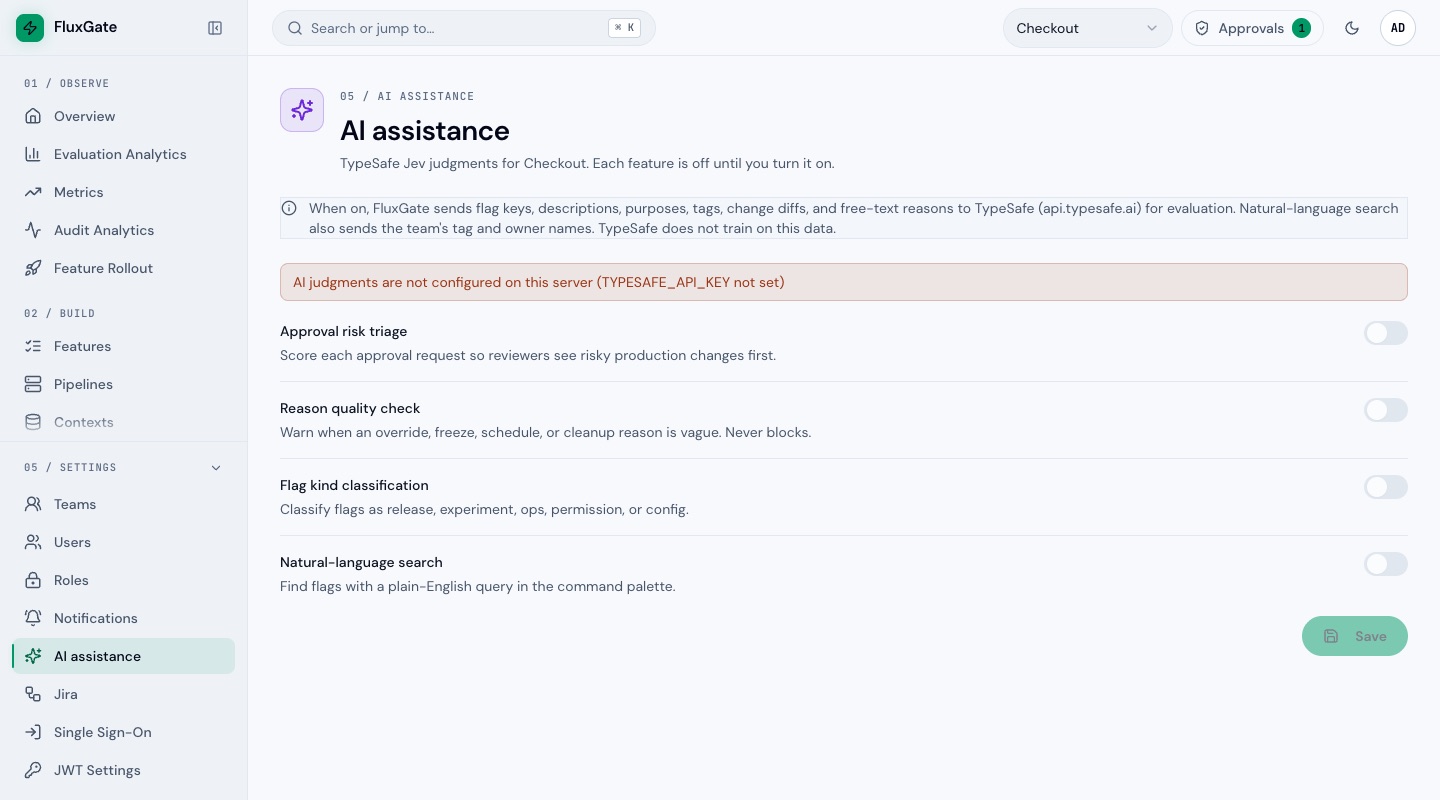
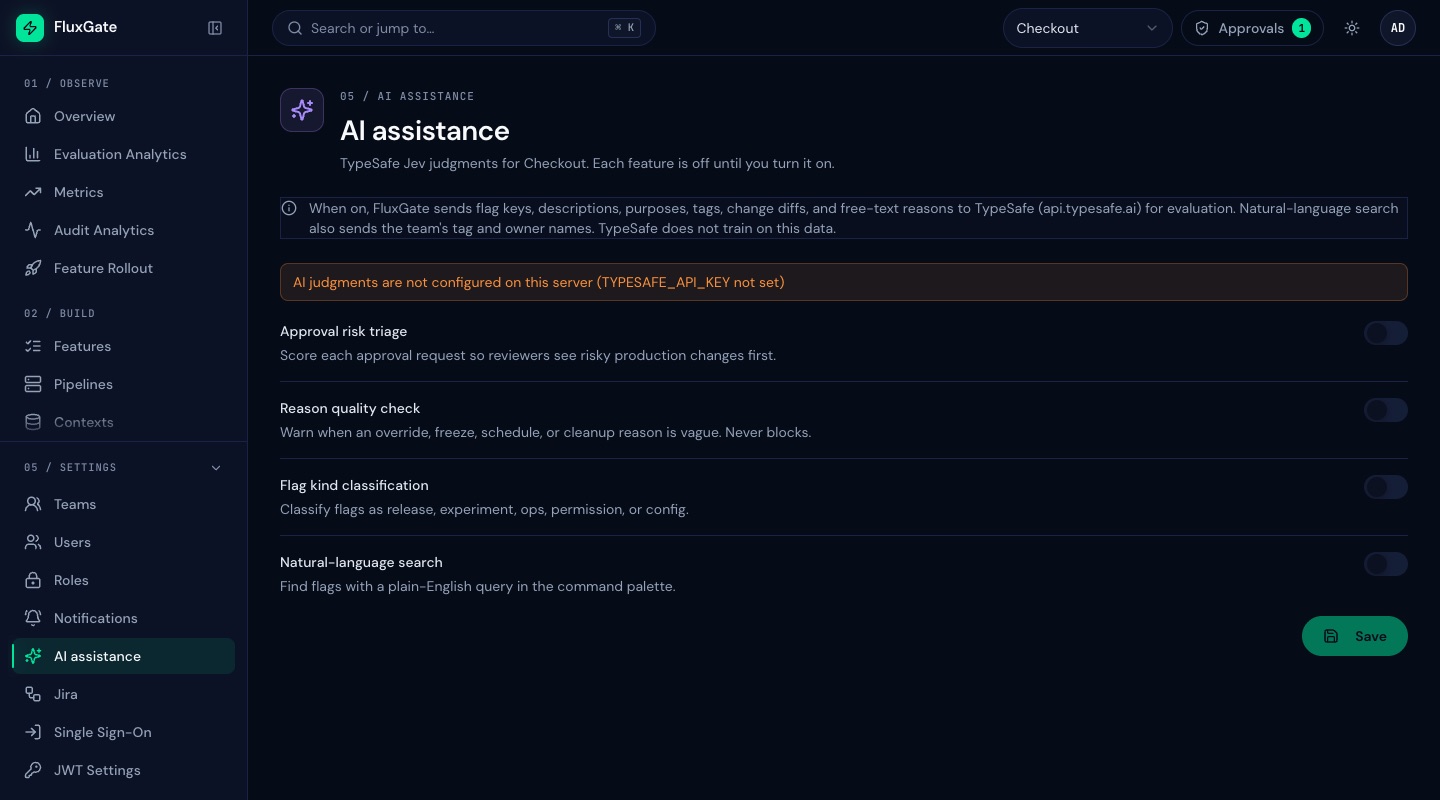
Without the key, all AI UI stays hidden: the AI risk mode field is missing from the approval policy form, and the AI assistance page shows "AI judgments are not configured on this server (TYPESAFE_API_KEY not set)" with its switches disabled.
 (opens full size in a new tab)
 (opens full size in a new tab)
Prepare the flag
Do this before you turn on any switch. With Flag kind classification on, saving a content change queues a classification by itself, and the button in the next section would then queue nothing.
- As
admin, openholiday-bannerand click Edit. - Set Description to
Banner for the holiday saleand Purpose toShow during the sale, then delete the flag. - Click Update Feature. The classifier now has text to read. A bare key with no description is usually left without a kind.
Switch on the AI features
- Click the Settings group header in the sidebar to expand it, then click AI assistance to open
/settings/ai. Read the data notice. - Switch on Approval risk triage, Reason quality check, Flag kind classification and Natural-language search.
- Click Save. The toast "AI settings saved" appears.
- Under Flag kind classification, click Classify existing flags. The toast "Queued 1 flag" appears. Only
holiday-bannercounts, becauseexpress-checkoutalready has a kind.
The toggles are team settings, so select the team first. The page caches them for about a minute.
Choose how much weight a rating gets
- Click Approval Policies under Govern to open
/settings/approval-policies. The table has an AI Risk column.Release approvalsreadsAdvisory. - Click the pencil with the tooltip "Edit policy". In Edit Approval Policy, scroll to AI risk mode and open the list.
- Choose "Require one extra approver when high". Read the note under the field.
- Click Save Changes. The toast "Approval policy updated successfully" appears and the AI Risk column reads
Extra approver.
Leave Auto-approve After (hours) alone. The four modes are:
| Mode | Effect |
|---|---|
| Off | No assessment. |
| Advisory: show only | The assessment is shown. This is the default. |
| Block auto-approve when high | Matters only for policies that approve after a timeout. |
| Require one extra approver when high | Adds one approver to the count of the policy, capped at the people who can vote. |
This team has one approver, so nothing changes here. A bigger team would need two. Set the mode before you create the request. The mode in force when a request is created decides whether it is assessed, and a mode changed later does not affect an assessed request.
Request a change and read the warning
- Sign out and sign in as
priyaRequester. - Open
holiday-bannerat/features/:id/editand click the Staging node. Click its border, not the environment list inside it. - Under Stage Change Details, type
CHK-142in External Reference andas requestedin Reason. - After a moment a warning appears under the field: "This looks like placeholder text. Add the cause: an incident, ticket, bug, or customer impact."
- Replace the reason with
Verify the sale banner copy in Staging before the holiday launch. The warning clears. - Open Actions and click Request Deployment. The toast "Stage change requested" appears.
The check waits a moment after you stop typing, and it looks only at reasons of at least 5 characters. A reason that names a ticket, a link, an issue number such as #12 or an incident id passes without a model call, so keep CHK-142 in External Reference and not in Reason.
Read the risk assessment as the approver
- Sign out and sign in as
samApprover. - The Approvals pill in the header shows a count. Click it to open
/approvals. The request card carries a level badge such asAI: low. - Click Details. Below Request context the AI risk assessment panel shows a level badge such as
low risk, a list of reasons when a threshold is crossed, and a footer that names the policy mode. - Click Signals to show the raw scores and the model name.
For a banner in Staging, a low rating is typical and there is no reasons list. A safety control turned off in Production would likely rate high. The reasons are fixed texts such as Widens production exposure and Weakens a safety control. For a few seconds after the request is created, the panel shows a short "assessing" state. If the request has no assessment, the panel does not appear: for example, when you switched the toggle on after the request. An approval made by Jira skips the assessment.
See the suggested kind
- Click Features under Build to open
/features. Theholiday-bannerrow shows a kind badge, for exampleRelease. - Click its pencil icon. Under Kind, the select shows the same kind and "AI suggested" appears below it. Do not save.
The flag detail page shows Kind: <kind> (AI, <n>%). Classification runs in the background, so wait a few seconds. If no kind appears after a minute, Jev was not sure: add a purpose to the flag and classify again. A flag edit queues it again.
Search in plain English
- Press ⌘K, or click Search or jump to… in the header.
- Type
release flags tagged checkout. The first item, Ask FluxGate, appears. Press Enter. - After "Searching…" the Ask results group shows filter chips such as
kind: releaseandtag: checkout, an Open in list item and the matching flags, hereexpress-checkout.
Ask FluxGate needs at least 3 words. It searches flag metadata, such as kind, tag, owner and lifecycle. It does not evaluate flags, so a question such as "which flags are on in Production for Canada?" has no answer. Open in list applies the same filters to the flag table.
Approve as a person
- As
samon/approvals, click Details on the request. - Under Add a comment, type
Diff matches the plan, go ahead.and click Approve with comment. - The toast "Approval recorded" appears and the request leaves Pending. The Approved filter now shows it, and the stage is DEPLOYMENT APPROVED.
Self-approval stays blocked, and admin is not an eligible approver here, so sam is the only path.
Good to know
- The AI settings and the AI assistance item are for a system admin only.
- Everything Jev returns is model output: risk level, reasons, kind, search chips and hints can differ between runs.
- Each Jev call has a short time limit. A slow answer can fail, and the panel then shows that the assessment is unavailable. If that happens, cancel the request and request again.
Troubleshooting
The AI settings are disabled
The page reads "AI judgments are not configured on this server (TYPESAFE_API_KEY not set)". Add the key to .env and recreate the backend as shown above.
"Classify existing flags" queues 0 flags
Every flag already has a kind or a pending judgment. The button queues flags with no kind and no kind chosen by a person. Edit the description or purpose of a flag, then try again.
The request has no AI panel
The request was created before the toggle was on, or the policy mode was Off. Turn the features on and set the mode first, then create a new request.
Next
Read the rollout back in the dashboards in Dashboards.