

Chapter 4 · Observe and operate
Dashboards
Four dashboards tell you whether a rollout worked: how often the flags are evaluated, how each variant performs, and who changed what.
Before you start
- Your app has evaluated
express-checkoutandholiday-banner, so evaluations exist to read. Clients and edge server shows how to send them. The traffic loop below generates enough for every chart. - The metric
checkout_conversiondoes not exist yet. You create it on this page. - Sign in as
adminSystem admin and select the team Checkout in Select team. - Have the credentials of the client
checkout-serviceready: its client ID and its API key. You need them to post metric events.
The four dashboards
A release is not finished when it deploys. You read the dashboards to answer three questions: is the flag evaluated, is a variant winning, and who changed what. The Observe group of the sidebar holds the four dashboards.
| Sidebar item | Route | Question it answers |
|---|---|---|
| Overview | /dashboard/overview | Is the instance healthy, and what changed last? |
| Evaluation Analytics | /dashboard/evaluation-analytics | Do apps read my flags, and how often? |
| Metrics | /dashboard/metrics | Does a variant improve a business outcome? |
| Audit Analytics | /dashboard/audit-analytics | Who changed what, and how fast do approvals move? |
System Overview
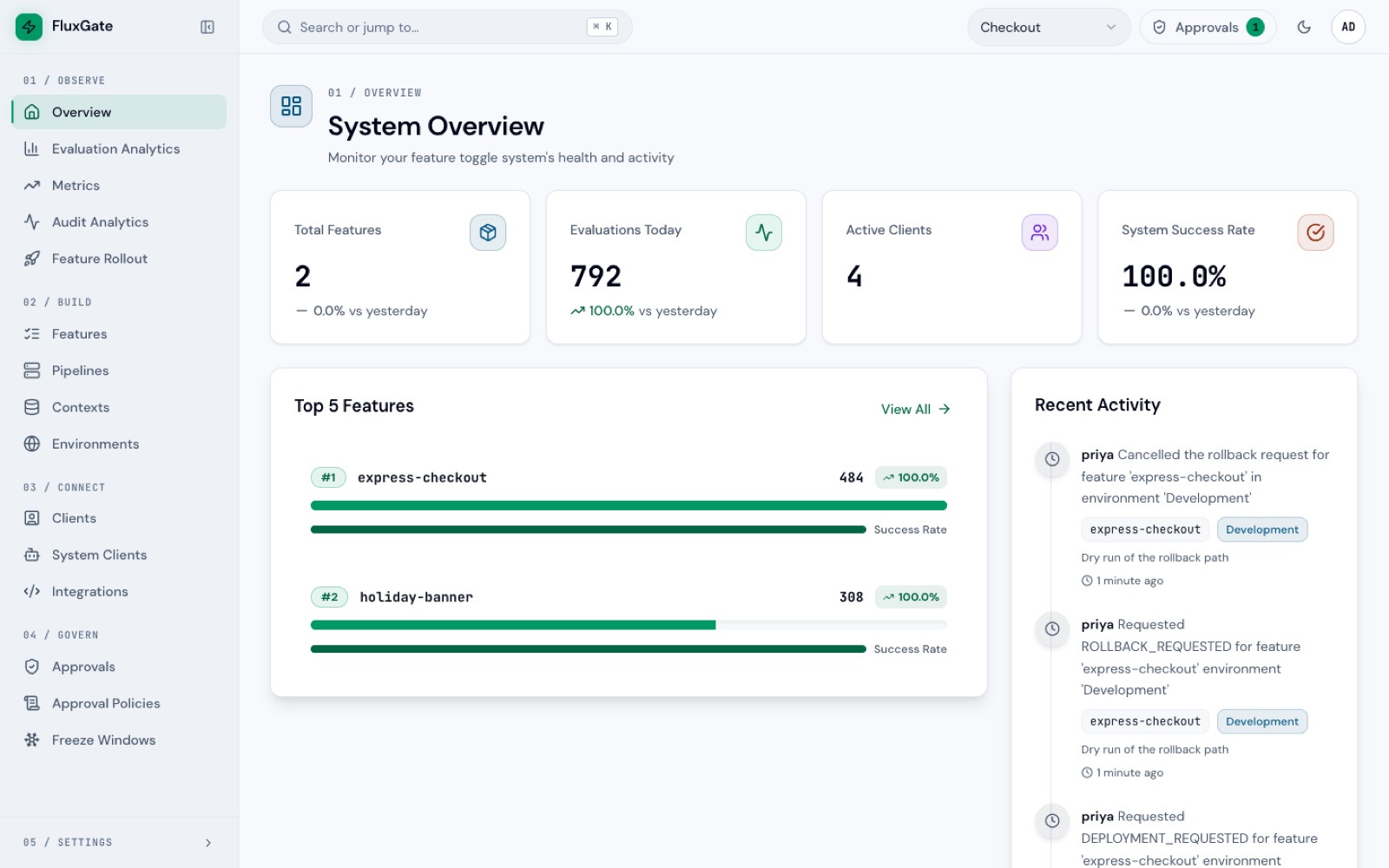
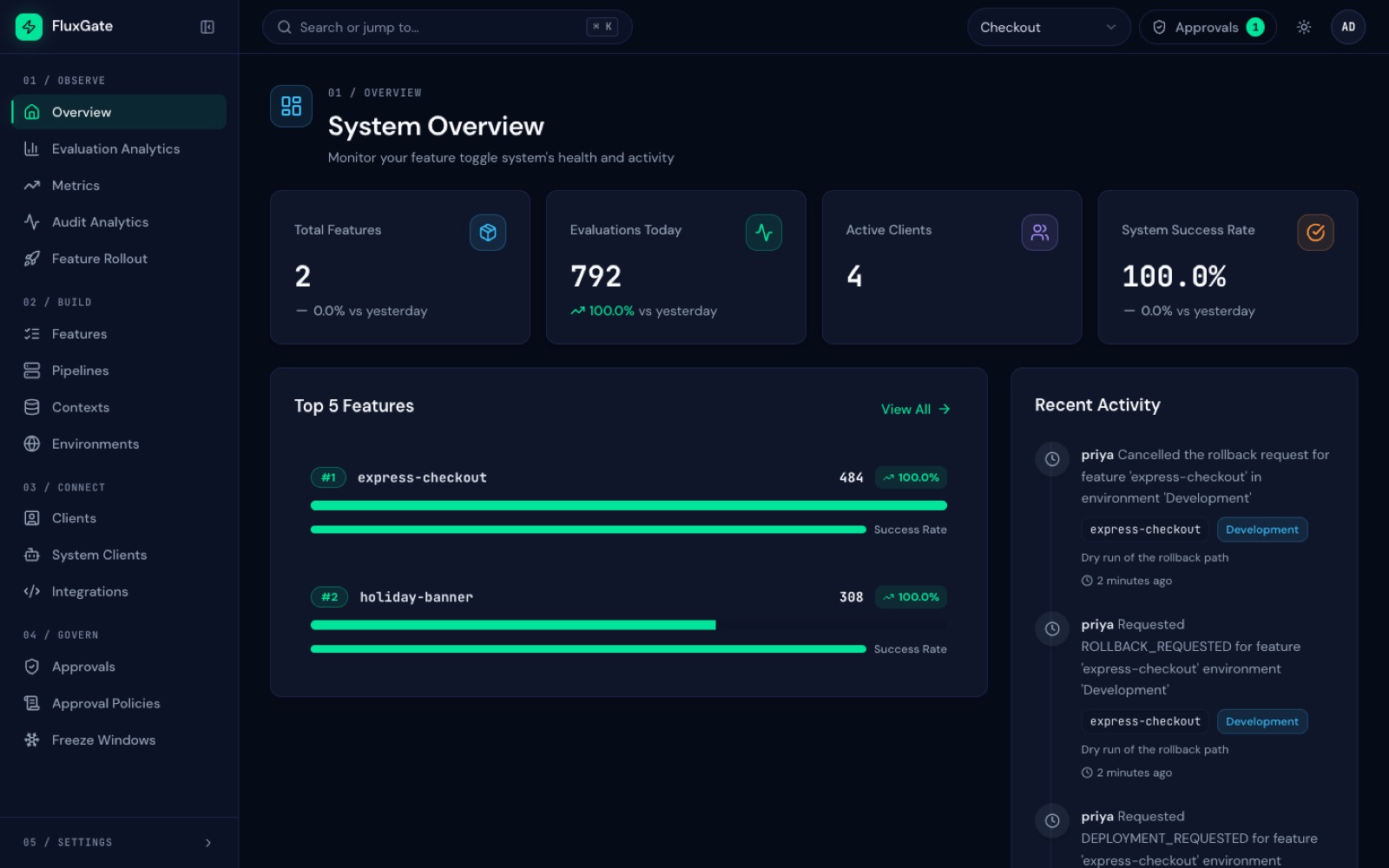
The page "System Overview" shows four cards:
- Total Features: how many flags the team has.
- Evaluations Today: how many times apps evaluated a flag today. Watch this card during a rollout. When it climbs, apps read your flags.
- Active Clients: how many clients are active.
- System Success Rate: the share of evaluations that returned a result without an error.
Click a card to open the matching view. Below the cards, Top 5 Features ranks flags by evaluations, Recent Activity lists the latest changes, and two charts show feature growth and a seven day evaluation trend.
Recent Activity answers "what just changed". Each entry shows the actor, the change, the time, an environment chip when the change belongs to an environment, and a ticket chip such as CHK-142 when the change carries an external reference.
 (opens full size in a new tab)
 (opens full size in a new tab)
Evaluation Analytics
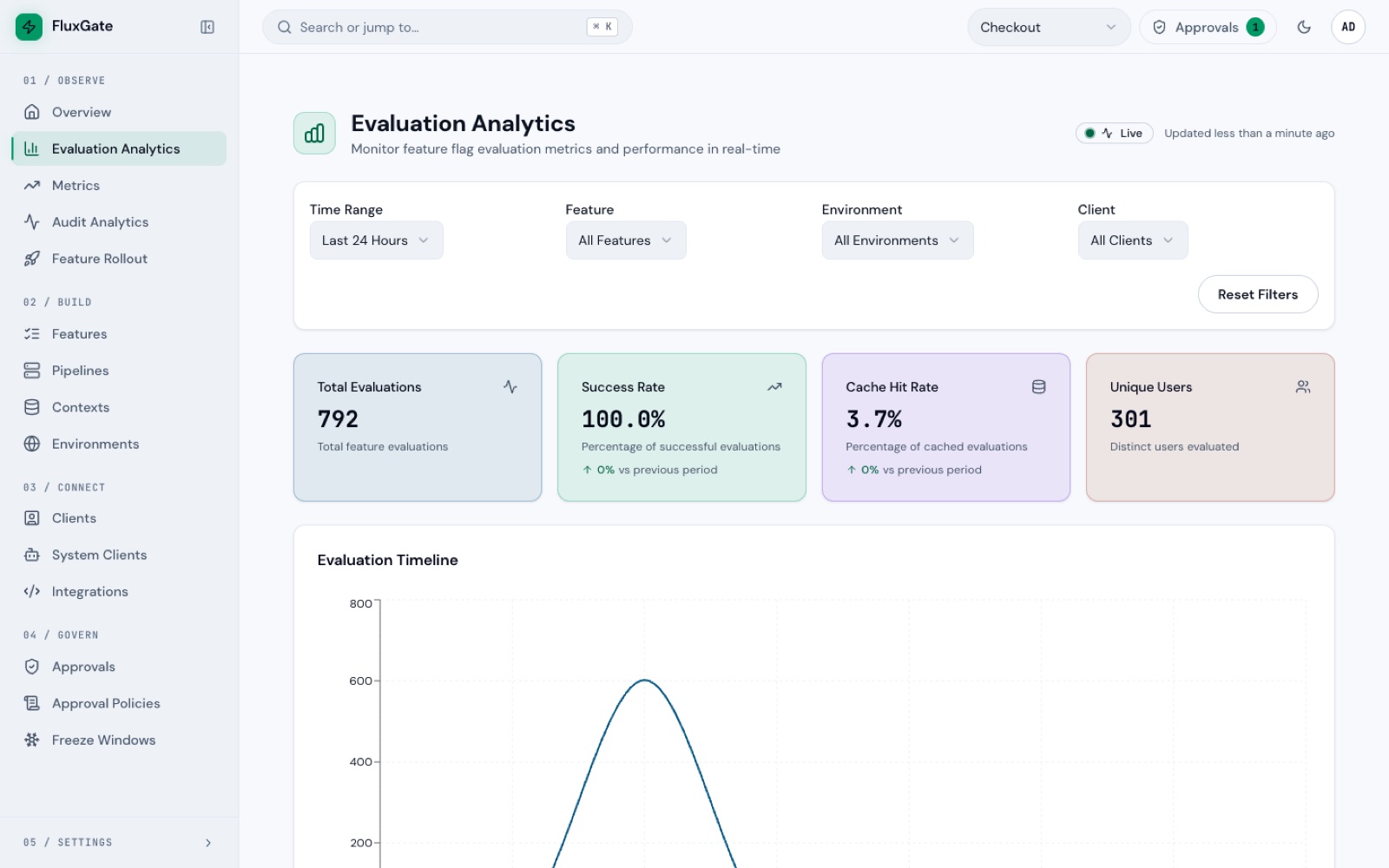
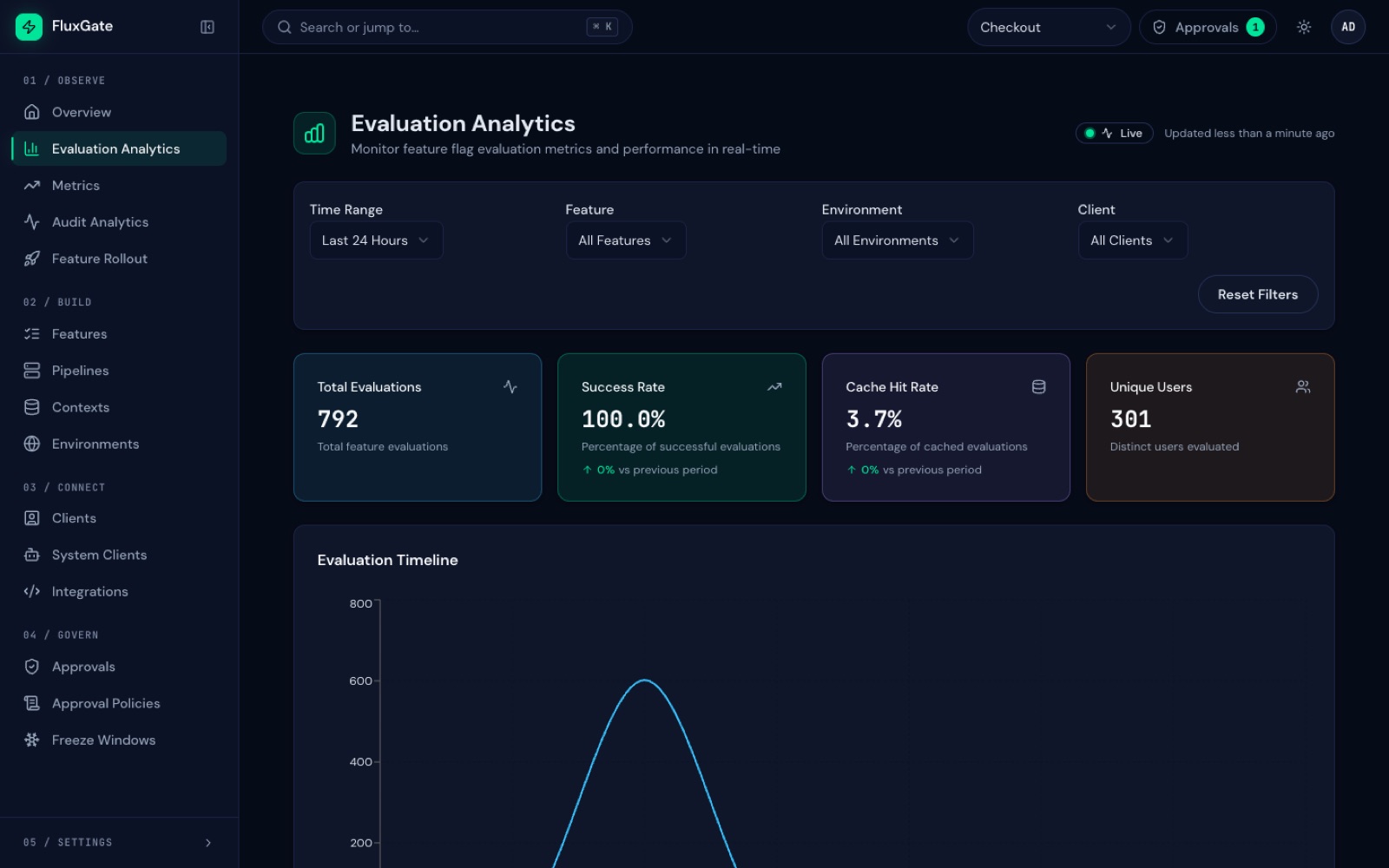
This dashboard answers whether the flags are in use. Filters at the top narrow the page by Time Range, Feature, Environment and Client. The four cards are Total Evaluations, Success Rate, Cache Hit Rate and Unique Users.
Below the cards:
- Evaluation Timeline plots evaluations over time. You see traffic start when a stage deploys.
- Success Distribution and Cache Performance split the same traffic by outcome and by cache hit.
- Top Features ranks flags by evaluations, with each flag's success rate and cache hit rate.
- Evaluations By Feature lists one row per flag with Feature Key, Total, Successful, Cached, Users and Last Evaluated.
If a flag you deployed shows zero evaluations, check the connection between the app and the edge server first.
 (opens full size in a new tab)
 (opens full size in a new tab)
Metrics and experiments
Evaluations say that a flag is read. Metrics say whether it helps. A metric is a business outcome that you define once, such as checkout_conversion. Your app then posts outcome events, each tagged with the variant the user saw. FluxGate groups the events by variant and compares them.
A metric has a key, a name, and a type. The type Conversion counts an event as a conversion when its value is above 0, and every event is one sample. The conversion rate of a variant is its conversions divided by its samples.
How to read a variant comparison
- Variant Details is the source of truth. Each row shows the Sample Size and the Conversion Rate of one variant. Small samples move a lot: do not compare rates built on a few dozen events.
- Variant Comparison draws the same rates as bars, with
classicbesideexpress. Taller means a higher rate. - Winner names the variant that leads when the data is strong enough. A dash means no result yet.
- Performance Over Time shows how each variant moved, so you can see whether a gap is stable or came from one hour.
The same analysis sits on the flag itself, on the Experiment tab. It adds Confidence, Lift, a 95% confidence interval and a Recommendation in words. The recommendation reads your metric. It is not a decision: you still choose whether to widen the rollout.
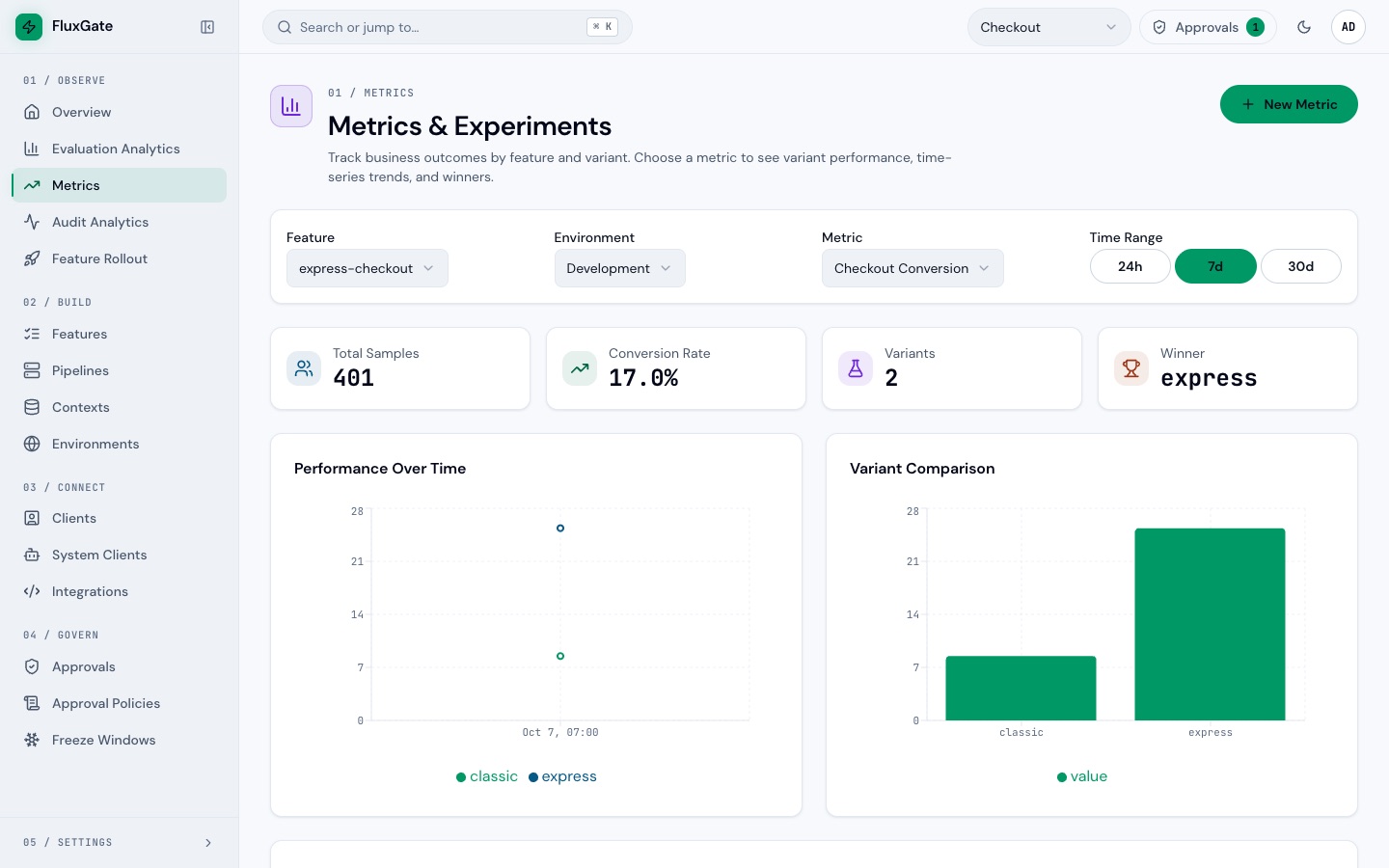 (opens full size in a new tab)
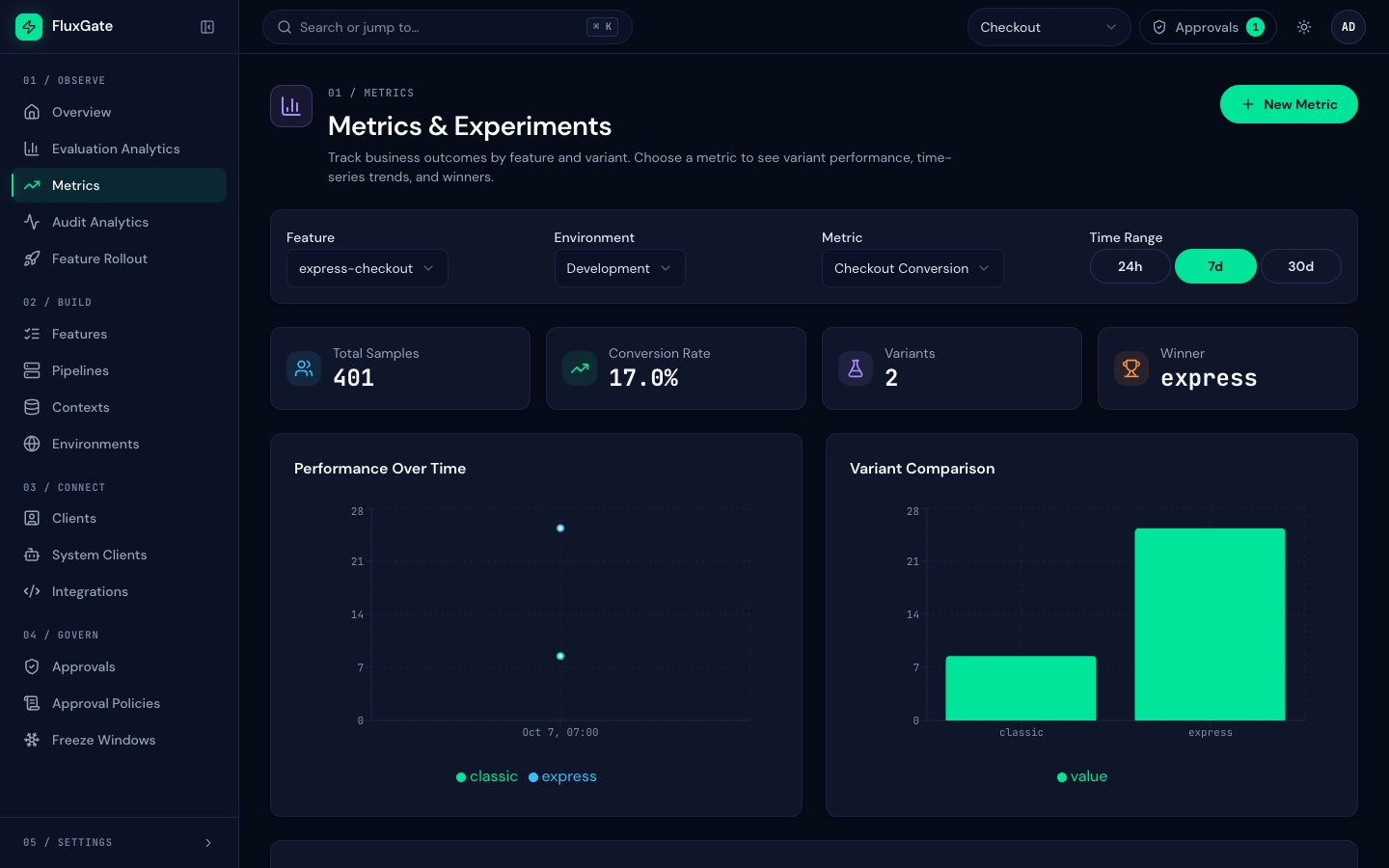 (opens full size in a new tab)
Audit Analytics
This dashboard answers who changed what. A window switch sets the period, and the cards show Events, Emergency, Rollbacks, Rejected and Lead Time. Rejected is the share of approval requests that were turned down. Lead Time is the average time from request to execution.
Below the cards, Top Changed Flags ranks flags by how often they changed, Action Breakdown counts events by type, Actors counts changes per actor, and Recent Audit Events lists each change with its actor and time. Export summary saves these numbers as a CSV. To export the events themselves, admins click Open audit log. See Audit log.
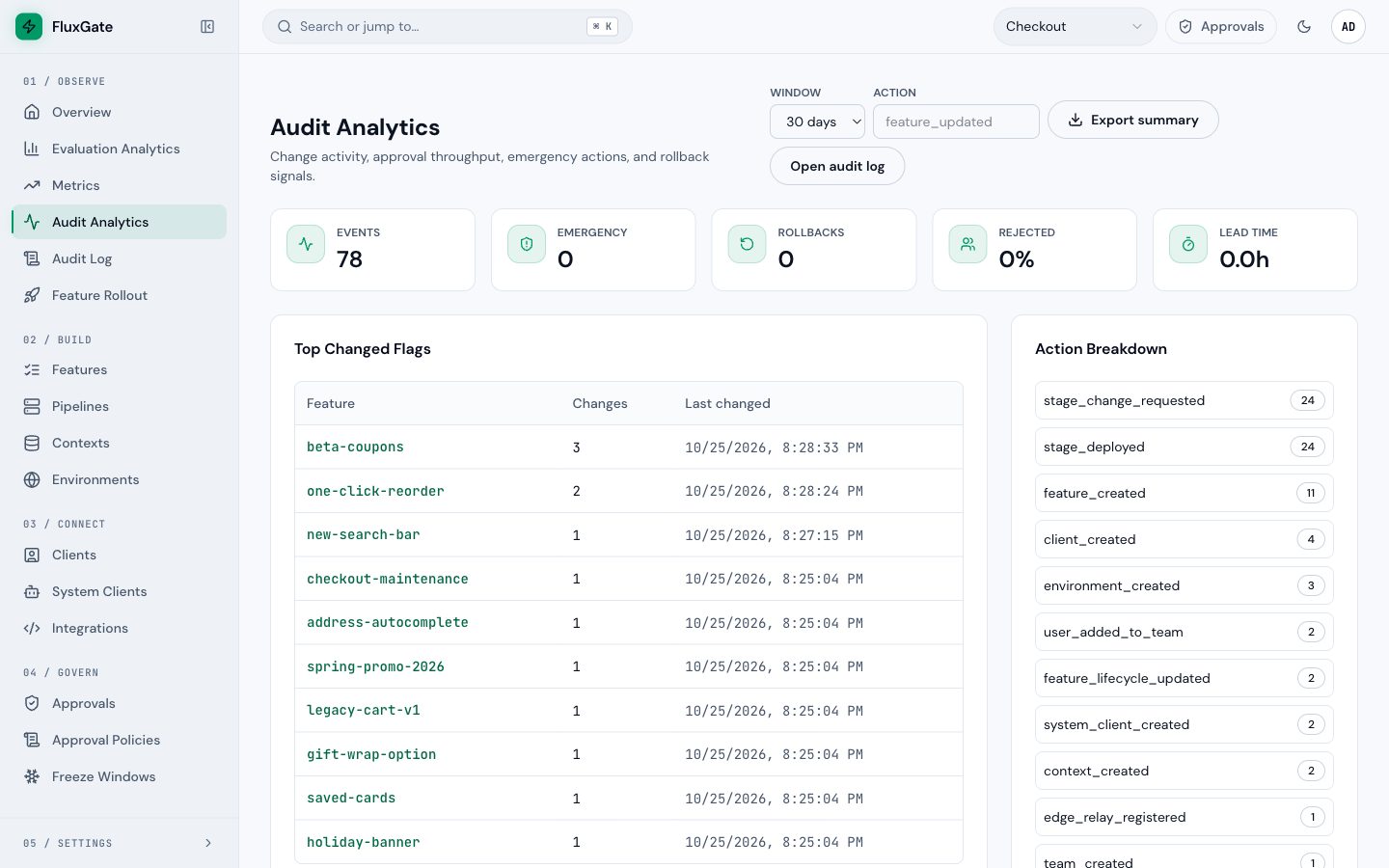 (opens full size in a new tab)
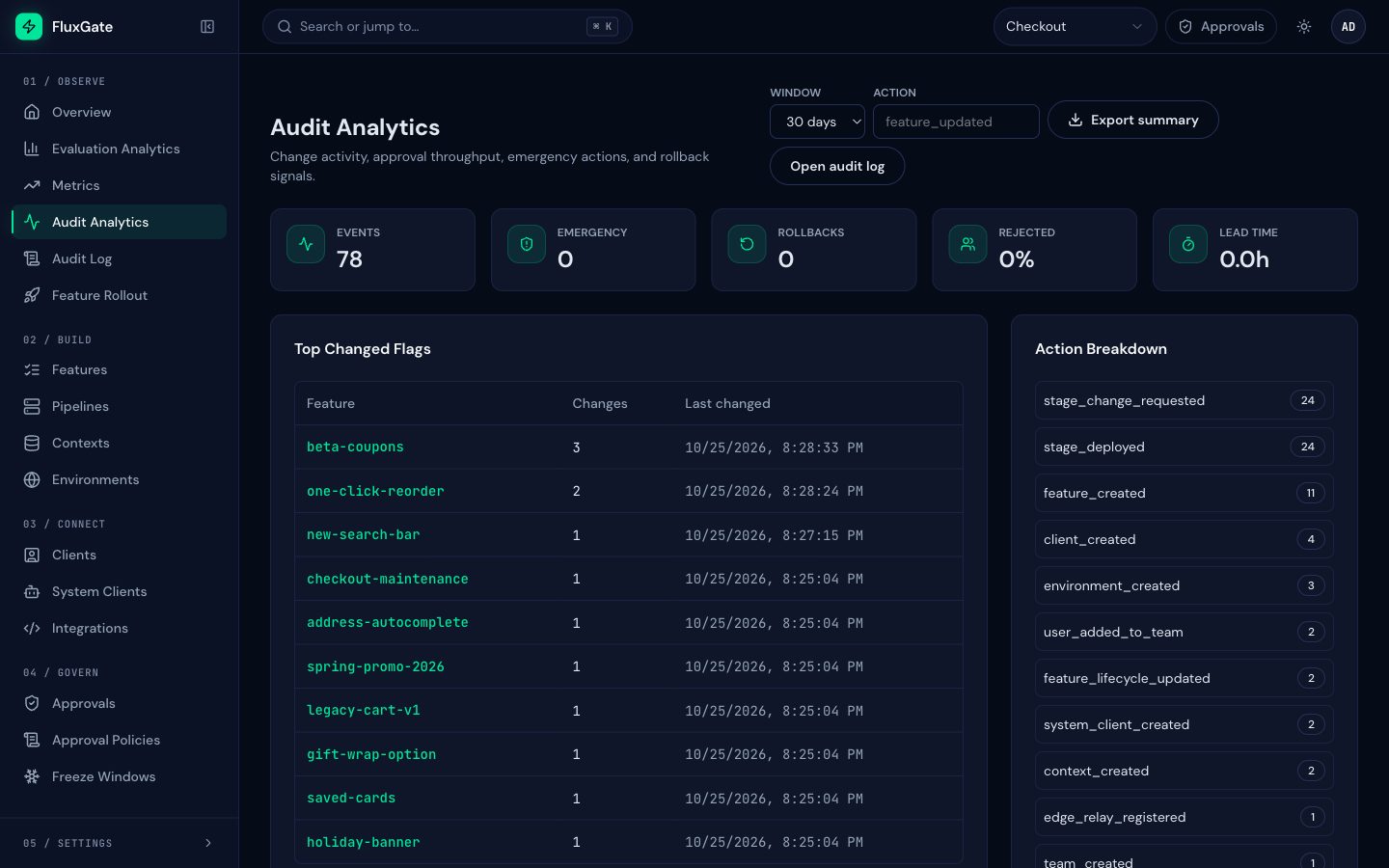 (opens full size in a new tab)
Generate evaluation traffic
Run this loop on any machine that can reach the edge server. It sends 300 rounds of evaluations for both flags, each with a different user and a country and user_tier context. The edge server must run, as in Clients and edge server.
countries=(US CA UK)
tiers=(free plus)
for i in $(seq 1 300); do
  for flag in express-checkout holiday-banner; do
    curl -s -o /dev/null -X POST http://localhost:8081/evaluate \
      -H 'Content-Type: application/json' \
      -d "{\"flagKey\":\"$flag\",\"context\":{\"bucketingKey\":\"user-$i\",\"country\":\"${countries[$((i % 3))]}\",\"user_tier\":\"${tiers[$((i % 2))]}\"}}"
  done
done
The loop uses bash arrays, so run it in bash or zsh. A single call looks like this:
{"flagKey":"express-checkout","value":"classic","variant":"classic","reason":"TARGETING_MATCH"}The edge server sends evaluation events to the backend every 30 seconds. Wait about a minute before you open Evaluation Analytics. The loop above produced these numbers on a fresh stack:
| Card | Value |
|---|---|
| Total Evaluations | 708 (407 express-checkout, 301 holiday-banner) |
| Success Rate | 100.0% |
| Unique Users | 300 |
The total is higher than 600 because earlier requests on the same stack count too.
Read the dashboards
- Click Overview under Observe to open
/dashboard/overview. Read the four cards, then Recent Activity. - Click Evaluation Analytics under Observe. Read the four cards, then scroll to Evaluation Timeline. The chart panels load as they scroll into view. Keep scrolling to Evaluations By Feature.
- Click Audit Analytics under Observe. Read the cards, then Top Changed Flags, Actors and Recent Audit Events.
- Press
⌘K(orCtrl+K), or click Search or jump to… in the header. Typeaudit. The Jump to group narrows to Audit Analytics. Press Enter. The palette jumps to any page from anywhere and lists your flags too.
Create the metric
- Click Metrics under Observe to open
/dashboard/metrics, "Metrics & Experiments". - Click New Metric. A form opens above the filters.
- Type
checkout_conversionin Key andCheckout Conversionin Name. Leave Type on Conversion. Unit and Description are optional. - Click Create Metric. The form closes and Checkout Conversion appears in the Metric menu.
Create the metric before you post any event. Tracking an unknown key fails with metric <key> not found.
Post metric events
Your app posts events to POST /api/v1/metrics/track on the backend. This example uses client credentials: the clientId and clientSecret fields hold the ID and the API key of a client, and the call needs no Authorization header. This request sends two events, one per variant:
curl -s -X POST http://localhost:8080/api/v1/metrics/track \
  -H 'Content-Type: application/json' \
  -d '{
    "clientId": "<checkout-service client ID>",
    "clientSecret": "<checkout-service API key>",
    "events": [
      {
        "metricKey": "checkout_conversion",
        "featureKey": "express-checkout",
        "environmentId": "<Development environment ID>",
        "userContext": "user-1",
        "variant": "classic",
        "value": 0
      },
      {
        "metricKey": "checkout_conversion",
        "featureKey": "express-checkout",
        "environmentId": "<Development environment ID>",
        "userContext": "user-2",
        "variant": "express",
        "value": 1
      }
    ]
}'| Field | Meaning |
|---|---|
metricKey | The key of an existing metric. |
featureKey | The flag whose variant the user saw. |
environmentId | The ID of the environment of the evaluation. Find it with the steps for SDK Setup Wizard in Automation and CI: the REST Evaluate snippet shows the real ID. |
userContext | The user id, the same value as the bucketing key. |
variant | The variant that the user saw. |
value | For a Conversion metric, above 0 counts as a conversion. |
The response counts the accepted events. A real batch of 400 events, 200 per variant, returned:
{"processed":400}A wrong API key returns 401, and an unknown metric key returns 404:
{"error":"unauthorized","message":"client_secret mismatch","code":null,"details":null}
{"error":"not_found","message":"metric nope not found","code":null,"details":null}
Post events from CI with a system client token
Automation can post events with the token of a system client instead. The system client needs the Metrics write scope (metrics:write), which is on by default. See Automation and CI. Send the token as a bearer token to POST /api/v1/metrics/track/system. The body has only events, with no clientId or clientSecret:
curl -s -X POST http://localhost:8080/api/v1/metrics/track/system \
  -H 'Authorization: Bearer <ci-bot token>' \
  -H 'Content-Type: application/json' \
  -d '{
    "events": [
      {
        "metricKey": "checkout_conversion",
        "featureKey": "express-checkout",
        "environmentId": "<Development environment ID>",
        "userContext": "user-401",
        "variant": "express",
        "value": 1
      }
    ]
}'{"processed":1}The token of ci-bot has the scopes Evaluate and Metrics write, and the call succeeded. Sending the same token to /api/v1/metrics/track fails with 400, because that route expects clientId.
Wait for aggregation
FluxGate aggregates the events once an hour, so the Metrics page can show "No variant data available" for a while. On a local demo stack only, force an aggregation. The backend aggregates once at startup. Do not restart a production backend for this:
docker compose -f docker-compose.demo.yml restart backendCompare the variants
- Click Metrics under Observe. The page preselects a feature, an environment and a metric. Check that Feature reads
express-checkout, Environment reads Development and Metric reads Checkout Conversion. Choose them yourself if the page shows others. - Leave Time Range on 7d.
- Read Total Samples, Conversion Rate, Variants and Winner.
- Read Variant Comparison, then Variant Details.
- Click Features under Build, click
express-checkout, click Edit, then the Experiment tab. Scroll past the Canary Rollback Gate form to Samples, Winner, Confidence and Recommendation.
The Experiment tab exists only for features with variants, such as express-checkout. It does not exist for holiday-banner.
Example: a variant comparison
The story stack received 400 generated events with a random conversion probability of 12% for classic and 26% for express. Variant Details then read:
| Variant | Sample Size | Conversion Rate |
|---|---|---|
classic | 200 | 8.5% |
express | 200 | 25.0% |
The Experiment tab added a confidence of 100% and this recommendation: "Recommend express: minimum sample size passed and confidence is 100.0%." The data is generated, so read the shape and not the numbers. Your numbers differ, and a smaller gap or sample often gives no winner.
Good to know
- The Feature Rollout item in the Observe group shows placeholder status, not live rollout data. Use the four dashboards above.
- Evaluation numbers arrive late. The edge server flushes events every 30 seconds, so wait about a minute after traffic starts.
- Metric data arrives later. The aggregation runs hourly, so new events can take up to an hour to show on Metrics and on the Experiment tab.
- Winner and Recommendation are what the backend computes from your data. With no data, the panel reads "No winner: metric data is missing for the selected window."
- Audit Analytics counts audit events whose entity is a feature, grouped by flag. Actors can list a bare user id or a service next to people.
- A change driven by Jira appears under an actor such as
Jira (<display name>)when the Jira user has a display name. See Jira end to end. - Clicking the Evaluations Today, Total Features and Active Clients cards opens the matching view.
Troubleshooting
Evaluation Analytics shows zero
Wait a minute for the edge flush. Then check that the app sends its calls to the edge server and that the edge server runs.
Variant Comparison reads "No variant data available"
The aggregation has not run yet, or the filters show a different feature, environment or metric. Check the three menus. On the demo stack, restart the backend as shown above.
The track call returns 404 metric <key> not found
Create the metric before you post events, and use the exact key.
The track call returns 401 client_secret mismatch
Use the client ID and the API key of the same client, not the SDK key.
Next
Optionally, run FluxGate for your team with the checklist in Going to production.