

Chapter 2 · Model your release
Create your first feature
You create express-checkout with an owner, a ticket, two variants and the checkout-release pipeline, and read the feature list and detail page.
Before you start
- The contexts
countryanduser_tierexist, and so does the pipelinecheckout-release. See Contexts. - Sign in as
priyaRequester. Creating a feature needs no special role. - Select the team Checkout in Select team.
What a feature is
A flag with no owner, no ticket and no end date is how a codebase ends up with a hundred flags nobody dares delete. FluxGate asks you to record who owns a feature, why it exists and when it should be gone, right when you create it.
Feature type
Feature Type decides what the flag can do.
| Type | What it does |
|---|---|
SIMPLE | A plain on or off flag. It has no variants. |
CONTEXTUAL | A flag with variants and targeting rules. It can return different values for different users. |
Kind
Kind records what the flag is for. The choices are Release, Experiment, Ops / kill switch, Permission and Config. The field starts on Not set. A Release flag is meant to be removed once the rollout ends.
Variants
A variant is a named value the flag can return. A variant has a Variant Key, a Type and a Value. The type is String, Number, Boolean or JSON. The variants card appears only when the feature type is CONTEXTUAL. Your app asks for the flag and receives the value of the variant that FluxGate picks.
Owner, lifecycle, expiry, tags and ticket
- Owner is free text. A person or a team both work.
- Lifecycle is
DRAFT,ACTIVE,DEPRECATEDorARCHIVED. The default isDRAFT. An archived flag that nothing uses can be deleted (Delete an archived flag). - Expiry is a date and time. It feeds the feature list, so flags that outlive their rollout are easy to find.
- Tags are comma separated.
- Ticket / Reference URL links the flag to its tracker issue, such as the Jira issue
CHK-142. Anyone who finds the flag can trace it back.
Create express-checkout
- Click Features under Build to open
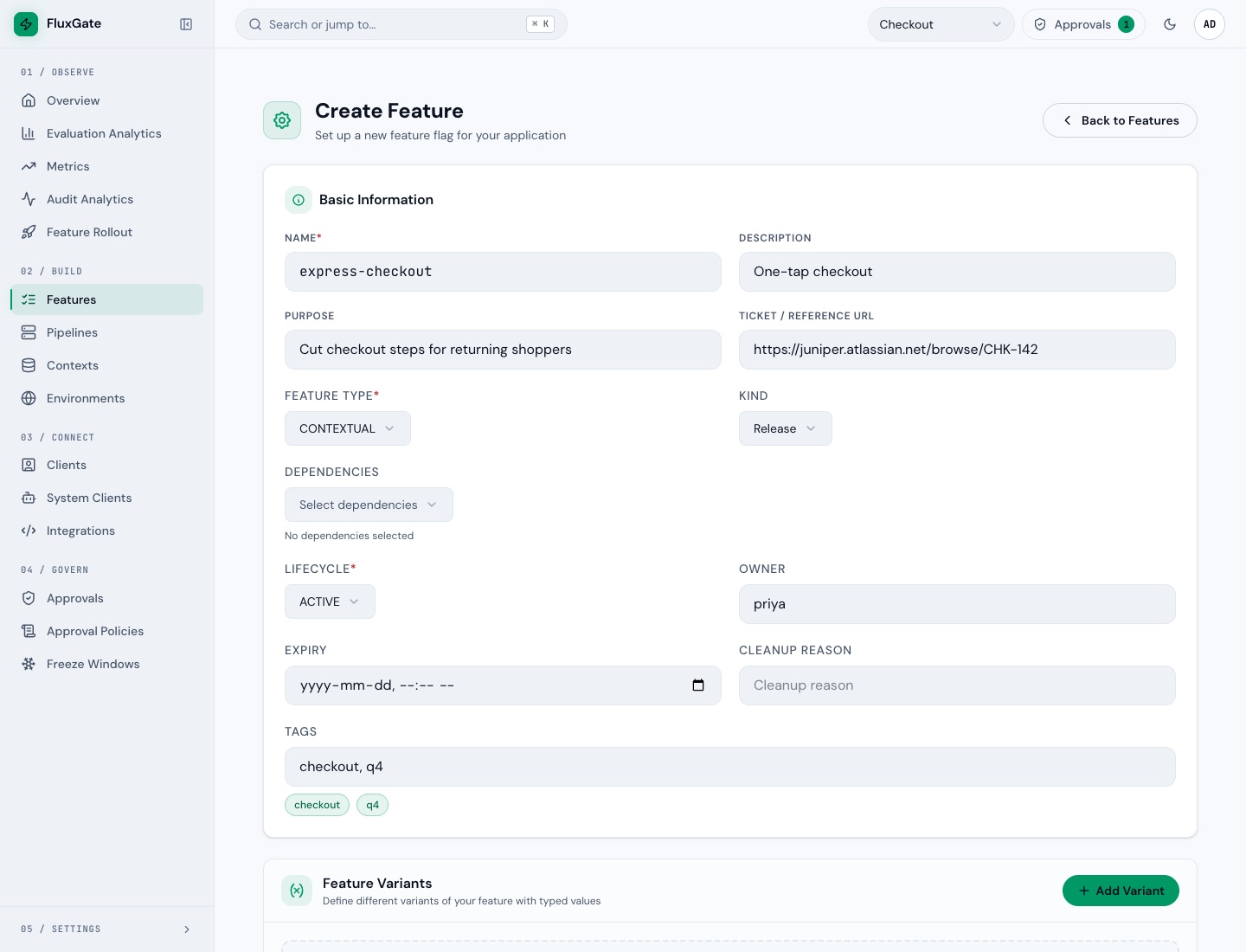
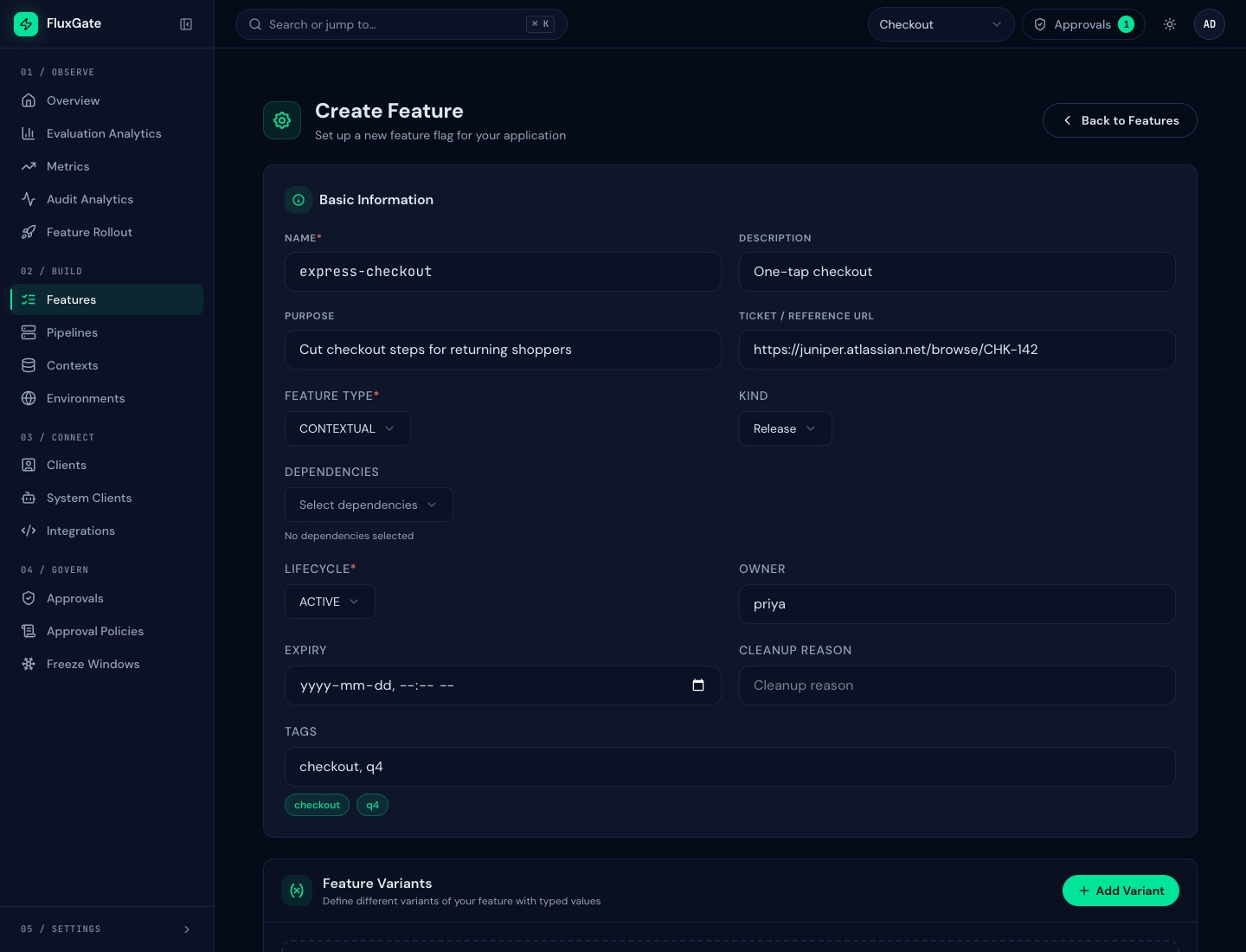
/features, then click Create New Feature. The page Create Feature opens at/features/create. - In the Basic Information card, fill Name with
express-checkout. The name is the key your code asks for, so keep it stable. - Fill Description with
One-tap checkoutand Purpose withCut checkout steps for returning shoppers. - Fill Ticket / Reference URL with
https://juniper.atlassian.net/browse/CHK-142. - Set Feature Type to
CONTEXTUALand Kind to Release. - Set Lifecycle to
ACTIVE, Owner topriya, Expiry to a date at the end of the quarter, and Tags tocheckout, q4. - In the Feature Variants card, click Add Variant twice. Each new row starts with the key
variant-1orvariant-2, the type String and an empty value. - Set the first row to Variant Key
classicand Valueclassic. Set the second row to Variant Keyexpressand Valueexpress. Leave Type on String. - Open Pipeline Template. The selector reads "Select a Pipeline". Choose
checkout-release. The toast "Pipeline template loaded" appears, and the stage graph shows Development, Staging and Production. - Click Create Feature. The toast "Feature created successfully" appears, and the page becomes Edit Feature at
/features/<id>/edit.
 (opens full size in a new tab)
 (opens full size in a new tab)
The Blast Radius panel on the edit page shows what a change to this flag could reach. Right after creation it reads MEDIUM RISK with the counts Environments 3, Clients 0, Contexts 2, Dependencies 0 and 7d evals 0. It fills in as you connect apps.
Do not click Update Feature as priya. Editing a feature needs an admin or a Team Admin.
Create holiday-banner
holiday-banner is a simple flag: on or off, with no variants. Later chapters use it for the kill switch and scheduled changes, so give it the same pipeline.
- Click Back to Features, then Create New Feature.
- Fill Name with
holiday-bannerand set Feature Type toSIMPLE. The variants card is replaced by the text "Simple features are basic on/off flags". - Set Pipeline Template to
checkout-release. Leave Kind on Not set. - Click Create Feature.
Read the list and the detail page
Click Back to Features. The list at /features shows both flags. Its columns are Name, Type, Lifecycle, Description, Owner / Tags, Expiry, Active and Actions. The Name cell also shows the Kind badge. A flag without an owner reads Unassigned, and one without an expiry reads Not set.
Filters sit above the table: name, type, status, lifecycle, stale, owner, expired, tags, kind, dependency and approval. Saved Views keep a set of filters in your browser, per team. They are not shared with other people or browsers.
The Active badge means the flag is switched on. It does not mean the flag is live: nothing is served until a stage is deployed.
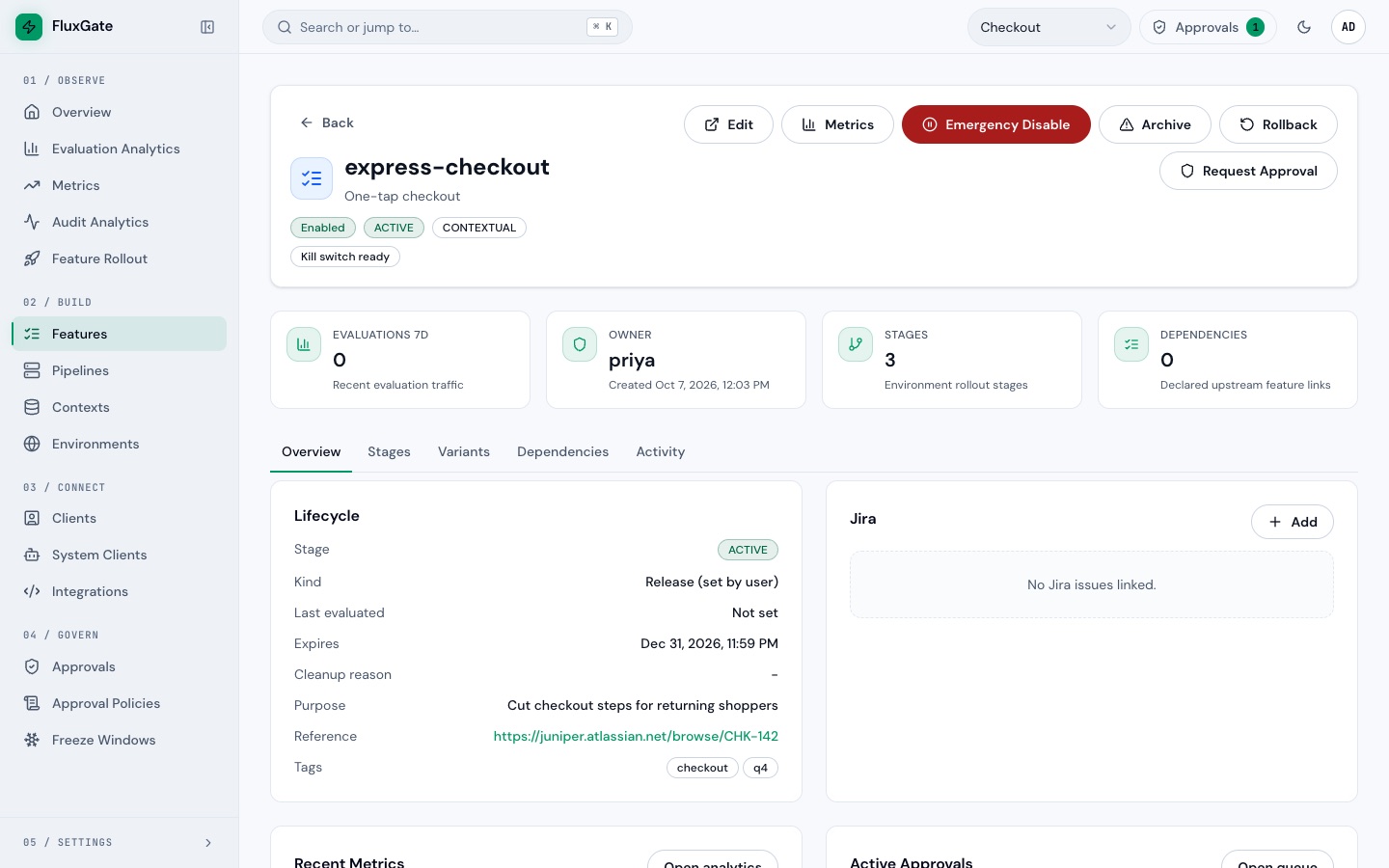
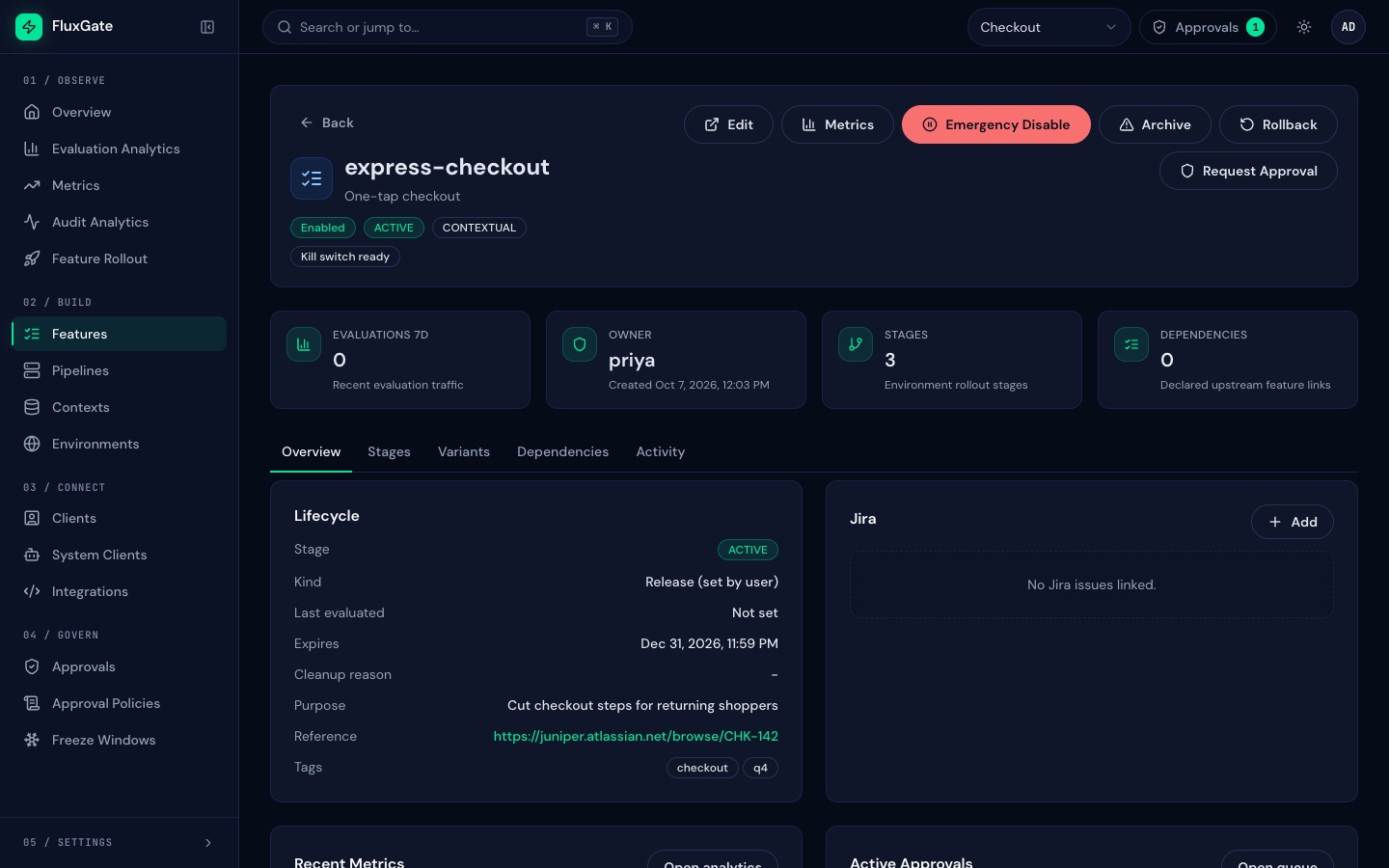
Click View Details on the row, or click the feature name, to open /features/<id>. The read-only page shows the header (name, description, the badge Enabled, lifecycle and type), the cards Evaluations 7d, Owner, Stages and Dependencies, and five tabs:
| Tab | What it shows |
|---|---|
| Overview | Lifecycle, kind, last evaluated, expiry, cleanup reason, purpose, reference, tags, linked Jira issues, recent metrics and active approvals. |
| Stages | One row per pipeline stage with its status. |
| Variants | The variants and their values. |
| Dependencies | Declared links to other features. |
| Activity | The history of changes. |
 (opens full size in a new tab)
 (opens full size in a new tab)
Examples
The variants of express-checkout
| Variant Key | Type | Value | Meaning |
|---|---|---|---|
classic | String | classic | The checkout you have today. |
express | String | express | The new one-tap checkout. |
The two features after this page
| Feature | Type | Kind | Pipeline | Stage status |
|---|---|---|---|---|
express-checkout | CONTEXTUAL | Release | checkout-release | NOT_DEPLOYED on all three stages |
holiday-banner | SIMPLE | Not set | checkout-release | NOT_DEPLOYED on all three stages |
Good to know
- Every stage starts as
NOT_DEPLOYED. Do not call a flag live before a stage is deployed. - Feature keys are unique within a team. Creating a second feature with the key
express-checkoutfails with "Feature with key 'express-checkout' already exists". - The Pipeline Template selector exists only on the create page. The Rollout Templates card below it stores a stage plan. Targeting rules comes back to it.
- The trash button in a feature row does nothing, and the UI has no other way to remove a feature. Do not rely on it to clean up.
- Expiry uses your browser's time zone.
- The edit page also has the tabs Configuration, Experiment and History, and a Setup Wizard button. This page does not use them.
Next
Add targeting rules to express-checkout in Targeting rules.