

Enterprise · Approvals and safety nets
Safety nets
A freeze window blocks planned change, the kill switch overrides a live flag at once, a scheduled change can be cancelled, and Version History lets you roll back.
Before you start
- Staging of
express-checkoutis deployed, and the policyRelease approvalsexists. - The flag
holiday-bannerexists and is not deployed anywhere. The terminal from Automation and CI still hasgate.shand its three variables:FLUXGATE_URL,FLUXGATE_TOKENandFLUXGATE_ENVIRONMENT_ID. - Start as
priyaRequester, then usesamApprover andadminSystem admin as each step says. Select the team Checkout.
Four safety nets
An approval stops a bad change before it ships. These four tools limit the damage when something slips through, or when you need to hold all change for a while.
| Tool | What it does | Who uses it |
|---|---|---|
| Freeze window | Blocks stage changes in an environment for a period. | An admin or a Team Admin creates it. |
| Kill switch | Overrides a live flag at once. | An admin or a Team Admin. |
| Scheduled change | Runs a disable, enable or archive at a set time. You can cancel it first. | Whoever can update the feature. |
| Version History | Restores an earlier state of a flag. | Any signed-in user. |
Freeze windows
A freeze window blocks changes to the stages of one environment between a start and an end time, for example a holiday trading peak. A request for a stage change in that environment fails while the window is active, with the message Change blocked by active freeze window 'Holiday freeze'. An evaluation is not a change, so your app keeps serving flags as before.
On a stage, the Change Freeze card shows Frozen and names the window. An admin or a Team Admin can override it with a recorded Override Reason. For everyone else, the card says an admin has to override.
The kill switch
Emergency Disable turns a live flag off at once, without a request. It has three properties that matter in an incident:
- It creates no approval request, so a slow approver cannot delay it.
- A freeze window does not block it.
- It needs a Reason of at least five characters, which the flag then shows on its row.
Emergency Enable reverses it. Every kill switch use is recorded as a version.
Scheduled changes
A scheduled change runs one action, Disable feature, enable or archive, at a time you pick. It waits as Pending. A pending change can be cancelled, and then nothing runs. A reason is required.
Version history and rollback
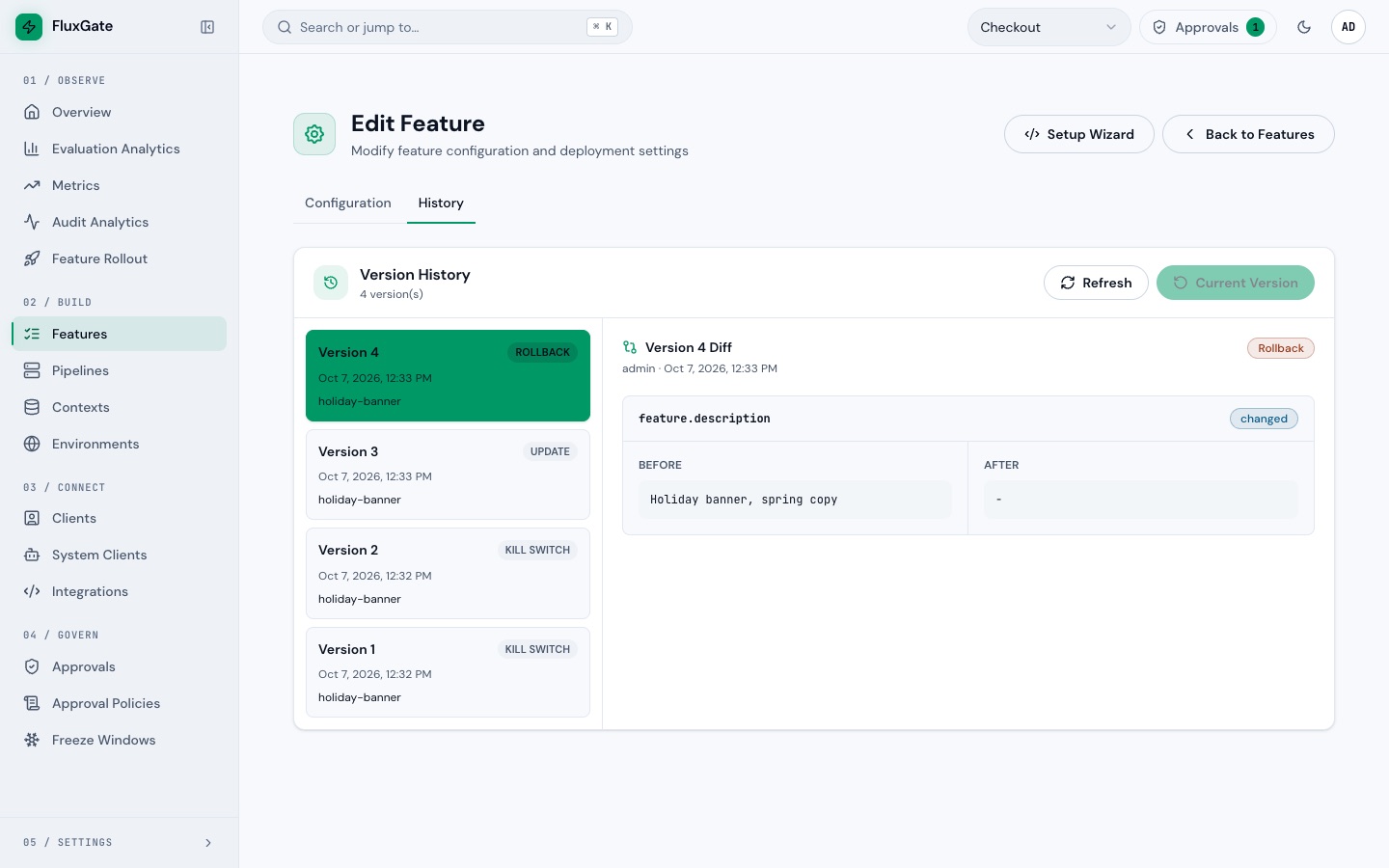
Every update of a flag is a version. These actions create one: an Update Feature save, each emergency disable and enable (tag Kill switch), a stage criteria save and a rollback. Creating a feature or changing a stage does not. Select a version to see its diff against the previous one, with Before and After panes. Rollback restores the selected version, and the rollback becomes a version too.
How the safety nets and approvals interact
| Action | Needs approval | Blocked by a freeze window |
|---|---|---|
| Request Deployment or Request Rollback | Yes | Yes |
| Emergency Disable and Emergency Enable | No | No |
| Execute Rollback on an approved rollback request | Already approved | Yes. The approval does not bypass the freeze. |
Make the flag live
To watch a kill switch work, the flag has to be live. holiday-banner has never been deployed, so run the loop from Approvals and policies for its Development stage.
- As
priya, openholiday-bannerat/features/<id>/edit, click the Development stage, type a Reason, open Actions and click Request Deployment. - Log out and sign in as
sam. Open/approvalsand click Approve on the pending request. The toast "Approval recorded" appears. - Log out and sign in as
priya. Click the Development stage, open Actions and click Deploy. - Log out and sign in as
admin. The admin account operates the controls on this page.
Run the gate from the previous page. It exits with 0:
bash gate.sh; echo $?banner on
0Create a freeze window
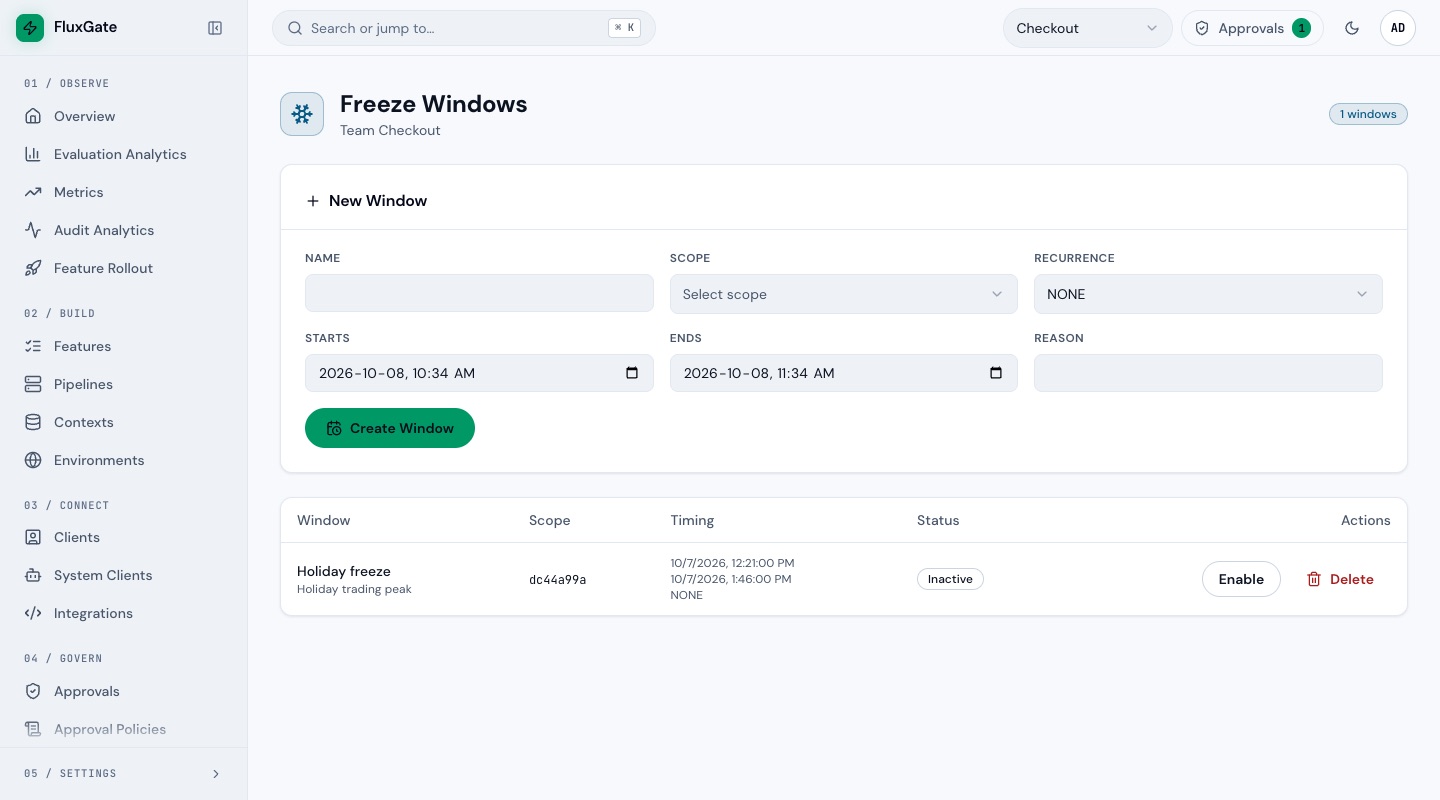
- Click Freeze Windows under Govern to open
/settings/freeze-windows. - Under New Window, type
Holiday freezein Name and chooseProductionin Scope. - Set Starts to a few minutes ago. The field is a date and time input. Click its minutes part and type the number. By default it starts 15 minutes from now, so the window would not be active yet. Keep Ends as it is.
- Type
Holiday trading peakin Reason and click Create Window. The toast "Freeze window created" appears, and the row shows Active now. - Open
holiday-bannerat/features/<id>/editand click the Production stage. The Change Freeze card shows Frozen, the text "Holiday freeze is active for Production" and the field Override Reason.
The window blocks a request for the frozen environment. Here priya asks for a Production deployment of holiday-banner while the window is active. The API answers with a 403 and this body:
{"error":"forbidden","message":"Change blocked by active freeze window 'Holiday freeze'","code":null,"details":null}In the UI, the toast reads "Failed to change stage" with the same message under it. A request that is already approved is blocked too: while a window covers its environment, Execute Rollback on an approved rollback fails with that toast. End the window, and the action works.
Use the kill switch
- Click Features under Build to open
/features. - Point at the red icon button on the
holiday-bannerrow. The tooltip reads Emergency Disable. Click it. The dialog Disable Feature opens. - Type
Banner breaks checkout on mobilein Reason. Leave Disable timing on Disable immediately. Click Disable Feature. - The row shows
DISABLEDand EMERGENCY OVERRIDE with your reason. - Run the CI gate. It exits with
10, which means off. - When the fix is out, click the green icon button on the row (Emergency Enable). Type
Fix shipped and banner verifiedin Reason and click Enable Feature. The badge clears. - Run the CI gate again. It exits with
0.
When your own flag is not deployed, the kill switch has nothing live to override. That is why you made holiday-banner live first.
End the freeze window
- Return to
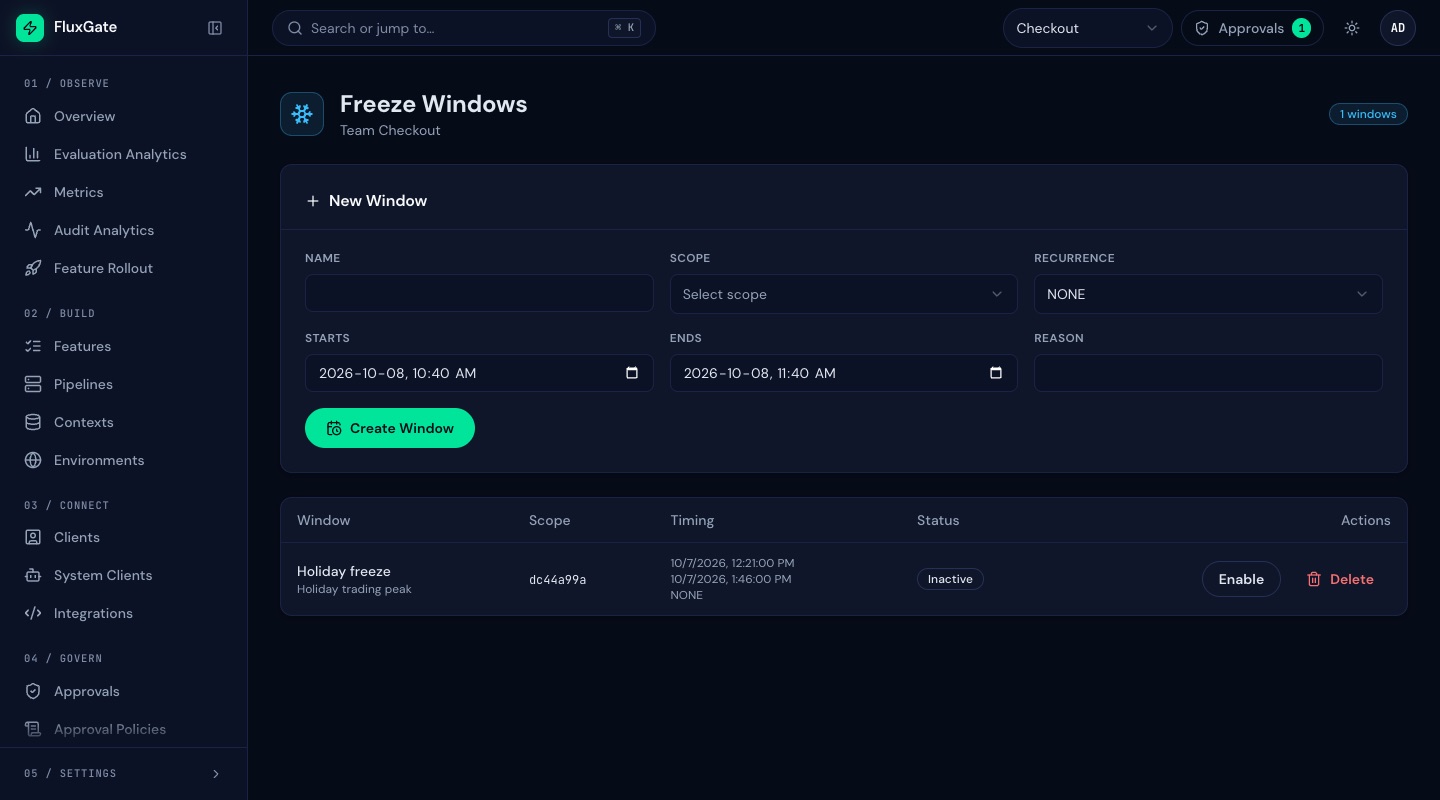
/settings/freeze-windowsand click Disable onHoliday freeze. The badge reads Inactive. - The window stays in the table. Click Enable to turn it on again, or Delete to remove it.
 (opens full size in a new tab)
 (opens full size in a new tab)
With the window inactive, nothing blocks the stage changes of the next steps.
Schedule a change and cancel it
- Click the pencil icon on the
holiday-bannerrow to open/features/<id>/edit. Scroll to Scheduled Changes. - Action shows Disable feature. Set Run At to next week. Click the day part of the date and type the day.
- Type
Retire the banner after the salein Reason. Click Schedule Change. If you leave Reason empty, the toast reads "Schedule reason is required". - The toast "Scheduled change created" appears, and the table shows the row with the status Pending.
- Click Cancel on the row. The toast "Scheduled change cancelled" appears. The status is Cancelled and the reason reads
Cancelled by user.
Version history and rollback
- Scroll up. Change Description to
Holiday banner, spring copyand click Update Feature. The toast "Feature updated successfully" appears. - Click the History tab. Version History lists the versions, newest first. The newest one is selected. Its diff shows BEFORE
-and AFTERHoliday banner, spring copy. - Select the version before it. It is the version tagged Kill switch from the enable, not the one from the disable. The disable version holds the disabled state and would switch the flag off again.
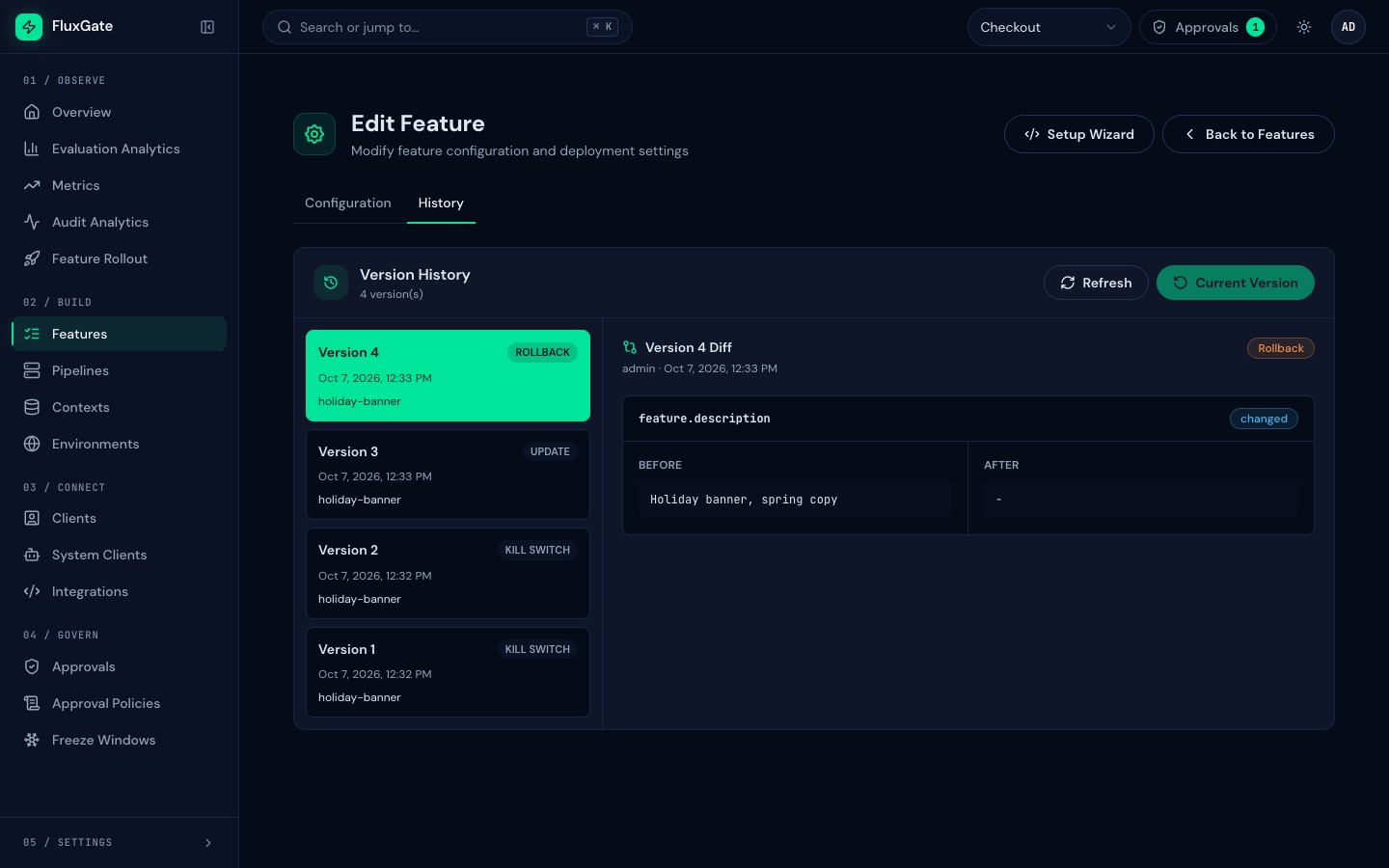
- Click Rollback and confirm the browser dialog. The toast "Feature rolled back" appears. A new version with the tag Rollback is on top, and the description is empty again.
- Open
holiday-bannerat/features/<id>and click the Activity tab. It shows the same history for anyone who needs to audit a change.
 (opens full size in a new tab)
 (opens full size in a new tab)
Examples
The CI gate during a freeze
This is the gate from Automation and CI while Holiday freeze is active, then after the kill switch, then after the enable. The gate reads Development while the freeze covers Production, so the freeze cannot change the result. The point is that the kill switch works regardless of the freeze.
bash gate.sh; echo $?banner on
0bash gate.sh; echo $?banner off
10bash gate.sh; echo $?banner on
0The versions of holiday-banner
| Version | Tag | Created by |
|---|---|---|
| 1 | Kill switch | Emergency Disable |
| 2 | Kill switch | Emergency Enable |
| 3 | Update | Update Feature, the new description |
| 4 | Rollback | Rollback to version 2 |
The numbers can differ when you edited the flag earlier.
Good to know
- Freeze Windows under Govern needs an admin or a Team Admin. So do creating, disabling and deleting a window, Emergency Disable, Emergency Enable and Update Feature.
- Scope lists each environment by name, then the choices
All Development,All StagingandAll Production. The table prints the first eight characters of the environment id in the Scope column, for exampledc44a99a, and shows both dates in your browser locale. - The row buttons on the freeze window are Disable or Enable, and Delete. Disable keeps the window.
- Disable timing also offers Schedule disable, and an optional Expiry restores the flag after that time.
- The emergency dialog accepts a Reason of 5 to 500 characters.
- A rollback restores everything stored in the version, including stage statuses. Roll back to a version taken after the Development deployment, so Development stays deployed.
- The rollback asks the browser to confirm, with a dialog such as "Rollback feature to version 2?". The dialog names no details. Check the version you selected before you click.
- After you switch users, reload the page if the team selector looks stale.
Troubleshooting
The freeze window shows "Starts in 15 minutes"
The default start is 15 minutes from now, so the window is not active yet. Move Starts a few minutes into the past, or wait.
The emergency dialog says "Approval required"
The banner is a preview that does not apply. The kill switch runs at once and records no request.
Next
Connect Jira so that a ticket status change drives a release in Jira setup.