

Chapter 2 · Model your release
Targeting rules
You can target Canadian Plus users first, then split everyone else 20/80.
Before you start
- The feature
express-checkoutexists with the variantsclassicandexpress, and its stages have no criteria yet. See Create your first feature. - The approval policy
Release approvalsexists. See Environments and pipelines. - Sign in as
adminSystem admin for the criteria and the rollout template. Saving a rollout template needs an admin or a Team Admin. Later you switch topriyaRequester,samApprover andpriyaagain for the deployment. - Select the team Checkout in Select team.
What targeting does
Here is the rollout you want. Canadian Plus users get express checkout first, and everyone else gets it for one user in five. That takes two rules, and the order in which FluxGate checks them decides whether the plan works.
Criteria belong to a stage
Targeting rules belong to a stage, not to the whole feature. Development and Production can behave differently. A stage holds a list of criteria.
A criterion pairs a rule with the variant to serve when the rule matches. It has three parts:
- A priority number.
- Optional rule groups that say who matches.
- A variant plan: a specific variant, or a weighted split.
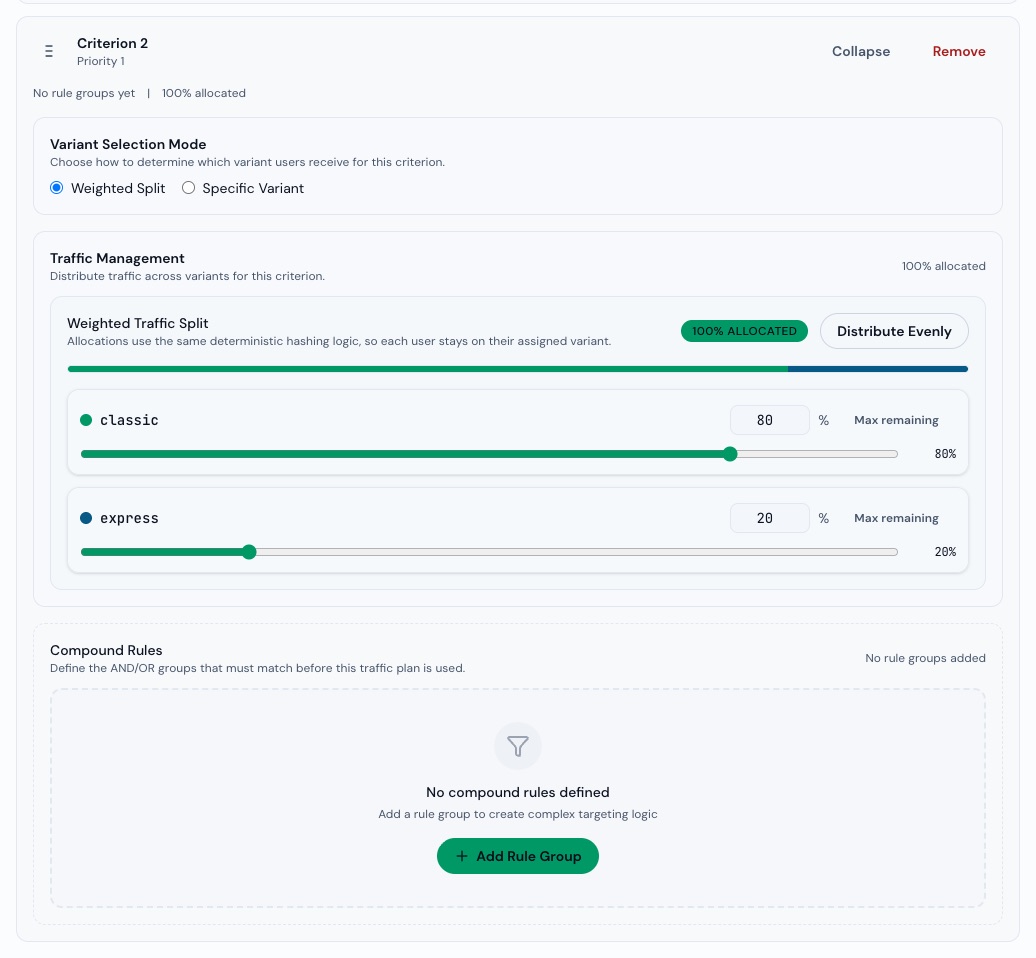
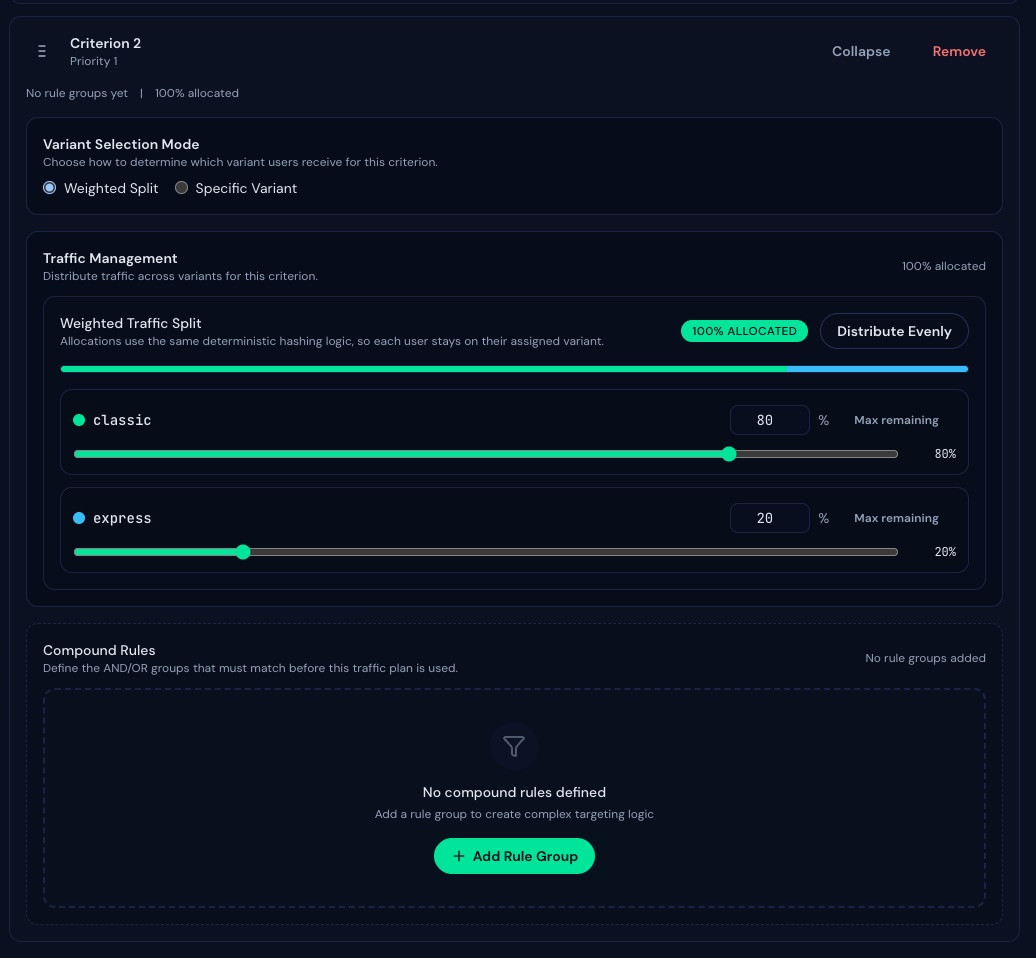
Specific Variant or Weighted Split
Each criterion picks one Variant Selection Mode:
- Specific Variant: every matching user gets exactly one variant, with no randomness.
- Weighted Split: the matching users are spread over variants by percentage. The weights must total 100, and at least two variants need a weight. A user keeps the same variant on every request, because FluxGate hashes the flag key with the user's bucketing key. See Contexts.
 (opens full size in a new tab)
 (opens full size in a new tab)
Rule groups: AND and OR
A rule group holds conditions. Inside one group, AND (all must match) means every condition has to match. Between groups, the logic is OR: a second group is an alternative. Each condition has a Context Key, an Operator and a Value. The operators are Equals, Not Equals, Greater Than, Less Than, Greater Than or Equal, Less Than or Equal, Contains, Starts With, Ends With, Regex Match, In List, Not In List, SemVer > and SemVer <.
A criterion without rule groups matches everyone who reaches it.
Priority and first match
Priorities start at 0. A lower number is checked first, and the first match wins. Put the 20/80 split on top and it matches everybody, so the Canadian rule never runs. The specific rule goes first. When you drag a criterion, the priorities renumber themselves from 0.
The Reachable badge
Each rule group shows a Reachable badge when the rule can match. Above the conditions, a Rule Summary reads the rule back in plain language, with a matching example and a non-matching example. Check them before you save.
Add the criteria to Development
- Click Features under Build, click
express-checkout, then click Edit. The page Edit Feature opens at/features/<id>/edit. - Scroll to the stage graph and click the Development stage. Click the edge of its node. Clicking the environment name opens a selector instead. The Stage Editor shows "Editing Development criteria".
- Click Add Criterion. A card Criterion 1 with Priority 0 appears. Click Expand.
- Under Variant Selection Mode, click Specific Variant. The picker under "Select the variant to return:" starts on
classic, the first variant. Change it toexpress. - Under Compound Rules, click Add Rule Group. Rule Group 1 shows AND (all must match). The Context Key already holds
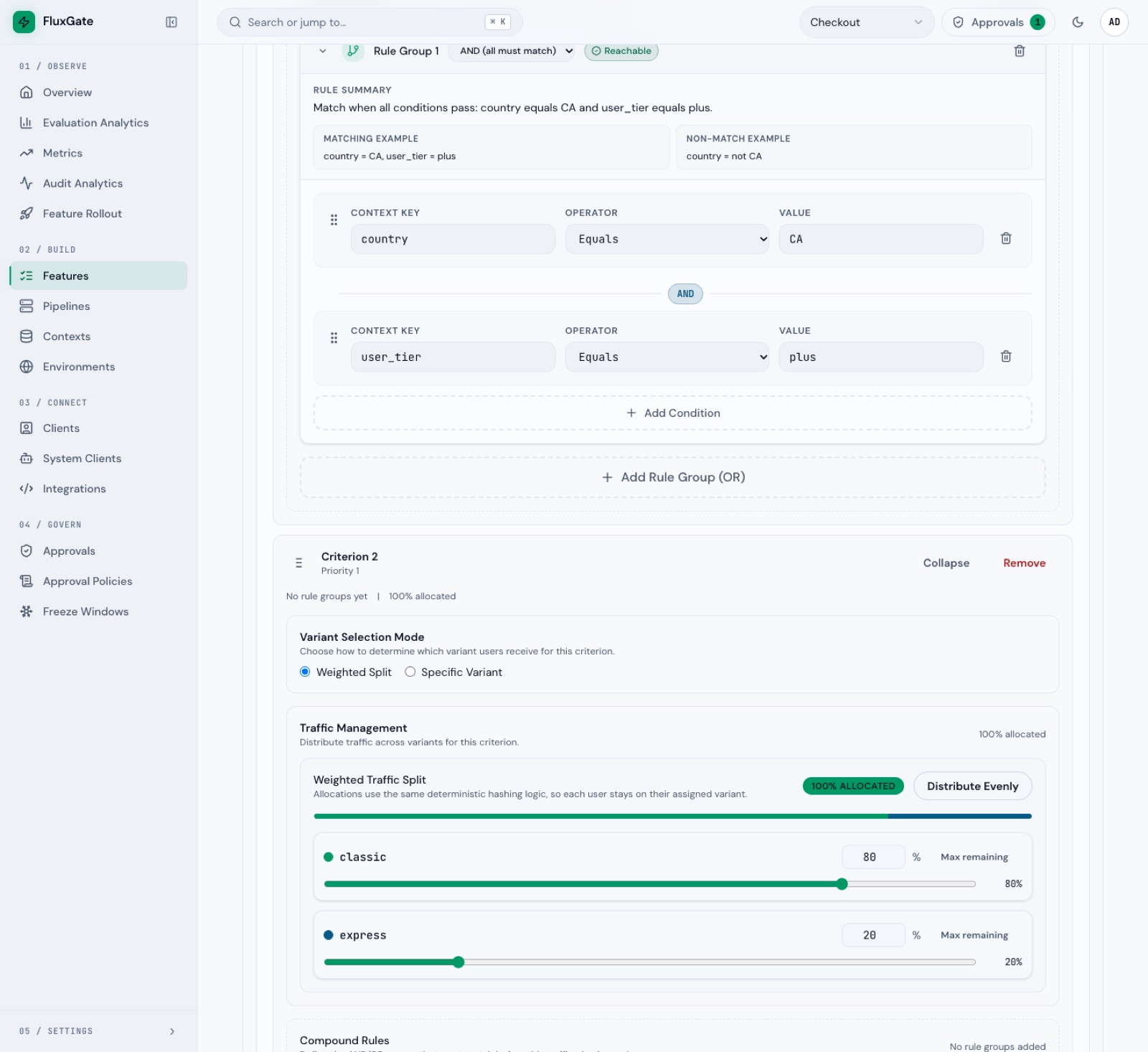
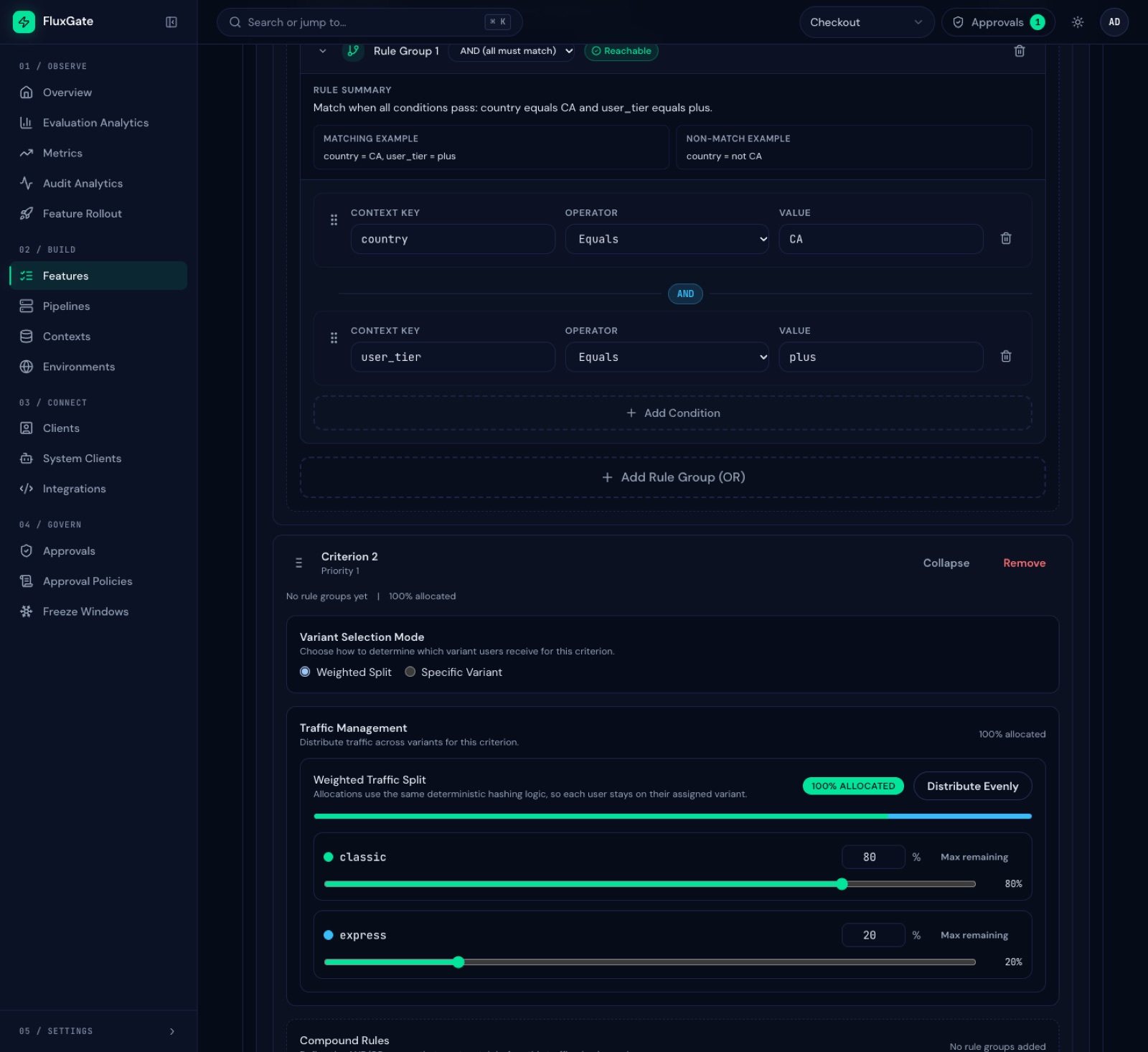
country, the first declared context key. Set Operator to Equals and Value toCA. - Click Add Condition. Set Context Key to
user_tier, Operator to Equals and Value toplus. The badge reads Reachable, and the Rule Summary reads "Match when all conditions pass: country equals CA and user_tier equals plus." - Click Add Criterion again. Criterion 2 shows Priority 1. Click Expand. Weighted Split is already selected, with an even 50/50 split. Click Distribute Evenly if you changed it, then set
classicto80andexpressto20. The card shows "100% allocated". This criterion has no rule group. - Check the order. Criterion 1, the Canadian rule, must be above Criterion 2. If it is not, drag a card by its handle to swap them.
- Click Save Stage Criteria. The toast "Stage criteria saved" appears.
 (opens full size in a new tab)
 (opens full size in a new tab)
Repeat on Staging
Criteria belong to a stage, so Staging needs its own copy.
- In the stage graph, click the Staging stage.
- Add the same two criteria in the same order: the Canadian Plus rule first, then the 20/80 split.
- Click Save Stage Criteria.
Save a rollout template
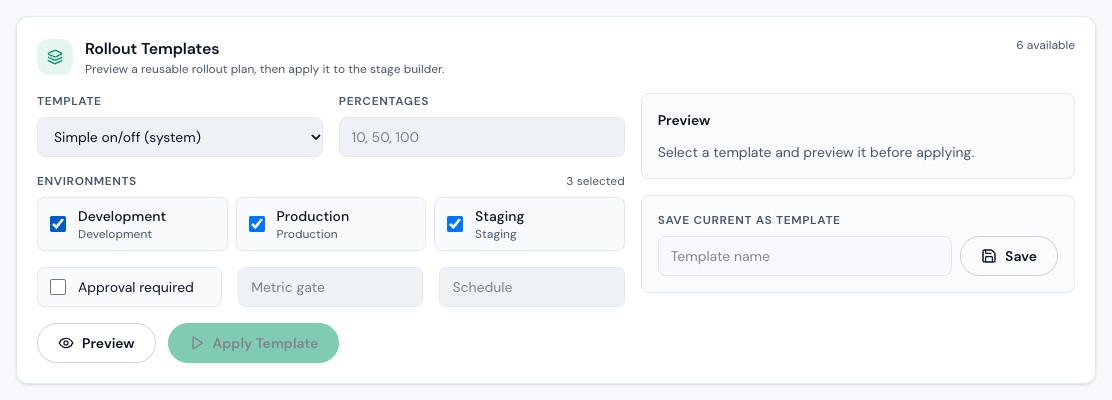
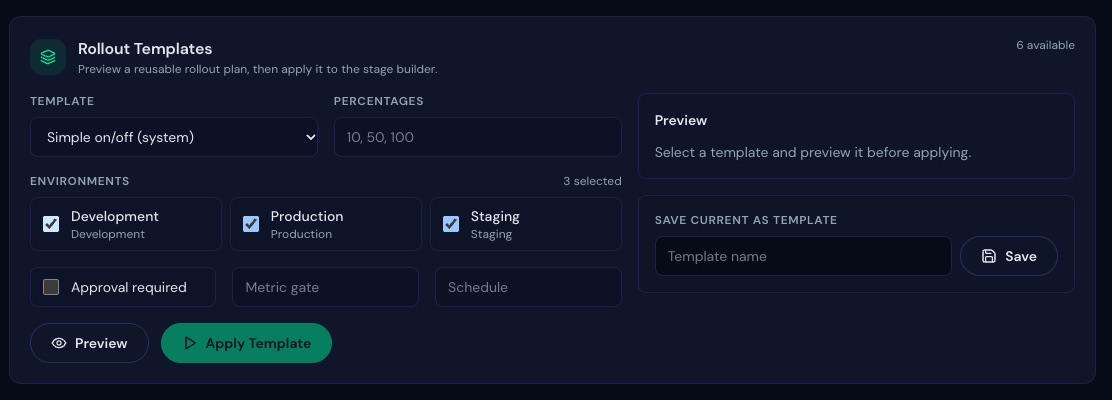
A rollout template saves the stage plan: your environments in order. A new feature can start from that layout. The criteria stay on each stage, so the name plus-first-then-20 is only a reminder.
- Scroll to Rollout Templates.
- Under Save Current As Template, type
plus-first-then-20in Template name and click Save. The toast "Rollout template saved" appears.
 (opens full size in a new tab)
 (opens full size in a new tab)
Do not click Apply Template on a saved feature to copy criteria. It replaces the whole stage graph with new, unsaved stages and clears the criteria.
Request, approve and deploy
Now ask for the Development stage to go live. Three people take part, and each uses a different account.
- Open the account menu and click Log out. Sign in as
priyaRequester. Reload the page if the team selector looks stale. - Open
express-checkoutat/features/<id>/editand click the Development stage. - Type a short Reason, for example "Roll out express checkout to Development". The approver sees it.
- Open Actions and click Request Deployment. The toast "Stage change requested" appears. The policy
Release approvalsapplies, so the stage moves toDEPLOYMENT_REQUESTEDand waits for an approver. The Actions menu is empty forpriyanow. - Log out and sign in as
samApprover. Ifsamhas never signed in, FluxGate shows Update Your Password first. Set a new password, then sign in again. - Click Approvals under Govern to open
/approvals. The pending card reads "Stage NOT_DEPLOYED -> DEPLOYMENT_REQUESTED for feature express-checkout". - Click Details, scroll to the bottom, type a one-line comment under Add a comment, and click Approve with comment. The toast "Approval recorded" appears, and the stage moves to
DEPLOYMENT_APPROVED. - Log out and sign in as
priyaagain. Openexpress-checkoutat/features/<id>/edit, click the Development stage, open Actions and click Deploy. The stage status becomesDEPLOYED.
The Deploy action appears only after the approval. A requester cannot approve their own request: FluxGate rejects it with the error Requesters cannot approve their own request.
After Deploy, the page can show an orange "Approval required" panel labelled Request Rollback. It describes the next action, because a rollback needs approval too. The stage is already deployed. Open /features/<id> and read the Stages tab to confirm DEPLOYED, or reload the page to clear the panel.
Examples
The criteria on Development and Staging
| Priority | Criterion | Rule | Plan |
|---|---|---|---|
| 0 | Criterion 1 | country equals CA AND user_tier equals plus | Specific Variant: express |
| 1 | Criterion 2 | none, matches everyone who reaches it | Weighted Split: classic 80, express 20 |
Walk-through for three users
FluxGate checks Criterion 1 first, then Criterion 2. The first match wins.
| User | country | user_tier | Criterion that matches | Variant |
|---|---|---|---|---|
| A | CA | plus | Criterion 1: both conditions match. | express, always. |
| B | CA | free | Criterion 2: user_tier is not plus, so Criterion 1 fails. | express for about 1 user in 5, otherwise classic. The same user always gets the same answer. |
| C | US | free | Criterion 2: country is not CA. | express for about 1 user in 5, otherwise classic. |
What 20/80 looks like
In the demo recording on v1.2.0, one hundred US free users with the bucketing keys user-1 to user-100 all skipped the Canadian rule and landed in the split. They divided like this:
| Variant | Users |
|---|---|
classic | 84 |
express | 16 |
Your numbers can differ a little, for example with other bucketing keys.
The split is deterministic, not exact. Twenty users gave 6 express, 30 percent, so use many users before you judge the percentages. Clients and edge server runs this loop against a real edge server.
Good to know
- Specific Variant preselects the first variant,
classic. Change it to the variant you want. It is an easy one to miss. - The summary line of a Specific Variant criterion reads "0% allocated (100% open)". That line counts only weighted splits. The selected variant still applies.
- A new criterion starts collapsed and defaults to Weighted Split with an even split. Distribute Evenly is disabled with fewer than two variants.
- A weighted split is rejected when the weights total more than 100, or when fewer than two variants have a weight.
- A rollout template stores the stage plan, not criteria. Saving a template needs an admin or a Team Admin.
- Criteria need no special role to save, but the Update Feature button needs an admin or a Team Admin.
- The stage graph is a zoomable canvas. Scrolling with the pointer over it zooms the graph out. Scroll with the pointer beside the content.
- A weighted split cannot place a request that has no bucketing key.
Next
Connect a real app to the edge server and evaluate express-checkout in Clients and edge server.