

Chapter 2 · Model your release
Environments and pipelines
As platform admin you model Development, Staging and Production as environments, chain them into the checkout-release pipeline, and add the approval policy Release approvals.
Before you start
- The team
Checkoutand the userspriya(Requester) andsam(Approver) exist. See Teams, users and roles. - Sign in as
adminSystem admin. Ifpriyais still signed in, open the account menu and click Log out first. - Select the team Checkout in Select team. Environments and pipelines belong to the selected team. Without a team, the forms show "Please select a team first."
Environments, pipelines and policies
Your code runs in more than one place: a laptop, a staging cluster, production. FluxGate models each place as an environment, so a change you meant to test cannot reach customers by accident. Then it chains the environments into a pipeline, and a policy decides who approves a change. A platform admin sets these rails up once. Developers then build features on top of them.
Environments and their types
An environment is a deployment target that a flag can be switched on or off in. It has a name and a type. The name is yours to choose. The type is the part FluxGate reads. It has three values:
| Type | Use it for |
|---|---|
Development | The place where developers try a change first. |
Staging | A copy of production for testing. |
Production | The place your customers use. |
An approval policy can apply to production only, and it finds production by the Environment Type, not by the name. Pick the matching type for each environment. Environment names are unique within a team.
Pipelines
A pipeline puts environments in order, so a feature moves from Development to Staging to Production. Each stage of a pipeline is tied to exactly one environment. A pipeline is also the template a feature starts from. When you create a feature and choose a pipeline, the feature gets one stage per environment, in the same order. Each stage is requested, approved and deployed on its own, so Development can go live today while Production waits. You can reuse one pipeline for as many features as you like.
Approval policies
An approval policy decides which deployment requests need a sign-off, and who can give it. A requester can ask for a deployment but cannot approve their own request.
Create the environments
- Click Environments under Build to open
/environments. - Click Create New Environment. The dialog Create Environment opens.
- Fill Environment Name with
Development. Leave Environment Type onDevelopmentand Enabled on. Click Create Environment. The toast "Environment created successfully" appears. - Click Create New Environment again. The dialog reopens with the previous name selected and the previous type kept. Type
Stagingover the name, then set Environment Type toStaging. Click Create Environment. - Repeat for
Productionwith the typeProduction.
The Environments table lists the three environments with the columns Environment ID, Name, Type and Status. The table sorts by name, so it lists Development, Production, Staging.
Create the pipeline
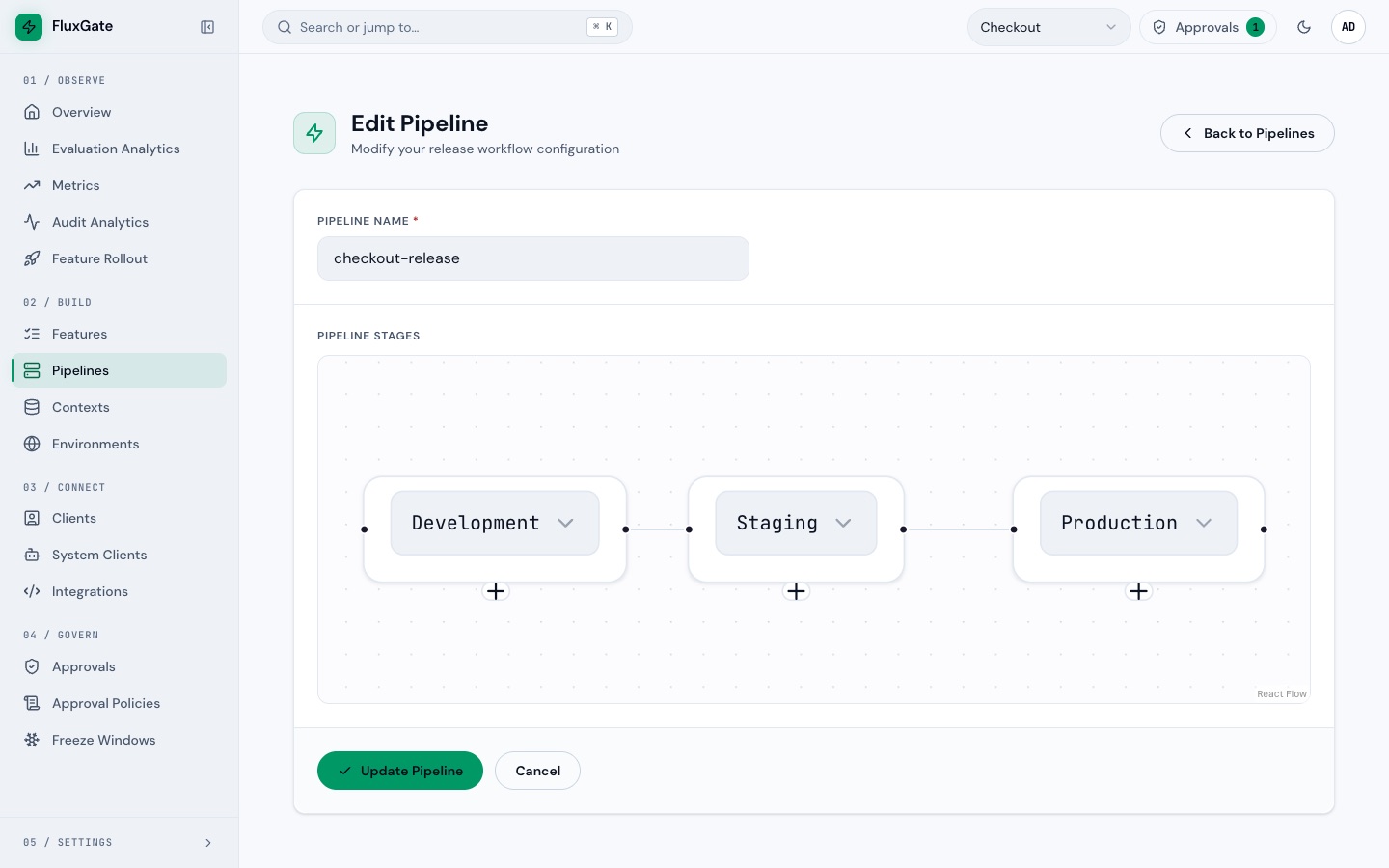
- Click Pipelines under Build to open
/pipelines, then click Create New Pipeline. The page Create Pipeline opens at/pipelines/create. - Type
checkout-releasein Pipeline Name. - Under Pipeline Stages, open the Environment selector on the first stage and pick
Development. - Click the small plus button below the first stage. A second stage appears. Pick
Stagingin it. - Click the plus button below the second stage once. The new stage opens past the right edge of the canvas. Drag the canvas left to bring it into view, then pick
Productionin it. - Click Create Pipeline. The toast "Pipeline created successfully" appears, and the list at
/pipelinesshowscheckout-release.
 (opens full size in a new tab)
 (opens full size in a new tab)
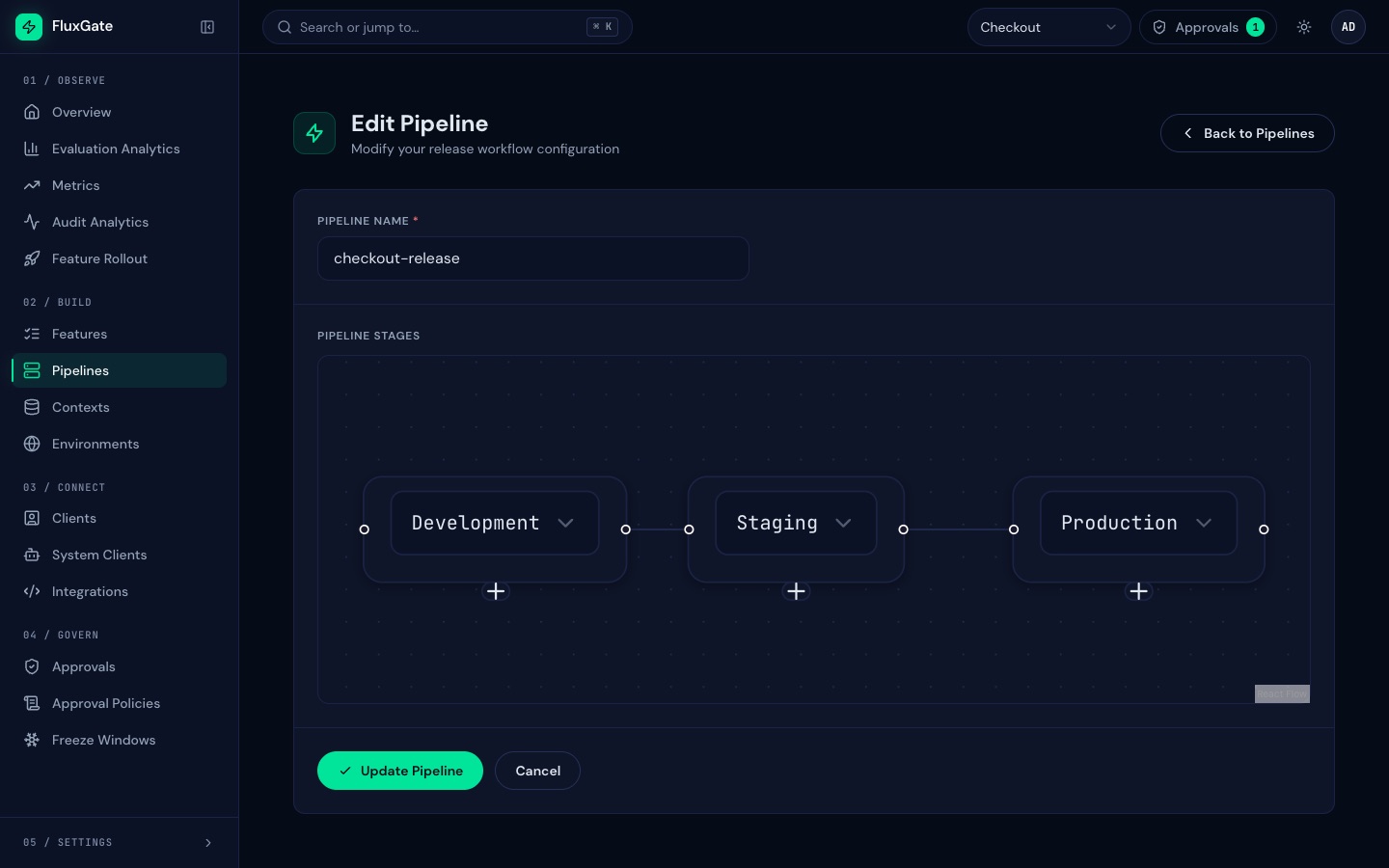
The plus button is an icon without a label. There is no Add Stage button. Click the plus exactly once per stage.
Create the approval policy
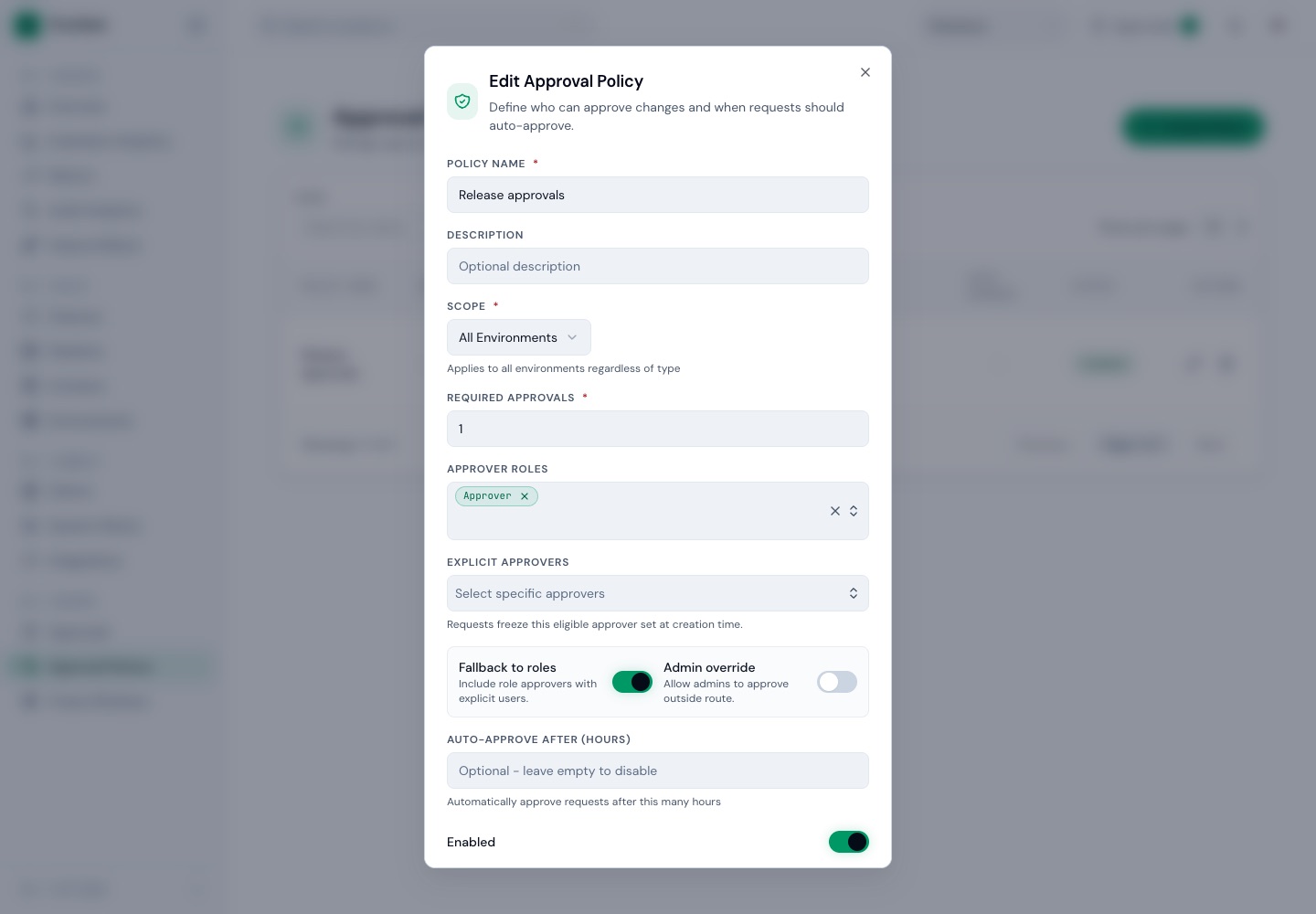
- Click Approval Policies under Govern to open
/settings/approval-policies. Only an admin or a Team Admin sees this item. - Click Create Policy. The dialog Create Approval Policy opens.
- Fill Policy Name with
Release approvals. - Leave Scope on All Environments and Required Approvals on
1. - Open Approver Roles and pick
Approver. Click the dialog heading to close the list. - Click Create Policy. The new row shows
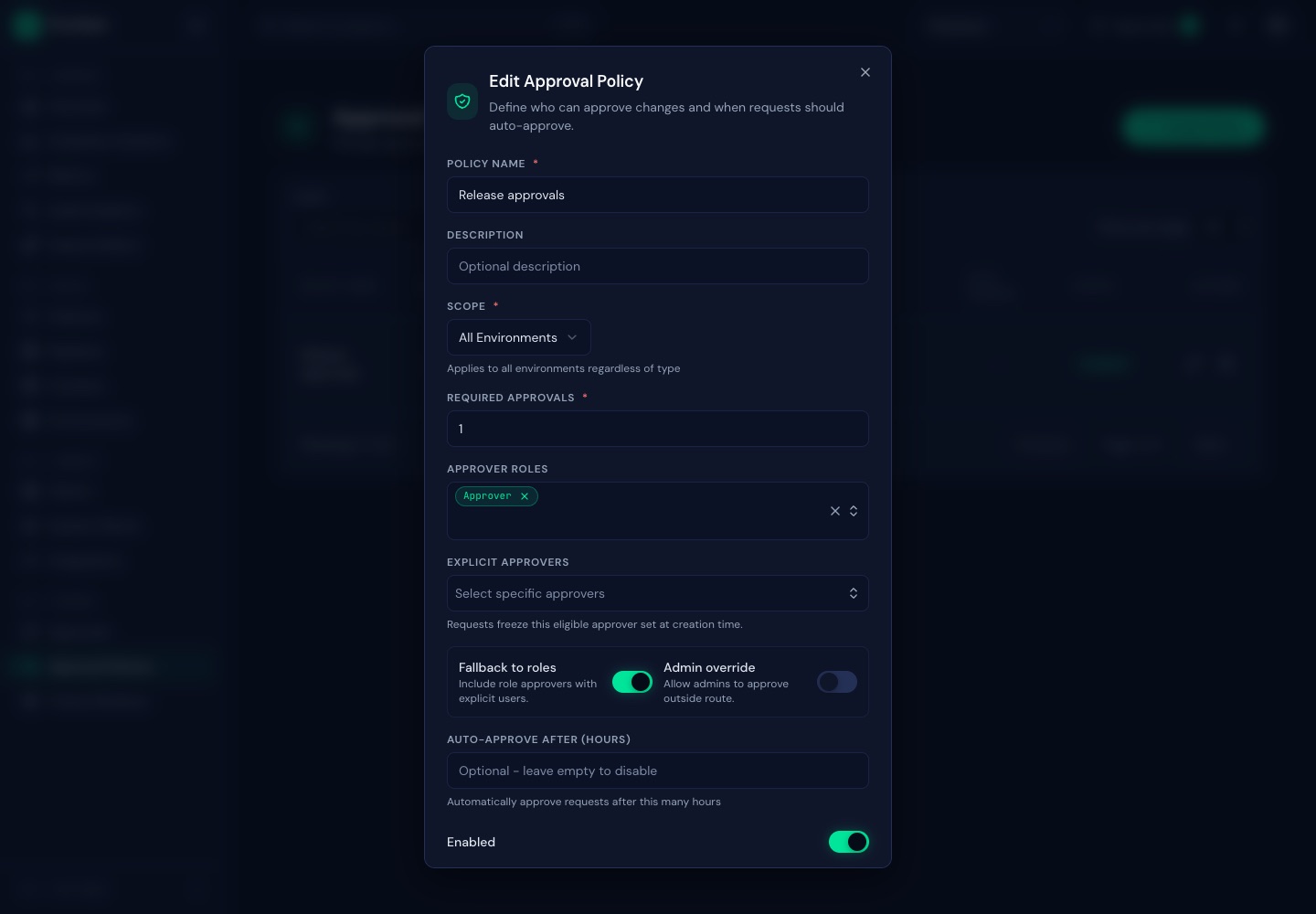
Release approvals, the scope All Environments, one required approval and one role.
 (opens full size in a new tab)
 (opens full size in a new tab)
Examples
The policy Release approvals
| Field | Value used | Meaning |
|---|---|---|
| Policy Name | Release approvals | The name shown in the list and on approval requests. |
| Scope | All Environments | The policy applies to every environment. The other choices are Production Environments Only and Specific Environments. |
| Required Approvals | 1 | One approval is enough. |
| Approver Roles | Approver | Anyone who holds the Approver role can approve. |
| Explicit Approvers | empty | No named users. The dialog notes that a request freezes its set of eligible approvers when it is created. |
| Fallback to roles | on (default) | The dialog says "Include role approvers with explicit users." |
| Admin override | off (default) | The dialog says "Allow admins to approve outside route." |
| Auto-approve after (hours) | empty | Leave it empty to disable. When set, the dialog says it approves requests automatically after that many hours. |
| Enabled | on (default) | The policy is active. |
The new row also shows the AI risk mode Advisory. You can leave it as it is.
The result
| Object | Name | Detail |
|---|---|---|
| Environments | Development, Staging, Production | One type each. |
| Pipeline | checkout-release | Stages at order 0, 1 and 2: Development, Staging, Production. |
| Approval policy | Release approvals | All environments, role Approver, one approval. |
Good to know
- The Pipelines list shows the columns Name and Description. The Description column shows the status, such as
Active, not a description. The list does not show the stages. - Creating environments and pipelines needs no special role. Editing them later needs an admin or a Team Admin.
Troubleshooting
Saving the pipeline fails with "Pipeline must have at least 2 relationships"
The toast reads "Failed to Create Pipeline". It happens when you click the plus button more than once for a stage. The second click adds a duplicate stage and edge, and the new stage sits outside the visible canvas, so it looks as if nothing happened. Reload /pipelines/create and start over. Click the plus once per stage and drag the canvas to bring each new stage into view.
The forms say "Please select a team first."
Pick the team in Select team in the header. A team that you created in the current session appears in the selector only after you reload the page.
An approver role shows as "Role 00000000"
In some screens, such as the approval policy banner on a stage and the "Approval routing" details of a request, the role Approver appears as the id prefix "Role 00000000" instead of its name. The policy still works. Read it as the Approver role.
Next
Define the country and user_tier contexts that targeting rules use in Contexts.