

Enterprise · Approvals and safety nets
Approvals and policies
An approval policy puts a second person between a deployment request and a deployment, and the approver sees the blast radius, the diff and the policy before voting.
Before you start
- The policy
Release approvalsexists. See Environments and pipelines. express-checkouthas Staging and Production stages that are not deployed. The criteria from Targeting rules are in place.- Sign in as
adminSystem admin for the policy tour, then aspriyaRequester andsamApprover. Log out before you sign in as the next user, and reload the page if the team selector looks stale. - Select the team Checkout in Select team.
How approvals work
One person with a deploy button is one bad afternoon away from an incident. An approval policy puts a second person between a request and a deployment. A stage never goes live because one person clicked once.
Policy scope
Scope decides where a policy applies:
| Scope | Applies to |
|---|---|
| All Environments | Every environment of the team. |
| Production Environments Only | Environments whose type is Production. |
| Specific Environments | The environments you pick. |
Release approvals uses All Environments, so Staging and Production both need a vote.
Required approvals and roles
Required Approvals is the head count. A request needs that many approvals before it can move on. Approver Roles says who may vote: a user needs one of those roles. Explicit Approvers names people instead. A request freezes its list of eligible approvers when it is created, so a later change to the policy does not change a request that already waits. Fallback to roles adds the role holders back in next to the named people.
Two more fields change who can decide:
- Admin override lets an admin approve outside the normal route. It is off in
Release approvals. - Auto-approve After (hours) is a timeout. When you leave it empty, a request waits for a person for as long as it takes.
The self-approval rule
Nobody can approve their own request. The requester always needs someone else. FluxGate rejects a self-approval with the error Requesters cannot approve their own request, even when the requester also holds the Approver role.
The request lifecycle
Each stage of a feature has its own status. A deployment moves through these states:
NOT_DEPLOYED -> DEPLOYMENT_REQUESTED -> DEPLOYMENT_APPROVED -> DEPLOYED
                       |
                       +-----------> DEPLOYMENT_REJECTED
Approving and deploying are separate steps. After the approval the stage waits in DEPLOYMENT_APPROVED until a person clicks Deploy. A rejection is a normal outcome, not an error. The stage shows DEPLOYMENT_REJECTED, and Request Deployment is offered again.
What the approver sees
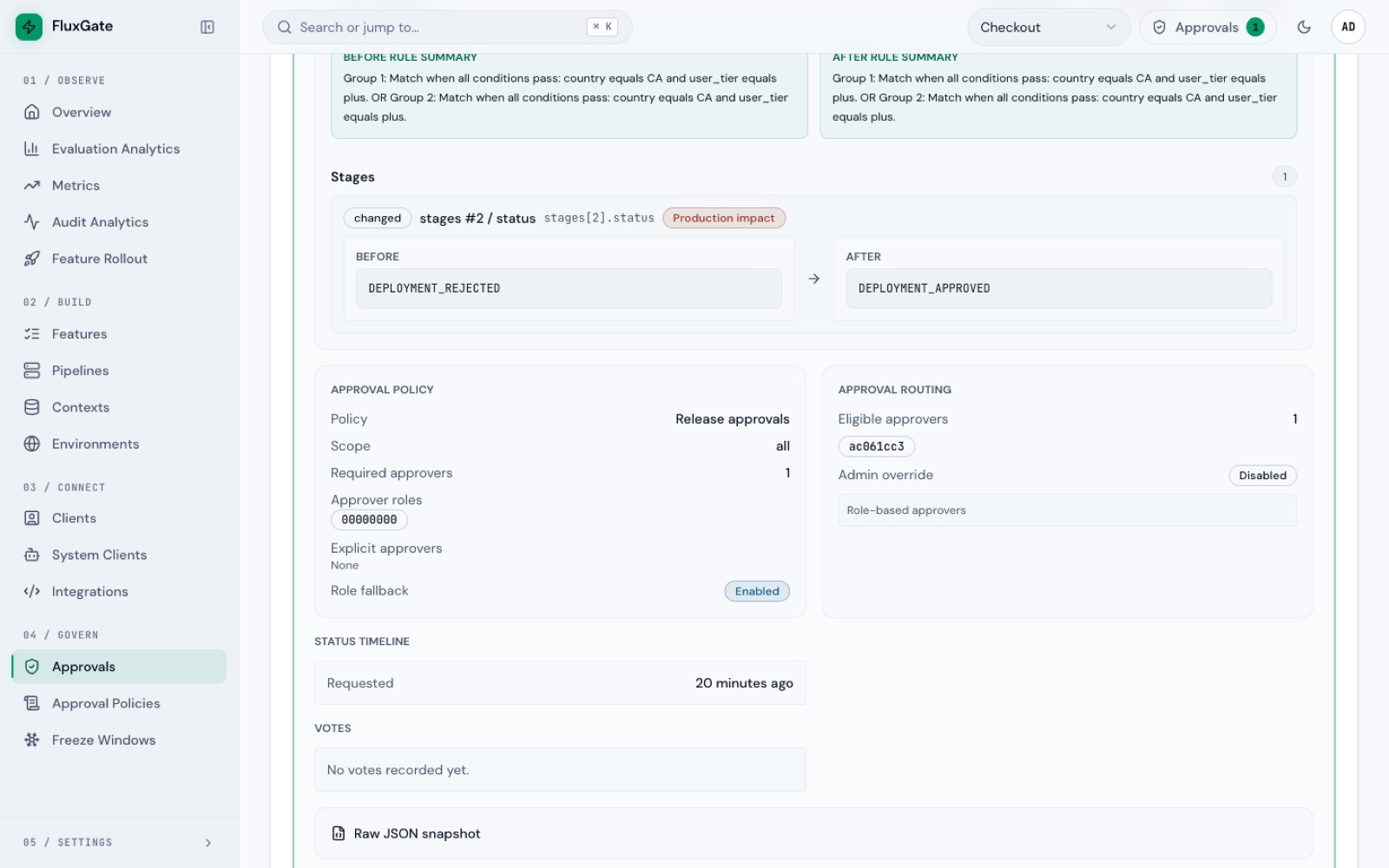
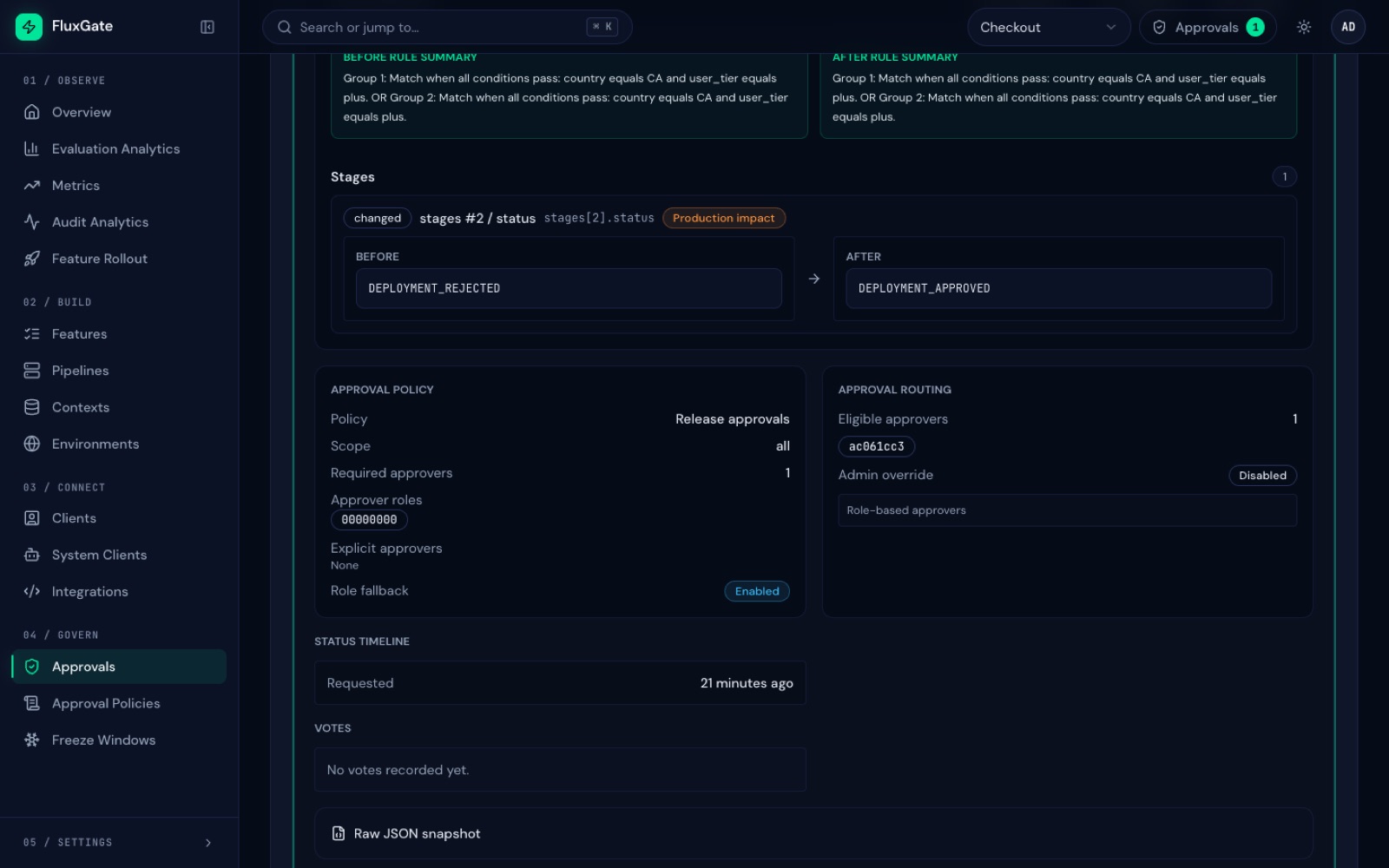
Details on a request is where the approver decides. Read it like a pull request:
| Section | What it shows |
|---|---|
| Request context | The external reference and the reason that the requester typed. |
| Blast radius | A risk level, a one-line summary, and tiles for Clients, Contexts, Dependencies and 7d evals. |
| Dependency impact | Appears only when the feature has dependents with an impact above low. |
| Structured diff | What changes, with a BEFORE and an AFTER value. |
| Approval policy | The policy that applies, its scope, the required approvals and the roles. |
| Approval routing | The approvers who are eligible for this request. |
| Status timeline | When the request was made and when each vote arrived. |
| Votes | Each vote with its comment and a snapshot tag. |
The Snapshot tag is a short id of the feature as it was when the request was made. The vote applies to that snapshot.
Tour the policy
- Sign in as
adminSystem admin. Click Approval Policies under Govern to open/settings/approval-policies. The table listsRelease approvalswith the scope All Environments, one required approval and the routing1 roles,0 users,fallback. - Click the pencil icon on the row (tooltip Edit policy). The dialog Edit Approval Policy opens.
- Read Scope, Required Approvals and Approver Roles. Scroll to Explicit Approvers, Fallback to roles, Admin override and Auto-approve After (hours).
- Click Cancel. Nothing changes.
Request a deployment to Staging
- Log out and sign in as
priyaRequester. - Open
express-checkoutat/features/<id>/editand click the Staging stage. Click the edge of its node, because clicking the environment name opens a selector. - Read the banner Approval required. It names the policy, its scope and the number of approvers: "1 required · 1 eligible". It appears before you click anything.
- In Stage Change Details, type
CHK-142in External Reference. TypeVerify the express checkout rules before Productionin Reason. The approver reads both. - Open Actions and click Request Deployment. The toast "Stage change requested" appears. Nothing deploys yet. The Actions menu now reads "Approval pending – resolve it through the Approvals page".
Approve it
- Log out and sign in as
samApprover. - Look at the Approvals pill in the header. It shows a count whenever a request waits, so an approver finds a request without a chat message. Click it to open
/approvals. The Pending filter is selected. - Click Details on the request. Scroll through Request context, Blast radius, Structured diff, Approval policy, Status timeline and Votes.
- Under Add a comment, type
Diff matches CHK-142, go ahead.Click Approve with comment. The toast "Approval recorded" appears, the panel closes and the request leaves the Pending list. - Log out and sign in as
priya. Openexpress-checkoutat/features/<id>/edit, click the Staging stage, open Actions and click Deploy. The stage status becomesDEPLOYED.
 (opens full size in a new tab)
 (opens full size in a new tab)
Request Production and see it rejected
- As
priya, click the Production stage. Leave External Reference empty and typeRelease express checkout to customersin Reason. Open Actions and click Request Deployment. - Log out and sign in as
sam. Open/approvalsand click Details on the new request. - Under Add a comment, type
Ship Production through CHK-142 so QA sign-off is tracked.Click Reject with comment. The toast "Request rejected" appears and the request leaves the Pending list. - Click the Rejected filter, then Details on the Production request, and scroll to Votes.
Say why when you reject. The requester reads the comment next. The stage does not deploy, and the vote is kept.
Examples
Stage statuses and who can move them
| Status | Meaning | Who moves it on |
|---|---|---|
NOT_DEPLOYED | The stage is off. | A Requester clicks Request Deployment. |
DEPLOYMENT_REQUESTED | A request waits for votes. | An Approver other than the requester votes. |
DEPLOYMENT_APPROVED | The policy is satisfied. The stage is not live yet. | A Requester or an Approver clicks Deploy. |
DEPLOYMENT_REJECTED | A vote rejected the request. | A Requester clicks Request Deployment again. |
DEPLOYED | The stage is live. | A Requester clicks Request Rollback. |
ROLLBACK_REQUESTED | A rollback waits for votes. A rollback needs approval too. | An Approver votes. |
ROLLBACK_APPROVED | The rollback is approved. The stage is still live. | A Requester or an Approver clicks Execute Rollback. |
ROLLBACK_REJECTED | An Approver rejected the rollback. The stage stays live. | A Requester clicks Request Rollback again. |
ROLLBACKED | The stage is off again after a rollback. | A Requester requests a deployment again. |
An admin System admin who holds neither role cannot request a deployment: FluxGate answers "Only users with 'Requester' role can request deployments or rollbacks".
The reject vote in Votes
After the rejection, the Votes section of the request shows this line:
Rejected by <approver id> — Ship Production through CHK-142 so QA sign-off is tracked. · Snapshot dc01a3afThe line lists the approver by id, not by name.
The diff in the Staging request
stages #1 / status
BEFORE  NOT_DEPLOYED
AFTER   DEPLOYMENT_APPROVED
The diff shows the status the stage reaches when the request is approved.
Good to know
- A request needs the Requester role. Deploy needs the Requester or the Approver role. Approve, Reject, Approve with comment and Reject with comment need the Approver role.
- The quick Approve and Reject buttons on a card send the comment
Approved via approvals dashboardorRejected via approvals dashboard. Use Details to leave your own comment. A rejection comment is optional, but a requester needs it. - After a vote, the voted request leaves the Pending list, and the comment is not on screen. Read it under Votes on the Approved or Rejected filter.
- The Approvals pill is visible to every signed-in user with a team selected, not only to approvers.
- The page opens on Pending. The other filters are All statuses, Approved, Rejected, Cancelled, Auto Approved and Mine.
- A request that still waits can be cancelled with Cancel.
- Blast radius shows its tiles for stage changes. 7d evals counts evaluations of the last 7 days, and the card says "No recent traffic data is available" when there are none.
Troubleshooting
Every request shows the tag "Production impact"
The red tag Production impact appears in the Structured diff of every stage request, also for Staging. Ignore it. Read the environment and the BEFORE and AFTER values instead.
The approver and the requester appear as ids
Votes, Requested by and Approval routing list users by id, or by the first eight characters of the id, and the card shows only a prefix of the feature id. Use Open Feature to see which feature a request is for. The approver role can show as "Role 00000000". Read it as the role Approver.
The Approve buttons are disabled
Your user lacks the Approver role. Ask a person who holds it to vote. When you are the requester, FluxGate rejects your own vote anyway.
Next
Learn freeze windows, the kill switch, scheduled changes and rollback in Safety nets.