

Enterprise · Single sign-on and SCIM
Sign in with OpenID Connect
An OIDC provider needs one redirect URI at the IdP and an issuer, client ID and client secret in FluxGate, and a connection test proves the issuer before anyone signs in.
Video coming soon
Sign in with OpenID Connect
Before you start
- You read Single sign-on and SCIM and know which role sync mode you want.
- You can register a web application at your OpenID Connect identity provider (IdP), such as Okta, Microsoft Entra ID or Keycloak.
- The backend has
FLUXGATE_ENCRYPTION_KEYset to the standard base64 of exactly 32 bytes. Or you provide the client secret throughFLUXGATE_SSO_<SLUG>_CLIENT_SECRET(see Client secrets). - In production,
public_base_urlinconfig.tomlis the publichttpsaddress of the backend. For a local test you can leave it unset. - The roles and teams you want to map exist. Juniper Market maps to the roles Requester and Approver and the team
Checkout. - Sign in as
adminSystem admin.
How an OIDC sign-in works
FluxGate uses the Authorization Code flow with PKCE (S256). It is a confidential client: it authenticates to the token endpoint with the client secret, through client_secret_basic, or client_secret_post when the IdP does not advertise basic.
- The person clicks Sign in with Okta on
/login. The backend creates a login state with a state value, a nonce and a PKCE verifier. The state is valid for 10 minutes and works once. The backend sets the cookiefluxgate_sso_stateand redirects the browser to the authorization endpoint of the IdP. - The IdP signs the person in and redirects the browser to the FluxGate callback with a code.
- The backend checks that the state cookie belongs to this login, consumes the state, and exchanges the code for tokens on the back channel.
- The backend validates the ID token, finds or creates the user, and syncs roles.
- The backend redirects the browser to the UI with a one-time code (valid 60 seconds, single use). The UI exchanges it for a normal FluxGate session.
The IdP tokens never reach the browser. FluxGate matches people by the provider and the sub claim only, never by the email of a known identity.
What FluxGate checks in the ID token
| Check | Rule |
|---|---|
| Signature | Verified with the keys from the IdP's JWKS. RS256, ES256 and PS256 only. none and HS256 are refused. |
iss | Equals the issuer of the discovery document. |
aud | Contains the client ID. When aud has several values, azp must equal the client ID. |
exp, iat | Valid, with 60 seconds of leeway. |
nonce | Equals the nonce of the login state. |
FluxGate caches the discovery document and the JWKS for 10 minutes. A token signed with an unknown key ID triggers at most one JWKS refetch per issuer per minute, so a key rollover at the IdP works without a restart.
The redirect URI to register
Register this exact address at the IdP. The match is exact:
<public_base_url>/api/v1/auth/sso/<slug>/callbackFor Juniper Market's provider okta, that is https://fluxgate.example.com/api/v1/auth/sso/okta/callback.
The Redirect URI field in the provider form shows an address that the UI builds from the backend address your browser uses. Treat it as a guide: it can show a port that the backend does not send, for example :443. Register the address built from public_base_url.
If public_base_url is unset, FluxGate builds the redirect URI from each request and honors the Forwarded and X-Forwarded-* headers. A proxy that changes the host between the start of the sign-in and the callback makes the IdP reject the flow.
Add the provider
- Open Settings, Single Sign-On (
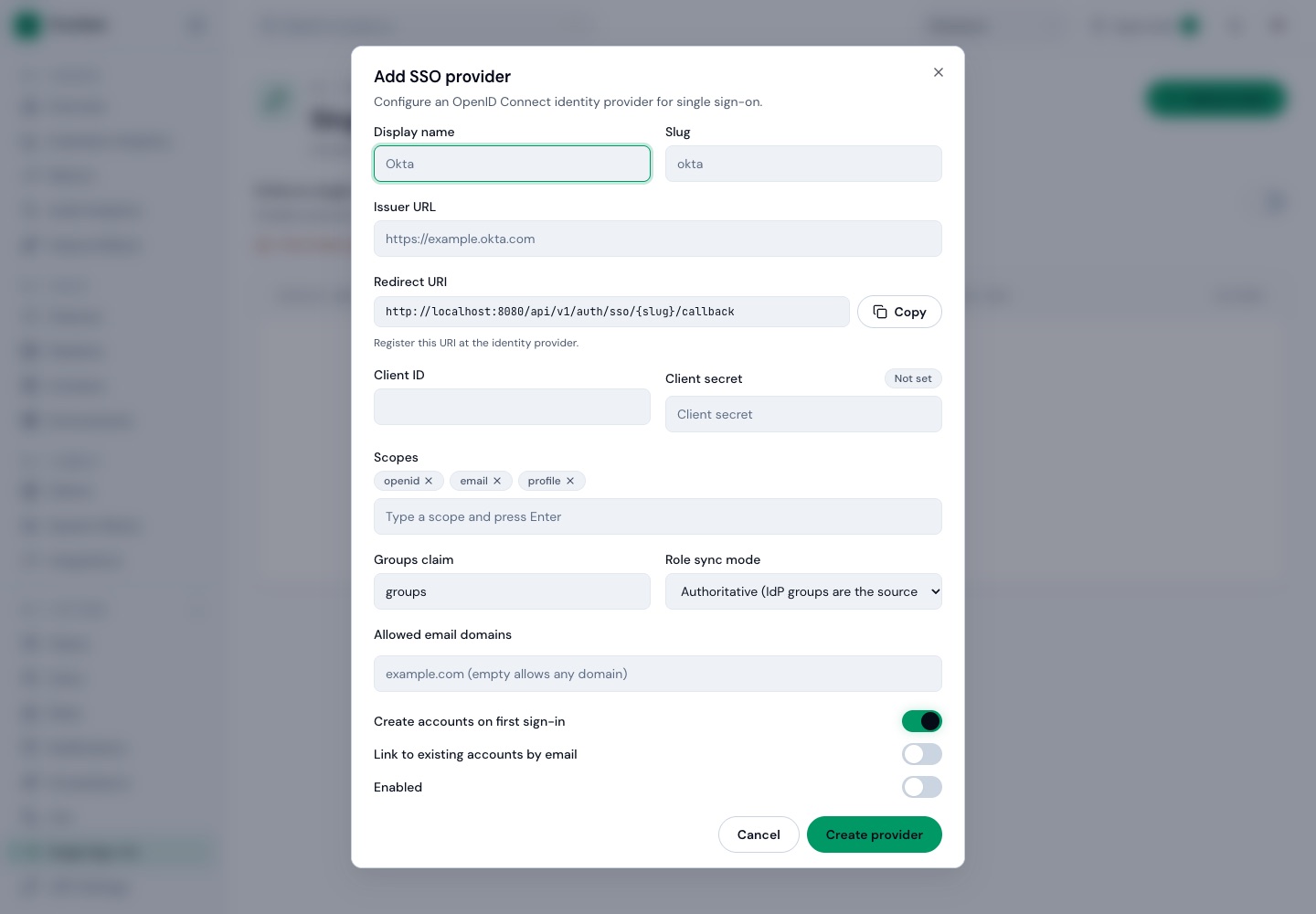
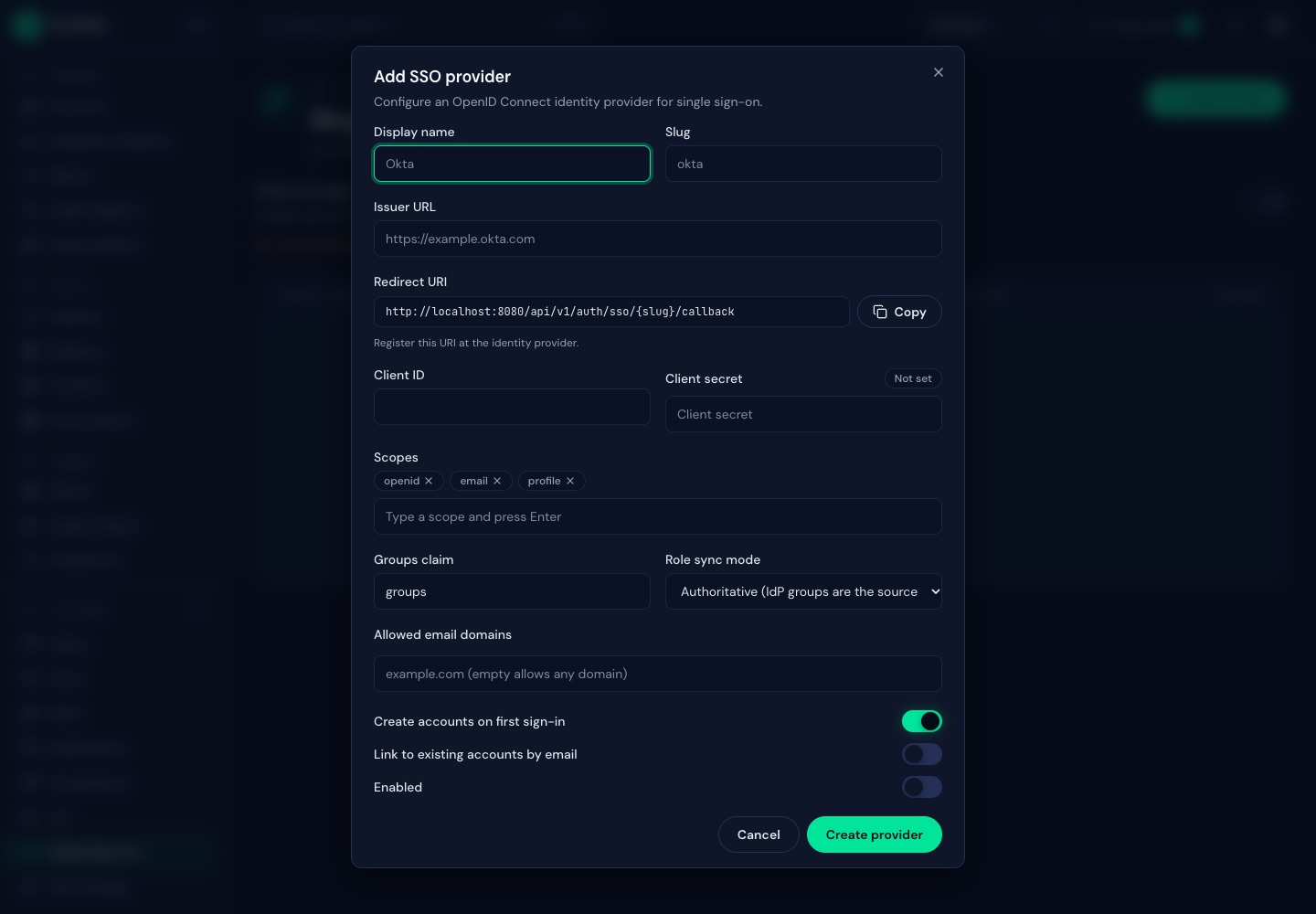
/settings/sso) and click Add provider. The dialog Add SSO provider opens. Keep Protocol at OpenID Connect. - Fill in Display name, Slug, Issuer URL, Client ID and Client secret. Leave Scopes at
openid,emailandprofile. Set Groups claim if roles come from sign-in. See the table below. - Click Copy next to Redirect URI and register the address at the IdP (see above).
- Set Allowed email domains, Create accounts on first sign-in, Link to existing accounts by email and Role sync mode. See Who may sign in and Role sync modes.
- Leave Enabled off. Click Create provider. The provider appears in the list.
- Click the pencil Edit provider on the row, then Test connection. Success shows
Connection OKwith the issuer and the authorization endpoint. A failure showsConnection failedand anError:line. - Close the dialog. Click the Group mappings icon on the row, add one row per target, and click Save mappings. The toast "Group mappings saved" appears.
- Open Edit provider again, switch Enabled on and click Save changes. The row shows an
Enabledbadge. - Open
/loginin a private window. A Sign in with Okta button appears above anordivider. Sign in with a test account at the IdP and check the result under Settings, Users.
 (opens full size in a new tab)
 (opens full size in a new tab)
Test connection appears only after you save, and it tests the saved configuration, not unsaved edits. It fetches the discovery document and the JWKS from the backend host with a 5-second timeout. It checks the issuer, not the redirect URI or the client secret: the first real sign-in proves those.
Provider fields
| Field | Okta (Juniper Market) | Keycloak | Notes |
|---|---|---|---|
| Display name | Okta | Keycloak | Shown on the login button: Sign in with plus the display name. |
| Slug | okta | keycloak | Lowercase letters, digits and dashes, up to 49 characters, unique. Part of the redirect URI. |
| Issuer URL | https://junipermarket.okta.com | https://keycloak.example.com/realms/acme | FluxGate fetches <issuer>/.well-known/openid-configuration. |
| Client ID | From the Okta app | fluxgate | |
| Client secret | From the Okta app | From the Keycloak Credentials tab | Write-only. See Client secrets. |
| Scopes | openid email profile | openid email profile | Must include openid. |
| Groups claim | Not needed: roles come from SCIM | groups | The claim that carries groups or roles. |
| Role sync mode | SCIM (after a SCIM token exists) | Authoritative | Default Authoritative. |
Juniper Market's Okta provider uses the Okta org issuer, because its roles come from SCIM and the ID token needs no groups claim. To read groups at sign-in from Okta, use a custom authorization server instead (see the Okta recipe).
Where groups come from
FluxGate reads groups from the claim named in Groups claim:
- It first tries the whole name as a literal key, which suits URL-style claim names. Then it tries a dot path, such as
realm_access.roles. - A string is one group. An array contributes its string items. Other types give no groups.
- If the ID token has no such claim and the role sync mode is Authoritative or Additive, FluxGate calls the userinfo endpoint and reads the claim there. The userinfo
submust equal the ID tokensub. - FluxGate never reads the access token.
Client secrets
A badge next to Client secret shows Set, Not set, or Provided by environment variable (read-only). When you edit a provider, leave the field empty to keep the secret, or click Clear secret to remove it.
FluxGate encrypts a stored secret with FLUXGATE_ENCRYPTION_KEY. The provider ID is bound to the ciphertext, so a secret copied to another provider row does not decrypt. To keep the secret out of the database, set it per provider in the environment instead. Take the slug, uppercase it, and replace every character that is not a letter or digit with _:
FLUXGATE_SSO_OKTA_CLIENT_SECRET=<Okta client secret>The slug my-idp gives FLUXGATE_SSO_MY_IDP_CLIENT_SECRET. A non-empty variable wins over the stored secret and needs no encryption key, which suits secret managers and Kubernetes secrets.
Change the issuer later
If you change the Issuer URL, FluxGate deletes the linked identities of the provider in the same transaction, because a sub is only unique per issuer. Users keep their accounts. At their next sign-in they are linked again (by SCIM or by email) or created, under the usual rules. The audit entry sso_provider_updated records issuer_changed and identities_cleared.
Identity provider recipes
In each recipe, replace <slug> with your slug and register <public_base_url>/api/v1/auth/sso/<slug>/callback. Click Test connection, then switch Enabled on.
The Keycloak recipe was tested against a Keycloak server: sign-in, linking by verified email, and group sync. The Okta recipe was tested against an Okta tenant with the org authorization server and SCIM role sync. The groups claim steps (2 and 3) were not. The Entra ID recipe follows the vendor documentation and was not run against a live tenant.
Keycloak
- Create or pick a realm.
- Create a client: client type OpenID Connect, client authentication on (confidential), standard flow on. Set the valid redirect URI to the callback address.
- Copy the client secret from the Credentials tab.
- Choose how groups or roles reach the ID token or userinfo. Pick one:
- Groups. Add a client scope mapper of type Group Membership with the token claim name
groups, Full group path off, added to the ID token and userinfo. Group names then arrive asFluxGate-Checkout, not/FluxGate-Checkout. Set Groups claim togroups. - Realm roles. Set Groups claim to
realm_access.roles, and turn on Add to ID token or Add to userinfo in the realm roles mapper. - Client roles. Under Clients, your client, Client scopes, the dedicated scope, add a mapper of type User Client Role. Set the token claim name to
groups, Multivalued on, Add to ID token on and Add to userinfo on. Set Groups claim togroups. Or, in the built-inrolesclient scope, turn on Add to ID token in theclient rolesmapper and set Groups claim toresource_access.<client>.roles.
- Groups. Add a client scope mapper of type Group Membership with the token claim name
- In FluxGate, set Issuer URL to
https://<host>/realms/<realm>. - Make sure users have a verified email if you use Allowed email domains or Link to existing accounts by email.
Keycloak puts client roles only in the access token by default. A client role mapping does nothing until a mapper adds the roles to the ID token or userinfo.
Okta
- Open Applications, Create App Integration, Classic experience, then OIDC - OpenID Connect of type Web Application, with the Authorization Code grant. Okta pre-fills the name "My Web App" and localhost redirect URIs: set the name, replace the sign-in redirect URI with the callback address, and remove the sign-out redirect URI. Copy the client ID and the client secret from General, Client Credentials.
- Roles from sign-in groups only: use a custom authorization server (Security, API). The org authorization server does not support custom claims. The issuer is
https://<org>.okta.com/oauth2/<server-id>. When roles come from SCIM, skip this step and step 3, and use the org URLhttps://<org>.okta.comas the issuer. - On that server, add a groups claim named
groups, included in the ID token (Always), with the value type Groups and a narrow filter, for example Starts withFluxGate-. A narrow filter keeps the token small. - Assign the app to the people or groups who may sign in.
- In FluxGate, set Issuer URL to the issuer from step 2, and Groups claim to
groups(not needed with the role sync mode SCIM).
Okta sends email_verified, so domain lists and linking by email work. For the full Okta walk-through with SCIM, see FluxGate with Okta.
Microsoft Entra ID
- Under App registrations, create a registration with the platform Web and the callback address as redirect URI. Create a client secret under Certificates and secrets.
- Use the v2.0 issuer
https://login.microsoftonline.com/<tenant-id>/v2.0. If the issuer in tokens is the v1 form, setrequestedAccessTokenVersionto 2 in the app manifest. - Recommended: define app roles in the app registration, assign users or groups to them under Enterprise applications, and set Groups claim to
roles. The role values are the group values in your mappings. - Alternative: add a groups claim under Token configuration, and use the group object ID as the group value. A user in many groups (more than 200) triggers overage: Entra sends a pointer instead of the groups. FluxGate treats this as no groups and logs a warning. In Authoritative mode this removes the SSO-managed roles of that user. Prefer app roles, or select "Groups assigned to the application".
- Entra does not send
email_verified. With a non-empty Allowed email domains, or with Link to existing accounts by email, FluxGate rejects these sign-ins. Leave the domain list empty and restrict access through user assignment on the enterprise application. For SCIM, link onoidandexternalId(see SCIM provisioning).
Good to know
- Only enabled providers show a button on
/loginand accept sign-ins. The button is hidden when no provider is enabled. - Discovery, JWKS, token and userinfo responses are limited to 1 MiB, with a 10-second timeout and no redirects.
- If the same new person finishes two first sign-ins at the same time (for example in two tabs), one creates the account and the other fails with
sso_provider_error. Signing in again works. - Test connection runs from the backend host, so it can reach internal hosts. Only system admins can run it.
- After a sign-in, the person lands on the page they asked for. FluxGate accepts only a path inside FluxGate as the return address.
Troubleshooting
Saving fails with "Server has no FLUXGATE_ENCRYPTION_KEY"
The key is missing or is not 32 bytes of standard base64. Set a valid key and restart the backend, or set FLUXGATE_SSO_<SLUG>_CLIENT_SECRET.
The IdP reports a redirect_uri mismatch
The registered address differs from the one FluxGate sends. Set public_base_url and register the exact address <public_base_url>/api/v1/auth/sso/<slug>/callback.
There is no login button
The provider is disabled. Open Edit provider and switch Enabled on.
"Sign-in session expired. Try again."
The code is sso_state_invalid. A proxy strips the fluxgate_sso_state cookie, a second tab replaced it, or the sign-in took longer than 10 minutes. Forward cookies on /api/v1/auth/sso/, use one tab, and start again.
"Your email domain is not allowed for this sign-in method."
The domain is not in Allowed email domains, or the IdP does not send email_verified: true. Add the domain, mark emails verified at the IdP, or empty the list. Entra ID never sends email_verified.
Roles are not synced
Check the Groups claim name, that the Role sync mode is not Off, and that the group value matches in case. With Keycloak, Full group path on sends /FluxGate-Checkout: turn it off or map the value with the slash. Roles that appear only in the access token are never read: add a mapper for the ID token or userinfo.
A role change fails with 409 sso_managed
Sync owns the assignment. Change the group at the IdP or change the mapping.
Next
Connect a SAML identity provider in SAML 2.0, or let the IdP manage accounts with SCIM provisioning.